

As a system administrator, it is useful to know the version of AlmaLinux you are running, as different versions may require specific software packages or drivers during troubleshooting. AlmaLinux releases include different kernel versions, security patches, and supported packages. For instance, AlmaLinux 9 has more recent features, better speed, and extended support with respect to AlmaLinux 8. You will need to ensure compatibility with applications; knowing your OS version helps avoid all of that when managing servers, either on-premises or in the cloud.
This guide will show you the quickest, simplest, and most responsible way to check your AlmaLinux version.
Table of Contents
- How to Check the AlmaLinux Version?
- Method 1: Using an almalinux-release File
- Method 2: Using /etc/os-release
- Method 3: Using hostnamectl Command
- Method 4: Using the uname Command
- Method 5: Using the rpm Command
- Method 6: Using a GUI
- Conclusion
How to Check the AlmaLinux Version?
AlmaLinux is a community-driven, free, and open-source Linux distribution derived from Red Hat Enterprise Linux (RHEL). Because of its stability, long-term support, and binary compatibility with RHEL options, it is widely used in enterprise environments. As a result, many system commands and tools that are available on RHEL can also be used on AlmaLinux.
There is more than one way to check your AlmaLinux version, from reading files in the system to using built-in commands. Some methods are fast, some give a lot of details about the system. We will look at each approach, one by one.
Method 1: Using an almalinux-release File
The simplest and most direct method to verify your AlmaLinux version info is by reading the /etc/almalinux-release file. Specifically for the AlmaLinux distro, this file is in plain-text string format version type. It simply dumps the file contents to the terminal: cat filename. Since this file is lightweight and only meant for version info, the output will be quick and clean without fluff.
|
cat /etc/almalinux-release |
|---|

This output shows the version and codename of the operating system prominently.
This method is perfect if you just want to check the installed version without delving into the system’s metadata. It is also widely employed by administrators to run quick checks on remote servers.
Method 2: Using /etc/os-release
The testing method is the/etc/os-release file, which is also a trusted and commonly used way. The /etc/os-release file is a standard in almost all modern Linux distributions. The data is structured in a key-value format about the OS. Some of these include fields such as NAME, VERSION, VERSION_ID, and PRETTY_NAME.
|
cat /etc/os-release |
|---|
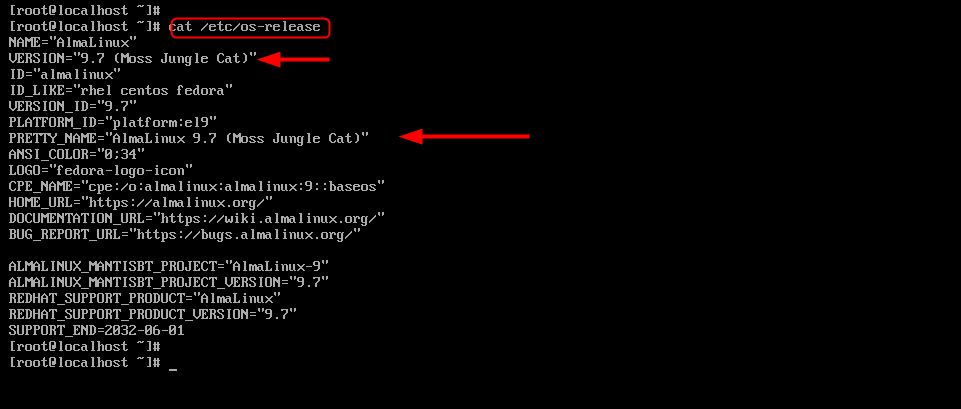
With this output, you can easily get either the full version name or the numeric version, too. This file is critical since various applications and scripts use it to recognize the OS system and its ability to run. It contains more detailed and structured data than the almalinux-release file, so it is useful for both human eyes and automated systems.
Method 3: Using hostnamectl Command
Another powerful way to check your version of AlmaLinux is using the hostnamectl command. This command follows in the footsteps of systemd’s toolkit and is mainly used to set and show the system hostname.
|
hostnamectl |
|---|
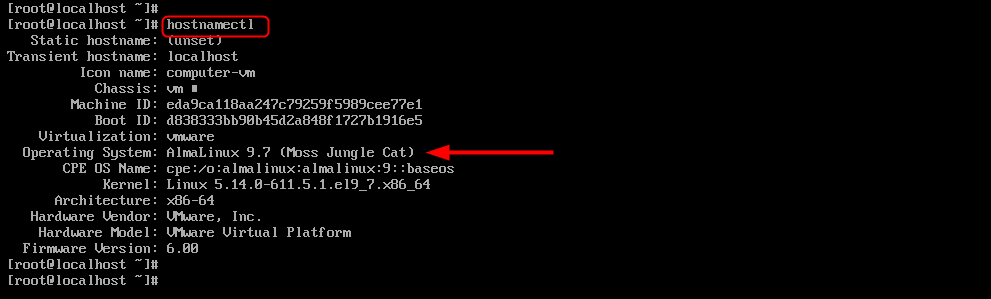
This command also gives us clean and readable output. It can be of great use for any beginner and administrator as it summarises your systems, displaying output in a readable format. This is especially useful whenever you need information relating to both the OS and hardware.
Method 4: Using the uname Command
A widely used command to verify system-level information, more often the kernel version is the uname command. The uname command contains information about your Linux; the -r option shows the kernel version. This doesn’t directly reveal the AlmaLinux version, but the kernel version can offer helpful hints about which OS release is in play.
|
uname -r |
|---|

While indirect, this approach is useful for diagnosing system problems or confirming kernel compatibility when otherwise necessary.
For instance, AlmaLinux 9 generally operates on a 5. Instead, use other ones (older), depending on kernel=x. This makes uname useful for troubleshooting, debugging, and checking compatibility with drivers or applications.
Method 5: Using the rpm Command
You can check the AlmaLinux version using the RPM package manager as well. AlmaLinux is based on the RPM package management system. The almalinux-release package provides the version information for the OS. You can’t, because on your package, you can only query to get the version installed.
|
rpm -q almalinux-release |
|---|

The output shows the package version, which maps to the AlmaLinux release.
The -q option means “query”: it is how to check whether packages are installed. And parsing the output can be useful for scripts, automation tasks, and system audits that require accurate version information.
Method 6: Using a GUI
If you have installed AlmaLinux with a graphical user interface (GUI) desktop environment, then you can check the version through the System Settings.
- Open Settings
- Navigate to About
- View the OS version details

Use the System Information application as a graphical method to find all information without terminal commands. The version of the operating system, kernel version, and hardware details are usually listed in the “About” section.
This approach can be helpful if you are new to using GPT or not well-versed with command-line tools. Once again, it gives you the same information but in a neat visual format.
Reading and applying the method of these will give you control over AlmaLinux system setup, as well as application and environment compatibility. These techniques are valid across versions of AlmaLinux and will likely remain useful for as long as the distribution continues to exist.
Conclusion
Although checking the AlmaLinux version is a simple task, it still plays an important role in system management. Consider whether you are installing software, troubleshooting issues, or performing updates; knowing your OS version helps ensure that everything works properly. To check the AlmaLinux version, open the terminal and run cat /etc/almalinux-release or cat /etc/os-release. These commands display the installed AlmaLinux version and related system details.
cat /etc/almalinux-release is the fastest way to check the version, and /etc/os-release contains more detailed and standardized data. The hostnamectl command provides a clean overview of system details, while the rpm command is ideal for automation/scripting. Also, uname -r gives you some insight for working at the kernel level, as GUI is quite a handy option to access for nontechnical users.

Leave feedback about this