
It can be challenging to manage multiple Linux VPS servers manually, particularly when performing repetitive tasks such as updates, user management, or configuration changes. ClusterSSH, a powerful open-source tool, allows administrators to manage multiple servers from a single terminal.
This guide will show you how to install ClusterSSH, configure it, and then use it to efficiently manage multiple Linux VPS Servers.
Table of Content
- What Is ClusterSSH and Why Use It?
- How to Manage Multiple Linux VPS Servers with ClusterSSH
- Common Use Cases for ClusterSSH
- Troubleshooting Common ClusterSSH Issues
- Conclusion
What Is ClusterSSH and Why Use It?
ClusterSSH is a graphical SSH Client that allows you to open multiple SSH Sessions at the same time and execute commands on multiple servers in parallel. This is the ideal tool for system administrators who manage clusters, cloud-based servers, or fleets of VPS instances.
ClusterSSH is a powerful tool for managing multiple Linux servers. It reduces the amount of repetitive work and minimizes errors. Be sure to have the following:
- Multiple Linux VPS servers (Ubuntu, Debian, CentOS, etc.)
- All servers can be accessed via SSH
- Local Linux machine with GUI support
- Configuration of SSH keys (recommended).
How to Manage Multiple Linux VPS Servers with ClusterSSH
ClusterSSH lets you manage multiple Linux VPSs simultaneously. It does this by opening several SSH connections at once and broadcasting commands through a single control panel. Installing ClusterSSH and configuring SSH key-based authentication on your local computer allows you to connect to several servers or server groups in real-time and execute administrative commands. This method saves time and repetitive work and ensures consistency in managing updates, services, and configurations across multiple Linux servers.
Step 1: Install ClusterSSH on Your Local Machine
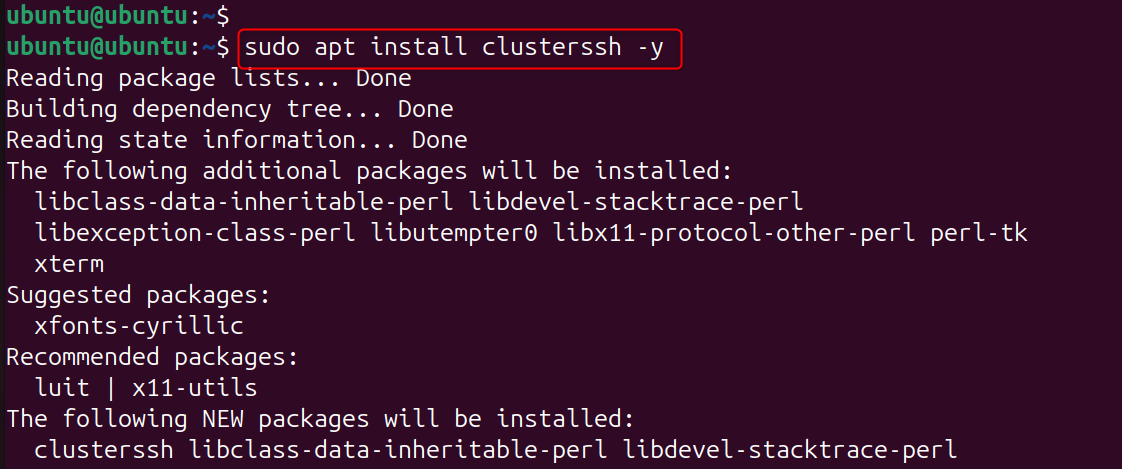
ClusterSSH must be installed locally, not on VPS servers. It is a graphical user interface for connecting to remote systems using SSH.
For Ubuntu / Debian
|
sudo apt update sudo apt install clusterssh -y |
|---|

For CentOS / RHEL
|
sudo dnf install epel-release -y sudo dnf install clusterssh -y |
|---|
It is easier to manage your servers by installing them locally.
Step 2: Verify ClusterSSH Installation
Verifying the version after installation ensures that the tool is installed correctly and ready for use.
|
cssh –version |
|---|


Step 3: Set Up SSH Key-Based Authentication
ClusterSSH is best used with passwordless SSH login. This step is crucial for a smooth multi-server administration.
|
ssh-keygen |
|---|

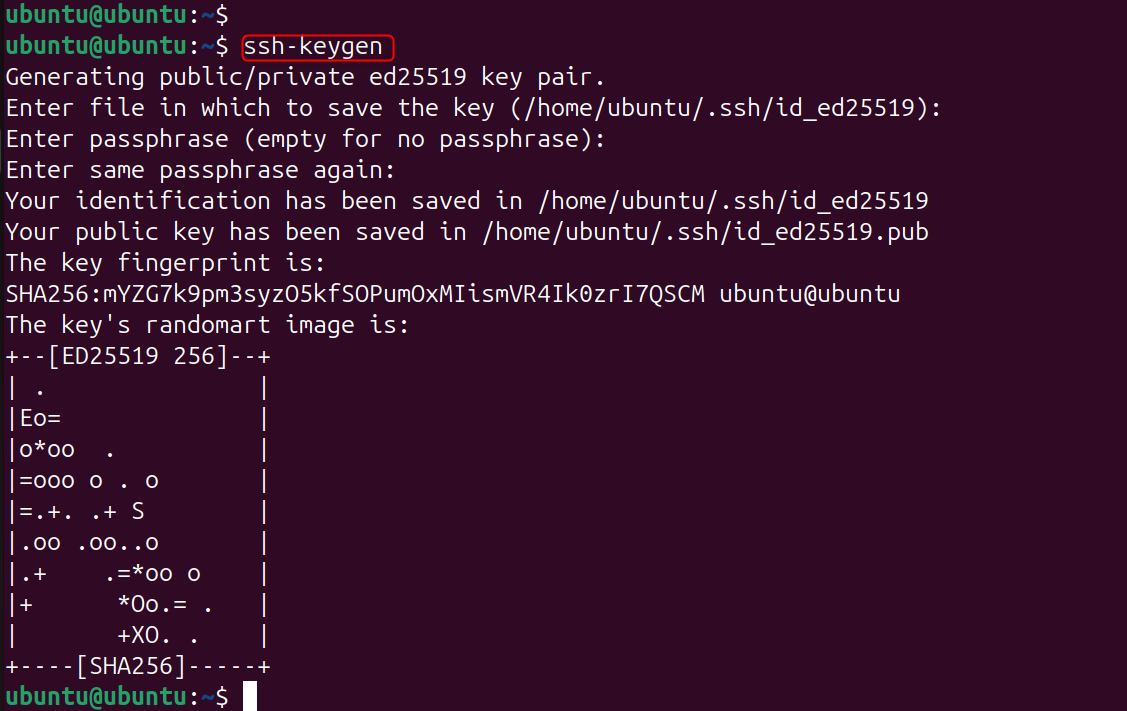
SSH keys provide automated, secure access to SSH without asking for passwords.
|
ssh-copy-id user@server_ip |
|---|

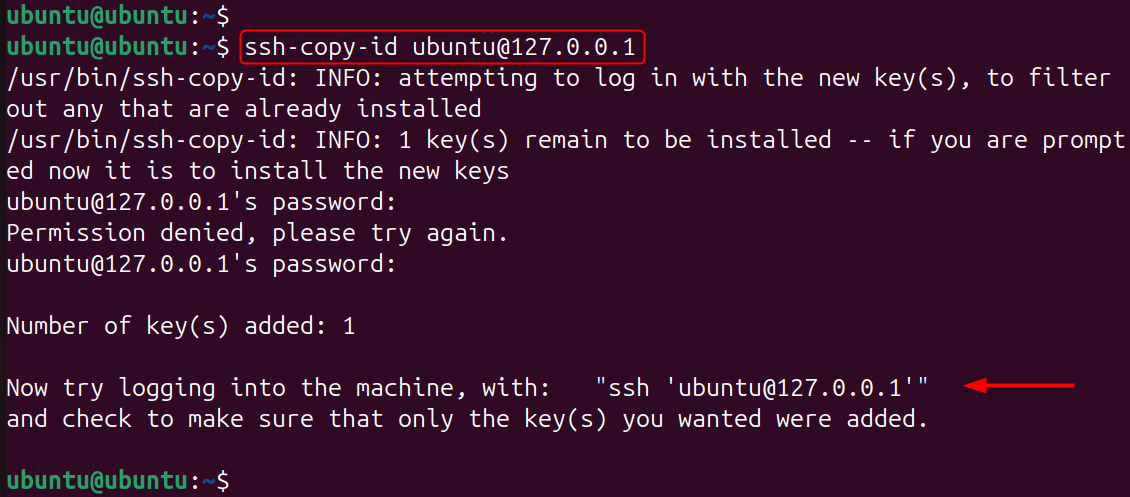
Repeat this for each VPS.
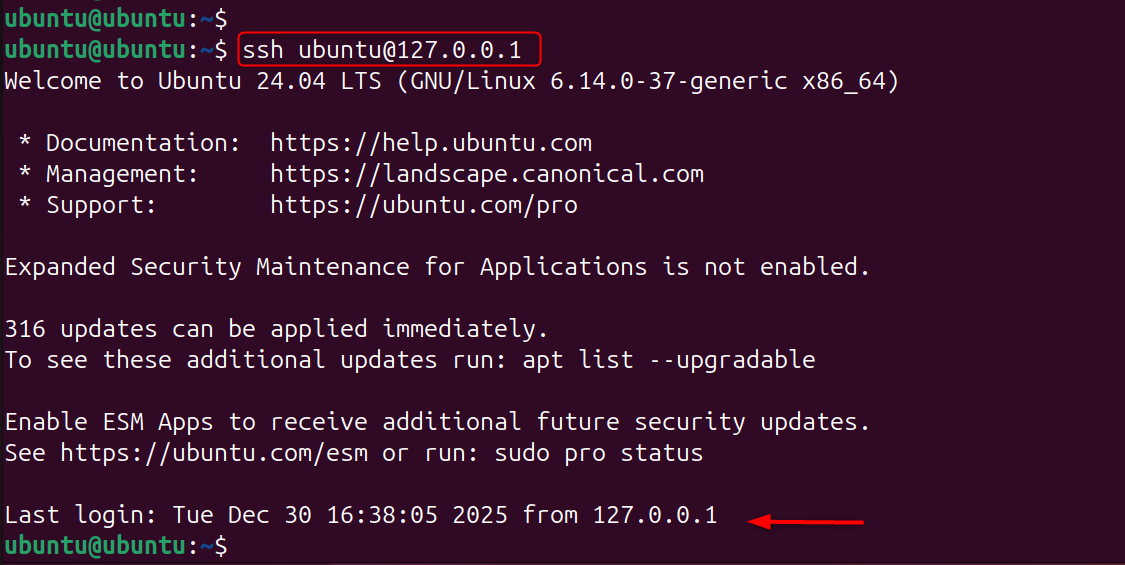
Step 4: Test SSH Access to Each Server
ClusterSSH will only work if you can connect to every VPS separately. You can avoid connection errors when clustering sessions. Test connectivity to ensure credentials and network access are correct.
|
ssh user@server_ip |
|---|

Step 5: Launch ClusterSSH with Multiple Servers
ClusterSSH lets you specify multiple servers from the command line. Each server is opened in a separate SSH window.
|
cssh user@server1 user@server2 |
|---|

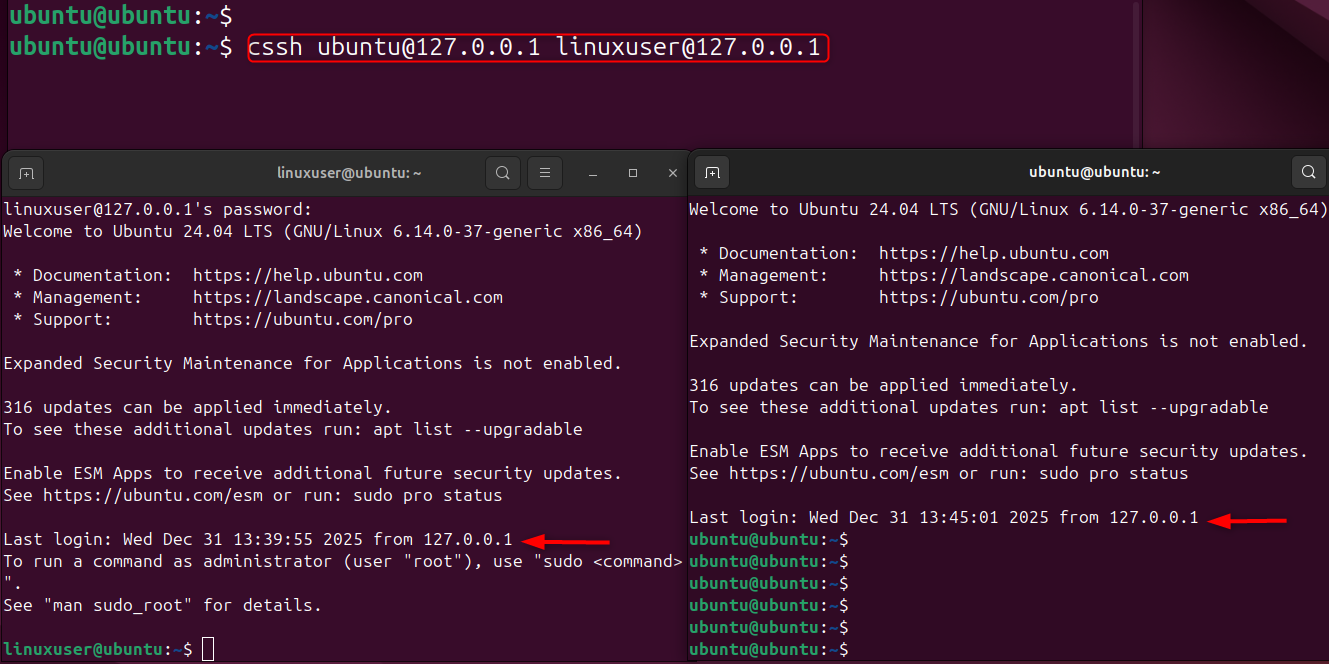
This step is the foundation of multi-server management.
ClusterSSH opens:
- One control window (input broadcast)
- Multiple terminal windows (one per server)
Commands typed in the control window are sent to all servers simultaneously.
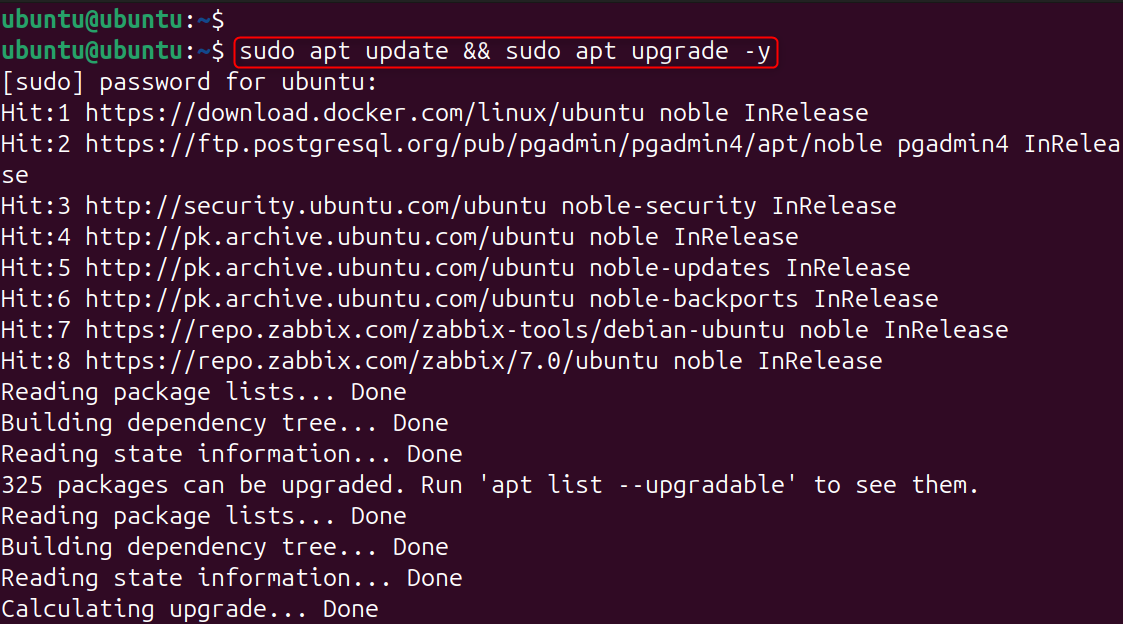
Step 6: Run Commands Across All Servers
You can use the Control Window to run administrative commands simultaneously on all VPS servers connected.
This eliminates manual repetitive work.
|
sudo apt update && sudo apt upgrade -y |
|---|

Step 7: Disable Broadcasting When Needed
ClusterSSH lets you toggle the command broadcasting. It is particularly useful for running server-specific commands.
By disabling broadcasting, you can prevent accidental changes from spreading to all servers. Press:
|
Ctrl + Shift + B |
|---|
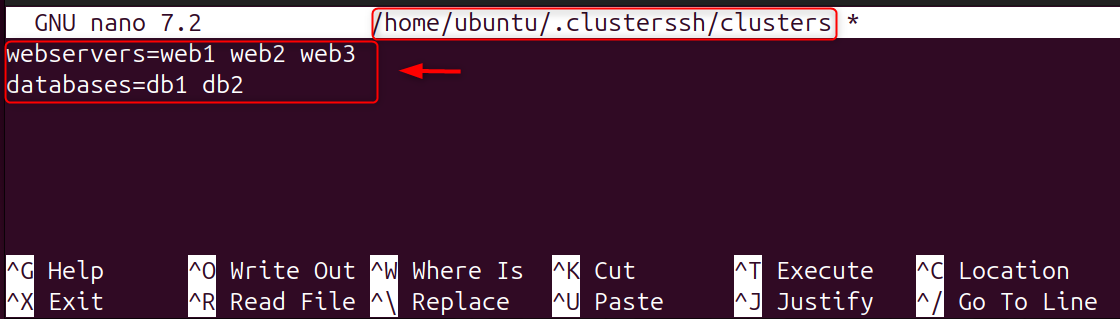
Step 8: Use Server Groups for Better Organization
ClusterSSH allows you to group servers according to their role, such as database or web servers. Grouping reduces human errors and improves organizational efficiency. Edit the config file:
|
sudo nano ~/.clusterssh/clusters |
|---|
Example:
|
webservers=web1 web2 web3 databases=db1 db2 |
|---|

Step 9: Connect Using Server Groups
You can connect to groups using just one command after defining them. This saves time when managing large server fleets.
|
cssh -g webservers |
|---|


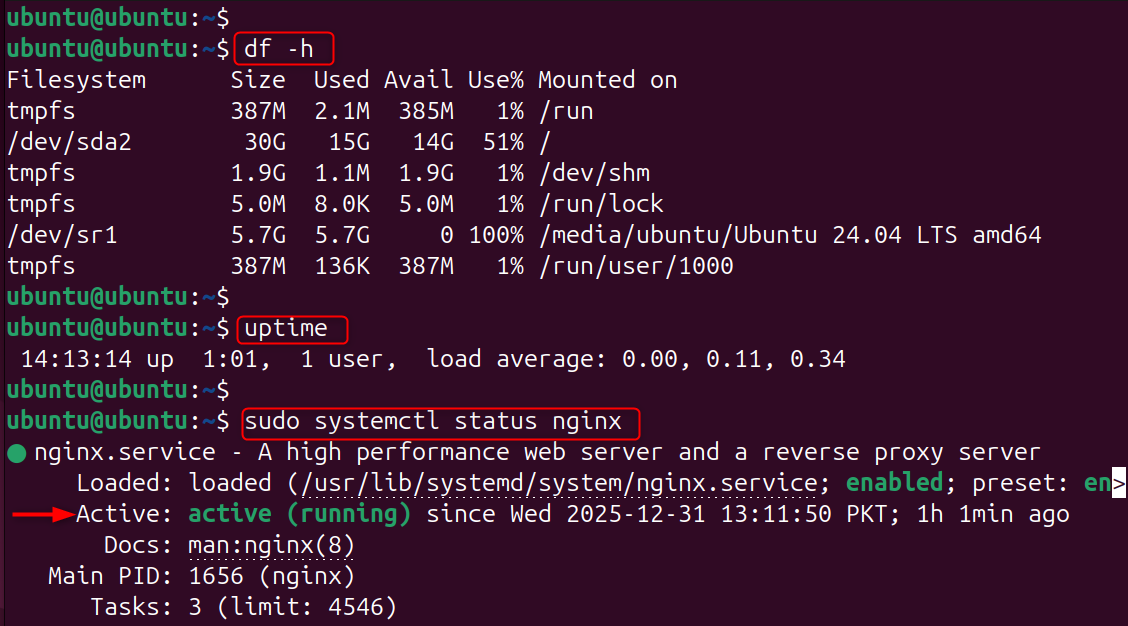
Step 10: Run Maintenance Tasks Efficiently
ClusterSSH can be used for routine maintenance such as updating packages, restarting services, or checking disk usage. This ensures consistency across all servers.
|
df -h uptime systemctl status nginx |
|---|

Step 11: Secure ClusterSSH Usage
Double-check all commands before executing, since they are broadcast. If possible, avoid destructive commands. Safety is improved by limiting sudo privileges and using separate accounts.
Step 12: Logging and Auditing Commands
ClusterSSH does not log commands by default. Auditing is easier if you enable shell history on the server and central logging. It is important for troubleshooting and compliance.
Step 13: Best Practices for Managing Multiple VPS Servers
Following these practices minimizes risks and errors.
- Use SSH keys only
- Group servers can be grouped logically
- Test the commands first on a single server
- Avoid destructive commands
- Keep server names descriptive
Common Use Cases for ClusterSSH
ClusterSSH excels in environments where consistency matters.
- Updating multiple servers
- Restarting services across VPS nodes
- User account management
- Configuration changes
- Monitoring server health
Troubleshooting Common ClusterSSH Issues
If ClusterSSH fails to connect:
- Check SSH access
- Verify SSH keys
- Confirm DNS or IP
- Ensure X11 forwarding is enabled
Most issues are SSH-related rather than tool-related.
Conclusion
ClusterSSH lets you manage multiple Linux VPSs simultaneously. It does this by opening a number of SSH sessions and broadcasting commands through a single control panel. Installing ClusterSSH and configuring SSH key-based authentication on your local computer allows you to connect to several servers or server groups in real time and execute administrative commands. This method saves time and repetitive work and ensures consistency in managing updates, services, and configurations across multiple Linux servers.