System administrators often have to restart the network of a Linux machine after changing IP configurations, DNS settings, or network interfaces. CentOS 10 relies heavily on NetworkManager, so understanding the correct way to restart networking services is crucial to avoid losing connectivity, especially on production servers. This guide will explain how to restart the network on CentOS 10 using NetworkManager. It also includes troubleshooting advice for remote servers, VPS environments, and systemctl.
Table of Content
- Understanding Network Management in CentOS 10
- How to Restart Network on CentOS 10
- Best Practices for Remote Servers and VPS
- Common Network Issues After Restart
- Conclusion
Understanding Network Management in CentOS 10
CentOS 10 defaults to NetworkManager. The traditional CentOS network service has been deprecated. The majority of network restarts are now done using the systemctl and nmcli commands. If you use the wrong method, your server may disconnect unexpectedly.
How to Restart Network on CentOS 10
When you use the right tools, restarting your network in CentOS 10 can be a simple process. CentOS 10 relies heavily on NetworkManager. Commands like systemctl and nmcli provide a safe and flexible way to reload the network configurations. Understanding these methods will ensure reliable network management, quicker troubleshooting, and safer administration for both local systems and remote VPS servers.
Method 1: Restart Network Using NetworkManager (Recommended)
It is safe and reliable to restart the networking on CentOS 10 using this method.
Step 1: Restart NetworkManager Service
Restarting NetworkManager reloads network configurations and reconnects interfaces.
|
sudo systemctl restart NetworkManager |
|---|


This command will stop and start the NetworkManager service. Any configuration changes are applied without having to reboot.
Step 2: Verify NetworkManager Status
Check if your service is working properly after restarting.
|
sudo systemctl status NetworkManager |
|---|

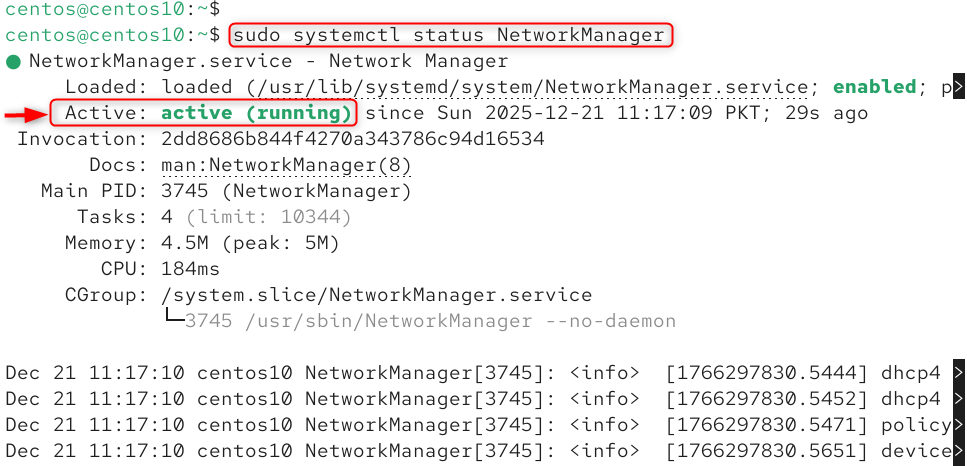
This indicates that the network service has been restarted and there were no errors.
Method 2: Restart Network Using nmcli (Interface-Level Restart)
The nmcli utility allows you to manage your network connections without having to restart the service.
Step 1: List Active Network Connections
Identify the name of your active network connection.
|
nmcli connection show |
|---|


CentOS 10 does not use interface names such as ens33 and eth0, but instead uses connection profiles.
Step 2: Bring the Network Connection Down
Deactivate a specific network connection.
|
sudo nmcli connection down <connection-name> |
|---|


This will temporarily disable the NetworkManager interface, but not stop it.
Step 3: Bring the Network Connection Back Up
Reactivate your network connection.
|
sudo nmcli connection up <connection-name> |
|---|


Updates to IP addresses, DNS, or gateway settings are applied.
Method 3: Restart Network Interface Using the ip Command
This method only restarts a particular network interface.
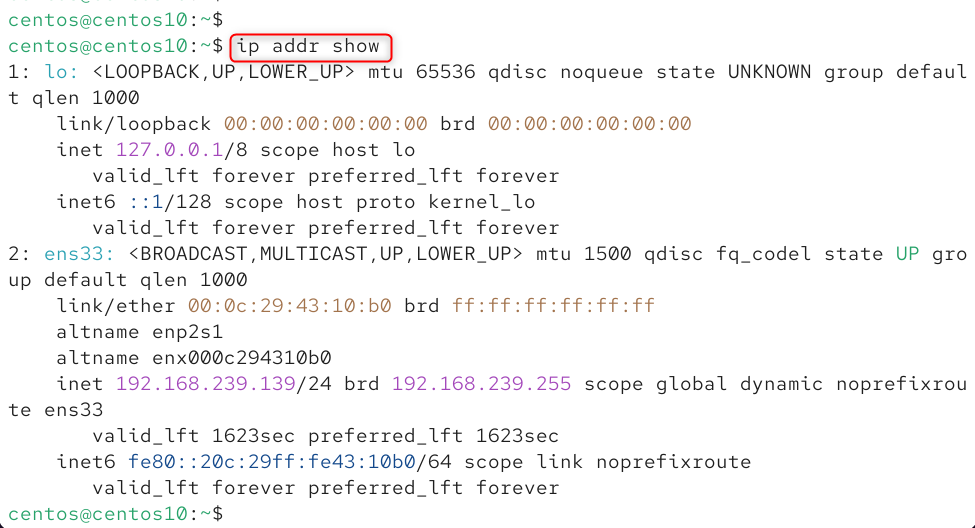
Step 1: Identify Network Interface
This shows all interfaces on the network and allows you to identify which one is active.
|
ip addr show |
|---|

Step 2: Bring Interface Down
This disables the network interface on the kernel level.
|
sudo ip link set <interface-name> down |
|---|


Step 3: Bring Interface Up
This will re-enable the interface and trigger a network reconnect.
|
sudo ip link set <interface-name> up |
|---|


Method 4: Restart Network from nmtui (Text UI Tool)
CentOS 10 offers a text-based interface for managing networks.
Step 1: Launch nmtui
This will open a menu-driven interface that is suitable for console-only systems. Navigate to Activate a connection.
|
sudo nmtui |
|---|

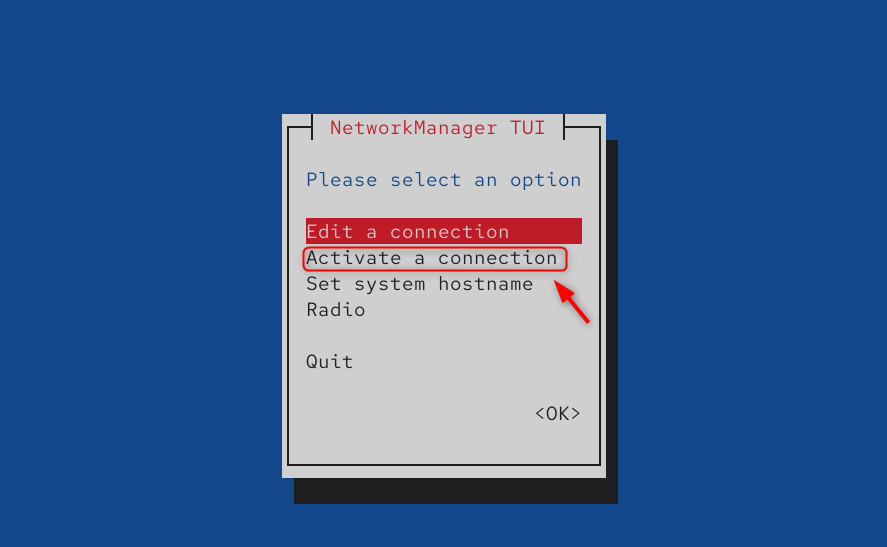
Step 2: Restart Network Connection
Restart the network connection by deactivating and activating the connection.

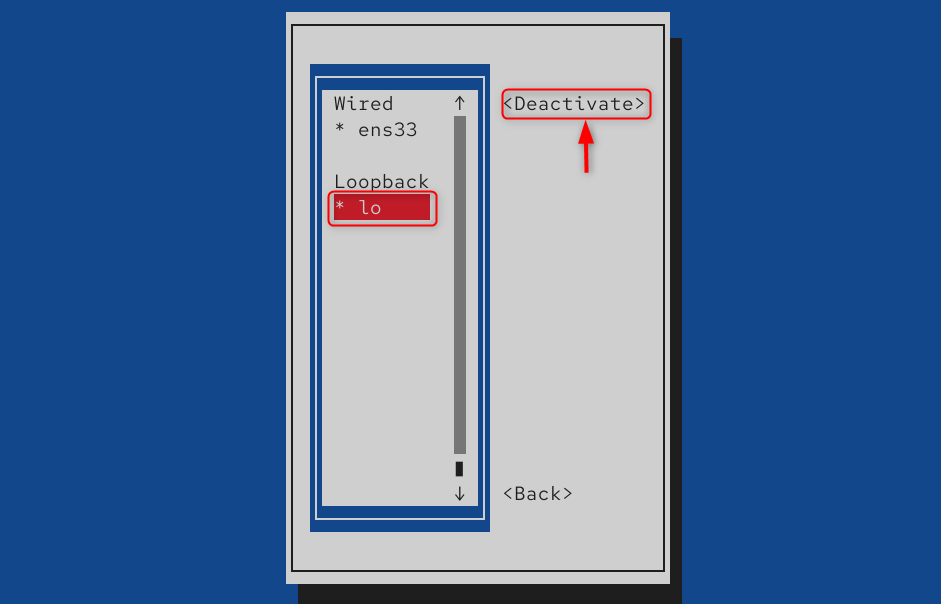
The network is restarted visually without having to type commands.
Method 5: Restart the Network by Rebooting the Server
Rebooting is a last-resort method to ensure that all services are reloaded cleanly.
|
sudo reboot |
|---|


Best Practices for Remote Servers and VPS
- Test network changes with nmcli
- Avoid restarting NetworkManager over unstable SSH connections
- Keep a backup SSH open
- Rescue console access is available through your VPS provider
Common Network Issues After Restart
Rebooting all system services, including networking, causes downtime.
No Internet Access
- Check DNS configuration at /etc/resolv.conf
- Verify gateway settings with ip route
Connection Not Reconnecting
- Restart NetworkManager again
- Use nmcli device status to check the interface state
SSH Disconnected
- Re-enable the network using the provider console.
Conclusion
The recommended way to restart the CentOS 10 network is by restarting the NetworkManager Service using systemctl start NetworkManager. This will safely reload all network configurations. You can also restart individual connections with nmcli. You can bring interfaces up and down using the ip commands, or manage them through the nmtui user interface. These methods enable you to make network changes without requiring a system reboot. They are also essential when troubleshooting CentOS 10 server connectivity issues.