AI can write a working Dockerfile in about ten seconds. The trouble shows up later: the container runs as root, the bind mount throws a permission error on your Linux host, and the image is 1.4 GB because nobody told the model to use a multi-stage build.
This guide shows how to prompt AI for Docker configurations that fit a Linux server, and how to review the output before it reaches production. Every example here was run on a real Linux host, and the review checklist comes from the specific ways generated configs fail there.
Table of Content
- How to Generate Docker Configurations with AI for Linux Servers
- What Can AI Generate for Docker Configurations?
- Best AI Tools for Generating Dockerfiles and Docker Configurations
- How to Prompt AI to Generate a Production-Ready Dockerfile
- Practical Example: Generate a Dockerfile and Compose Configuration for Flask
- 7 Common Docker Configuration Mistakes AI Makes on Linux
- How to Validate AI-Generated Docker Configurations Before Deployment
- How to Use AI to Troubleshoot Docker Containers on Linux
- How to Protect Secrets When Using AI for Docker Configurations
- When Should You Avoid AI-Generated Docker Configurations?
- Frequently Asked Questions
How to Generate Docker Configurations with AI for Linux Servers
To generate Docker configurations with AI, give the model your language, runtime version, ports, and Linux target. Ask for a multi-stage Dockerfile, a compose.yaml, and a .dockerignore. Then lint with hadolint, validate with docker compose config, and test as a non-root user before you deploy.
What Can AI Generate for Docker Configurations?
AI is good at the parts that follow a pattern. That covers a Dockerfile for Node, Python, Go, or Java, a docker compose file with a database and a cache, a .dockerignore, and a basic healthcheck.
It is weak at anything that depends on your machine. The model cannot see your host UID, whether SELinux is enforcing, which firewall you run, or how much disk your build cache already eats. Those gaps explain most of the bad configs I see.
A realistic split looks like this:
- Let AI draft: Dockerfile, compose.yaml, .dockerignore, environment variable lists, CI build steps, a systemd unit that starts your compose stack.
- Check by hand: user and permission settings, volume mounts, published ports, secrets handling, log rotation, image tags.
Best AI Tools for Generating Dockerfiles and Docker Configurations
There is no single best Docker AI tool. The right pick depends on how much context you can hand over.
Tool | Best for | Weak spot |
|---|---|---|
General chat assistants (Claude, ChatGPT) | Custom stacks, explaining why a line exists, fixing build errors from pasted logs | Only knows what you tell it about your host |
docker init | A safe baseline Dockerfile, compose.yaml, and .dockerignore for common languages | Template-based, so it will not handle unusual stacks |
Ask Gordon in Docker Desktop | Questions about images you already have locally | Docker Desktop is the main home for it, so Linux server workflows often need a different route |
Editor assistants (Copilot, Cursor) | Editing configs next to your source code | Can miss the wider picture of the deployment host |
My habit is to run docker init first, then ask a chat assistant to review and extend what it produced. The baseline stops the model from inventing odd structure, and the review catches what the template left out.
How to Prompt AI to Generate a Production-Ready Dockerfile
Vague prompts produce generic files. “Write a Dockerfile for my Flask app” gets you a single-stage image running as root with python:latest. Give the model facts instead.
Generate a production Dockerfile, compose.yaml, and .dockerignore for this app. App: Flask 3 API served with gunicorn, port 8000, /health endpoint Python: 3.12, dependencies in requirements.txt Host: Ubuntu 24.04, Docker Engine, Compose v2, SELinux off, ufw on Needs: Postgres 16 with a persistent volume Rules: – Multi-stage build, slim base image, pinned tags (no latest) – Run as a non-root user with a fixed UID – Healthchecks for the app and the database – Bind published ports to 127.0.0.1 unless I say otherwise – Log rotation set in compose – Secrets from files, not environment variables – Explain each non-obvious line in a short comment |
|---|
The “Host” line does the most work. If your server is running a fresh installation of Docker on Ubuntu 24.04, it tells the model the file will run on Linux, so it stops assuming Docker Desktop behavior.
Practical Example: Generate a Dockerfile and Compose Configuration for Flask
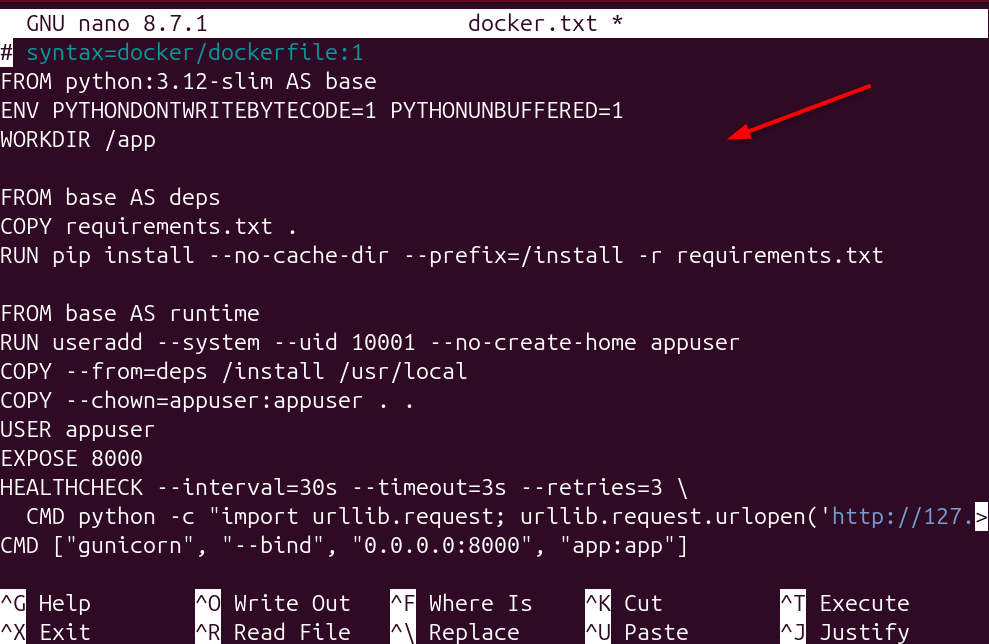
Here is the Dockerfile that the prompt produced after one round of edits.
  # syntax=docker/dockerfile:1

  FROM python:3.12-slim AS base

  ENV PYTHONDONTWRITEBYTECODE=1 PYTHONUNBUFFERED=1

  WORKDIR /app

  FROM base AS deps

  COPY requirements.txt .

  RUN pip install --no-cache-dir --prefix=/install -r requirements.txt

  FROM base AS runtime

  RUN useradd --system --uid 10001 --no-create-home appuser

  COPY --from=deps /install /usr/local

  COPY --chown=appuser:appuser . .

  USER appuser

  EXPOSE 8000

  HEALTHCHECK --interval=30s --timeout=3s --retries=3 \

    CMD python -c "import urllib.request; urllib.request.urlopen('http://127.0.0.1:8000/health')" || exit 1

  CMD ["gunicorn", "--bind", "0.0.0.0:8000", "app:app"]

And the matching docker compose file:
services: web: build: . ports: – “127.0.0.1:8000:8000” env_file: .env depends_on: db: condition: service_healthy restart: unless-stopped read_only: true tmpfs: – /tmp logging: driver: json-file options: max-size: “10m” max-file: “3” db: image: postgres:16-alpine environment: POSTGRES_PASSWORD_FILE: /run/secrets/db_password secrets: – db_password volumes: – pgdata:/var/lib/postgresql/data healthcheck: test: [“CMD-SHELL”, “pg_isready -U postgres”] interval: 10s timeout: 5s retries: 5 volumes: pgdata: secrets: db_password: file: ./secrets/db_password.txt |
|---|

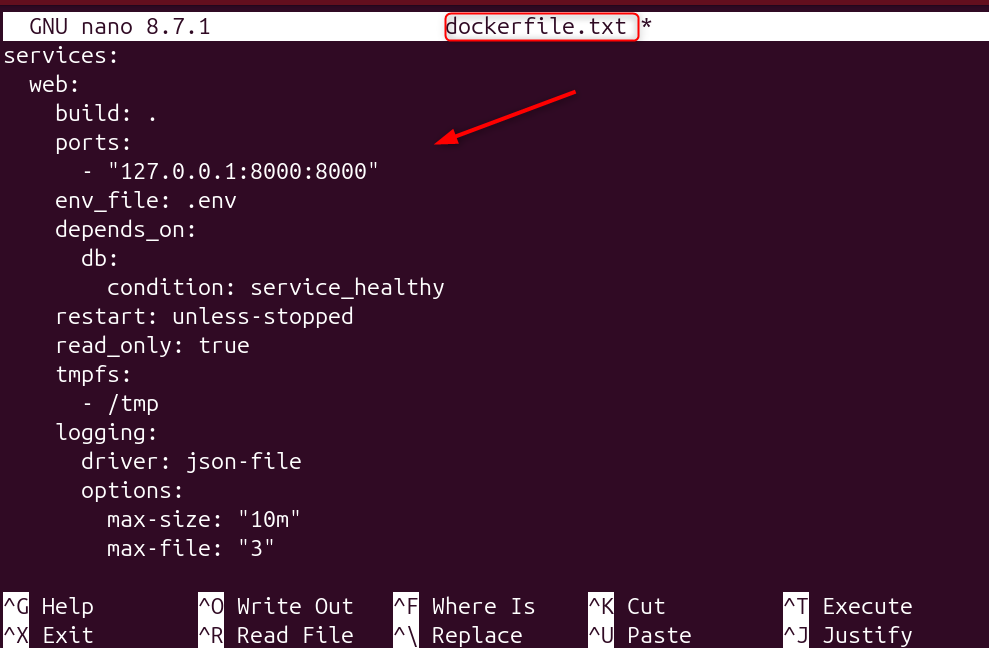
Notice there is no version key at the top. Compose v2 follows the Compose Specification and ignores it, but older tutorials in the model’s training data still add it. If you see it in generated output, delete it.
7 Common Docker Configuration Mistakes AI Makes on Linux
This is the part most guides skip. These are the failures I check for every time.
1. The container runs as root. Many generated Dockerfiles never set USER. If the process is compromised, it has root inside the container. Add a system user with a fixed UID, as in the example above.
2. Bind mounts fail with permission denied. On Docker Desktop, the file sharing layer hides UID differences. On Linux, a container user with UID 10001 cannot write to a host folder owned by UID 1000. Either chown the host folder to match, or use a named volume. Ask the model directly: “What UID will own files in this mount on a Linux host?”
3. SELinux blocks the mount. When running Docker on Rocky Linux, Fedora, or AlmaLinux, a bind mount can fail even when ownership is correct due to SELinux enforcement. Add :z (shared) or :Z (private) to the volume, for example, ./data:/data:Z. AI often leaves this out because it assumes Ubuntu.
4. Published ports bypass your firewall. Docker writes its own iptables rules, so ports: “5432:5432” can expose Postgres to the internet even when your UFW firewall says the port is closed. Bind to 127.0.0.1:5432:5432 and put an Nginx reverse proxy in front of anything public.
5. host.docker.internal does not exist by default. Generated configs often use it to reach a service on the host. On Linux, you need extra_hosts: [“host.docker.internal:host-gateway”] for it to resolve.
6. Logs grow until the disk fills. The default json-file driver has no size limit. Without max-size and max-file, one chatty container can fill /var/lib/docker. This is a common cause of the “no space left on device” error. Set rotation per service, or set it globally in /etc/docker/daemon.json.
7. Shell-form CMD swallows signals. CMD python app.py runs through /bin/sh -c, so SIGTERM from docker stop may never reach your app. You wait ten seconds for a forced kill on every deploy. Use the exec form: CMD [“python”, “app.py”].
Also watch for :latest tags, missing healthchecks, and apt-get update in a separate layer from apt-get install, which breaks caching and leaves stale package lists.
How to Validate AI-Generated Docker Configurations Before Deployment
Treat generated config like code from a new teammate. Run it through the same gates every time.
- Lint the Dockerfile. hadolint Dockerfile flags unpinned versions, missing –no-install-recommends, and shell-form commands.
- Validate the compose file. docker compose config parses the file, resolves variables, and prints the final result. Errors here save you a failed deploy.
- Build without cache once. docker build –no-cache -t myapp:test. Proves the build does not depend on leftover layers.
- Scan the image. docker scout quickview myapp:test (or Trivy) lists known vulnerabilities in the base image and dependencies.
- Check size. docker image ls myapp should show a number you can explain. Python slim images usually land between 150 MB and 300 MB. If you see over 1 GB, something is wrong.
- Test as the real user. docker run –rm -u 10001 myapp:test id confirms the process does not run as root.
- Check the host exposure. ss -tlnp shows which ports are listening on which interface.
How to Use AI to Troubleshoot Docker Containers on Linux
AI is often more useful for fixing errors than for writing configs from scratch. Paste the failing part, not the whole project. Include:
- The exact error line and about twenty lines of context from docker logs <container>
- The output of docker compose config for the failing service
- Your distro and Docker version from docker version
Before asking AI, you can diagnose runtime state using essential Docker commands:
- “permission denied while trying to connect to the Docker daemon socket”: your user is not in the docker group. Run sudo usermod -aG docker $USER, then log out and back in.
- “port is already allocated”: another container or a host service holds the port. sudo ss -tlnp | grep 8000 shows who.
- “no space left on device”: run docker system df to see what is using space, then docker builder prune for old build cache.
How to Protect Secrets When Using AI for Docker Configurations
Before you paste anything into an AI tool, remove real values from .env files, API keys, database passwords, and internal hostnames. Replace them with placeholders like DB_PASSWORD=changeme. If your company restricts what can leave the network, check the policy first, or use a self-hosted model for config generation.
One more habit worth building: ask the model to put secrets in Docker secrets or an env file that is listed in .gitignore, never inline in compose.yaml.
When Should You Avoid AI-Generated Docker Configurations?
For regulated workloads (PCI, HIPAA, government), start from a vendor-hardened image and your security team’s baseline, then use AI only for the repetitive edits. Also be careful with rootless Docker or Podman setups. The generated config usually assumes rootful Docker, and a few options (like binding ports under 1024) behave differently without root.
Frequently Asked Questions
Can AI generate a Dockerfile?
Yes. Give a chat assistant your language, version, port, and start command, and it can produce a working Dockerfile and docker compose file in seconds. Quality depends on the details you provide. Always lint the result with hadolint and test it as a non-root user before using it in production.
Is docker init the same as using AI?
No. docker init generates a Dockerfile, compose.yaml, and .dockerignore from fixed templates after asking a few questions about your project. It is predictable and a good starting point. AI assistants handle custom stacks and explain their choices, but they can also invent mistakes, so the two work best together.
How do I run Docker on Linux without sudo?
Add your user to the docker group with sudo usermod -aG docker $USER, then log out and back in. Keep in mind that docker group membership is effectively root access on the host. If that worries you, look at rootless Docker or Podman instead.
Should I use Docker or Podman for Linux applications?
Docker has the larger ecosystem and the most tutorials, which also means AI tools know it best. Tools like Podman on Ubuntu run rootless and daemonless by default and can read most Dockerfiles, which suits security-focused servers. If you pick Podman, tell the AI, so it avoids Docker-only features.
Is it safe to paste my code and configs into an AI tool?
It is safe only if you remove secrets first and your organization allows it. Replace passwords, tokens, and internal URLs with placeholders. Treat the output as untrusted until you have linted, scanned, and tested it.