Rocky Linux 10 ships with Podman as its default container tool, not Docker, which catches a lot of people off guard the first time they try dnf install docker and get nowhere. This guide covers the full end-to-end process: adding Docker’s official repository, installing Docker Engine and Compose, fixing the one gotcha that trips up almost everyone on a fresh Rocky Linux 10 install, and running your first containers. If you’re setting this up on a home lab box or a production server, the steps below are the same either way.
Table of Content
- Why Docker Isn’t Preinstalled on Rocky Linux 10
- Installing and Using Docker on Rocky Linux 10
- Using Docker on Rocky Linux 10
- Troubleshooting Common Issues
- Conclusion
- Frequently Asked Questions
Why Docker Isn’t Preinstalled on Rocky Linux 10
Rocky Linux, like the rest of the RHEL family, ships with Podman as its default container runtime rather than Docker. Podman is a solid tool in its own right, but plenty of teams standardize on Docker for compatibility with existing tooling, CI pipelines, or Docker Compose files they already maintain. Installing Docker on Rocky Linux 10, sometimes searched as installing Docker on RockyOS, means adding Docker’s own repository first, since it was never part of the distribution’s default package set.
Prerequisites: System Requirements and Initial Setup
You’ll need a Rocky Linux 10 server or virtual machine with root or sudo access, an internet connection to download packages, and about ten minutes. This guide was tested on Rocky Linux 10.2 with current Docker CE 29.8.
Update Your System
Start by making sure your packages are current:
sudo dnf update |
|---|

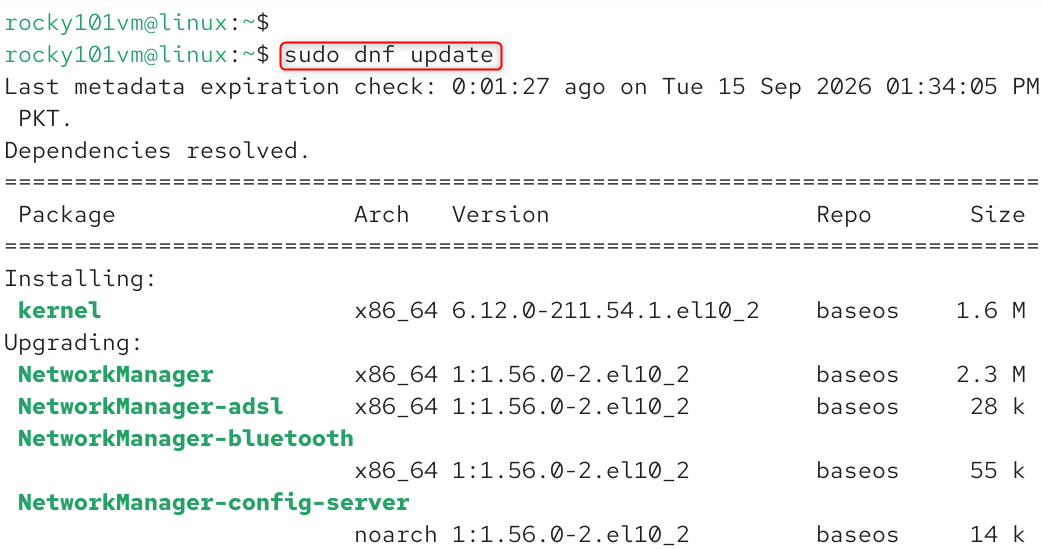
Reboot if a kernel update was included, then continue once you’re back in.
Remove Conflicting Container Packages
Rocky Linux 10 includes Podman and related tools by default, and some of these can conflict with a clean Docker install. Remove them first:
sudo dnf remove -y podman podman-docker runc buildah |
|---|

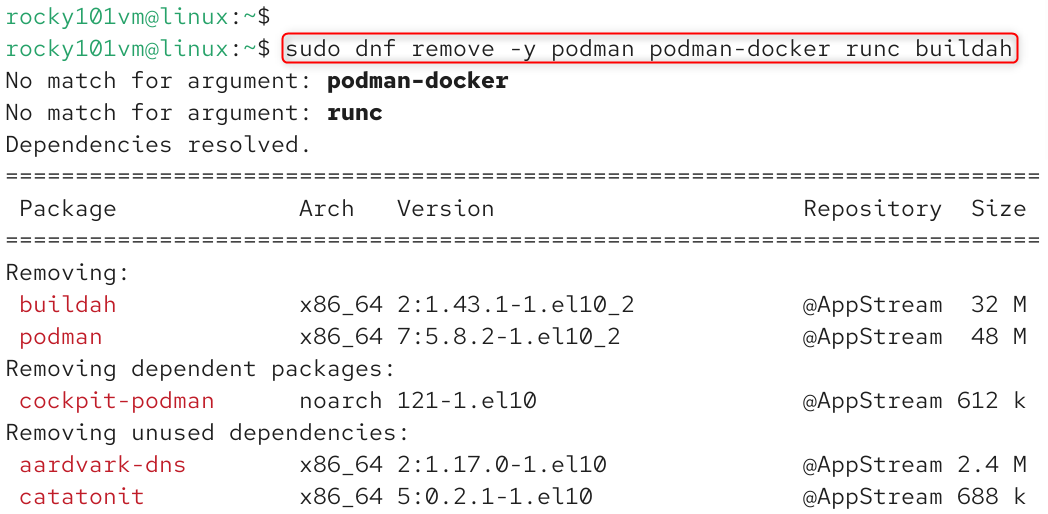
If any of these aren’t installed, dnf simply skips them, so this command is safe to run regardless of what’s actually present on your system.
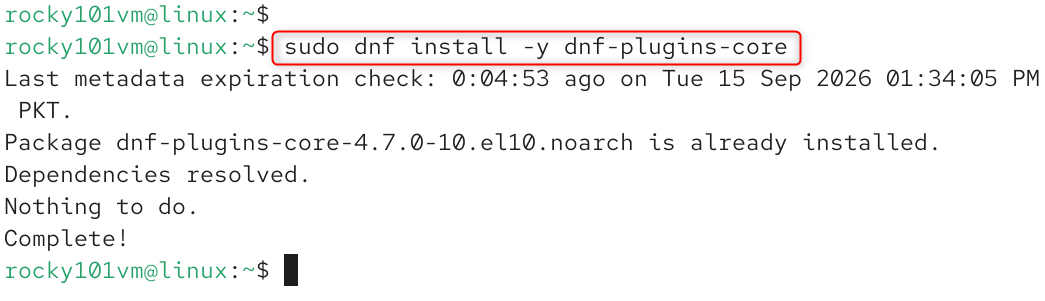
Install dnf-plugins-core
This package provides config-manager, the tool you’ll use to add Docker’s repository:
sudo dnf install -y dnf-plugins-core |
|---|

Fix the Kernel Modules Gotcha (Important for Rocky Linux 10)
This is the step most tutorials skip, and it’s the reason Docker fails to start on a lot of fresh Rocky Linux 10 minimal and cloud installs. These images don’t include kernel-modules-extra by default, and without it, Docker can’t load the xt_addrtype module that iptables needs. Install it now, before Docker ever tries to start:
sudo dnf install -y kernel-modules-extra |
|---|

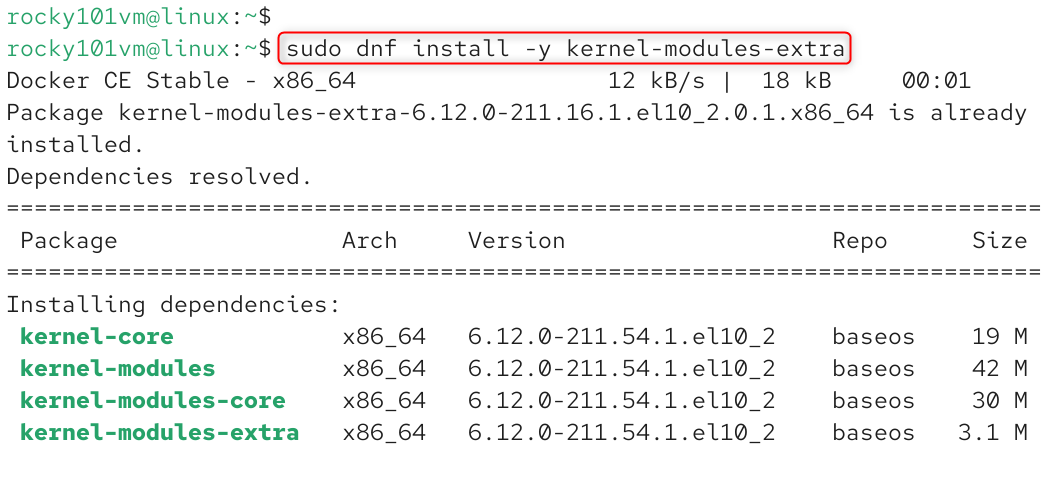
Skipping this step is the single most common reason people end up with a Docker service that installs fine but refuses to actually run.
Installing and Using Docker on Rocky Linux 10
Installing and using Docker on Rocky Linux 10 involves setting up the official Red Hat Enterprise Linux (RHEL) repository, installing the Docker Engine packages, and configuring basic permissions. Learn how to install and use Docker on Rocky Linux step-by-step.
Step 1: Add the Official Docker Repository
Docker maintains its own repository for RHEL-based systems, and this is where you’ll get real Docker packages rather than relying on anything bundled with Rocky Linux itself:
sudo dnf config-manager –add-repo https://download.docker.com/linux/rhel/docker-ce.repo |
|---|


Confirm it was added correctly:
dnf repolist | grep docker |
|---|


You should see docker-ce-stable listed among your enabled repositories.
Step 2: Install Docker Engine
With the repository added and the kernel module issue handled, install Docker along with the CLI, containerd, Buildx, and the Compose plugin in one command:
sudo dnf install -y docker-ce docker-ce-cli containerd.io docker-buildx-plugin docker-compose-plugin |
|---|

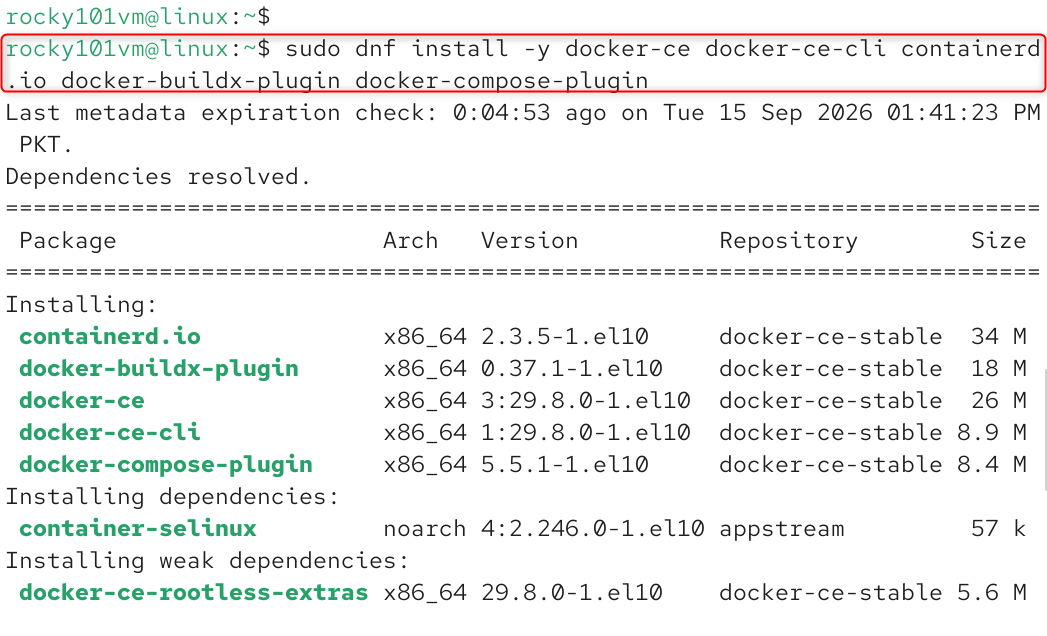
You’ll be asked to confirm the Docker repository’s GPG key during this step. Type y to accept it.
Step 3: Start and Enable Docker
After installing Docker on Rocky Linux 10, let’s start and enable Docker services.
sudo systemctl enable –now docker |
|---|


Confirm it’s actually running:
sudo systemctl status docker |
|---|

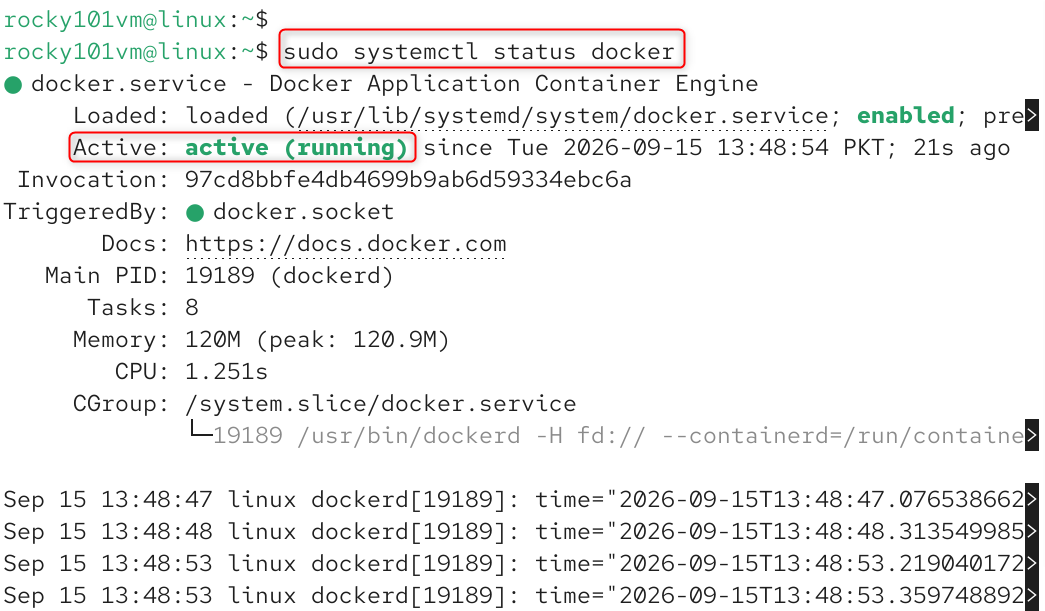
You’re looking for active (running) in the output.
Step 4: Verify the Installation of Docker
Check the installed version:
docker –version docker compose version |
|---|

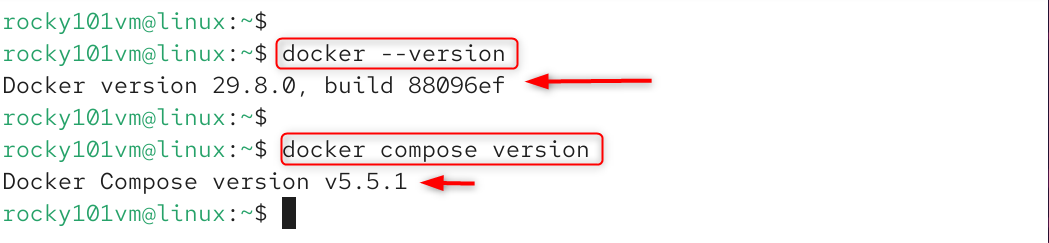
Then run Docker’s hello world image to confirm everything is wired up correctly end to end:
sudo docker run hello-world |
|---|

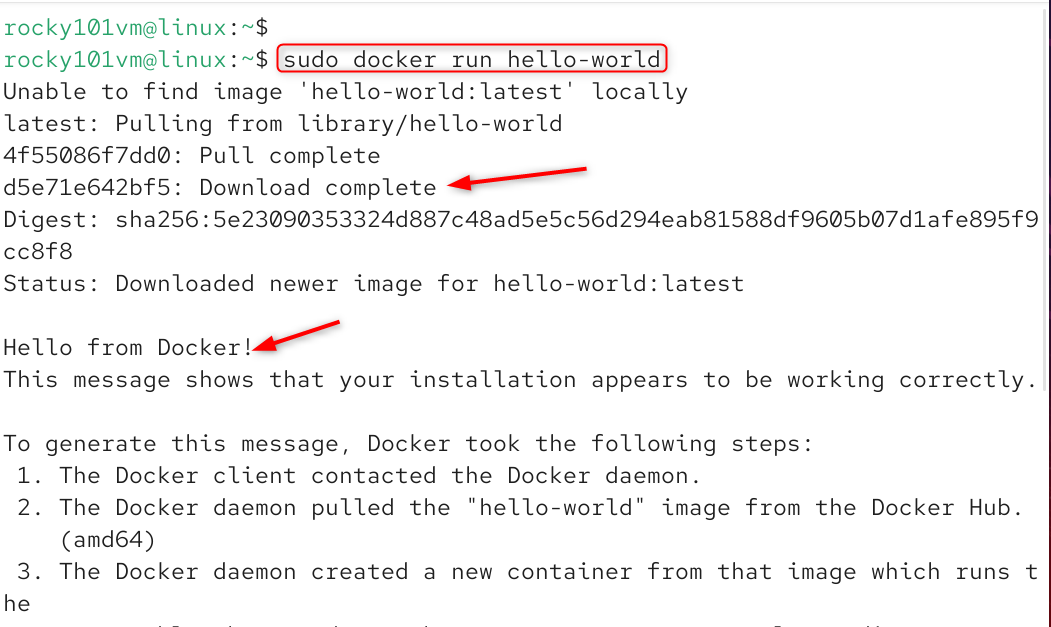
If you see a message confirming your installation appears to be working correctly, Docker is fully functional on your system.
Step 5: Run Docker Without Sudo
Typing sudo before every Docker command gets old fast. Add your user to the docker group instead:
sudo usermod -aG docker $USER |
|---|


Log out and back in, or run this to apply the group change in your current session without a full logout:
newgrp docker |
|---|


Test that it worked:
docker run hello-world |
|---|

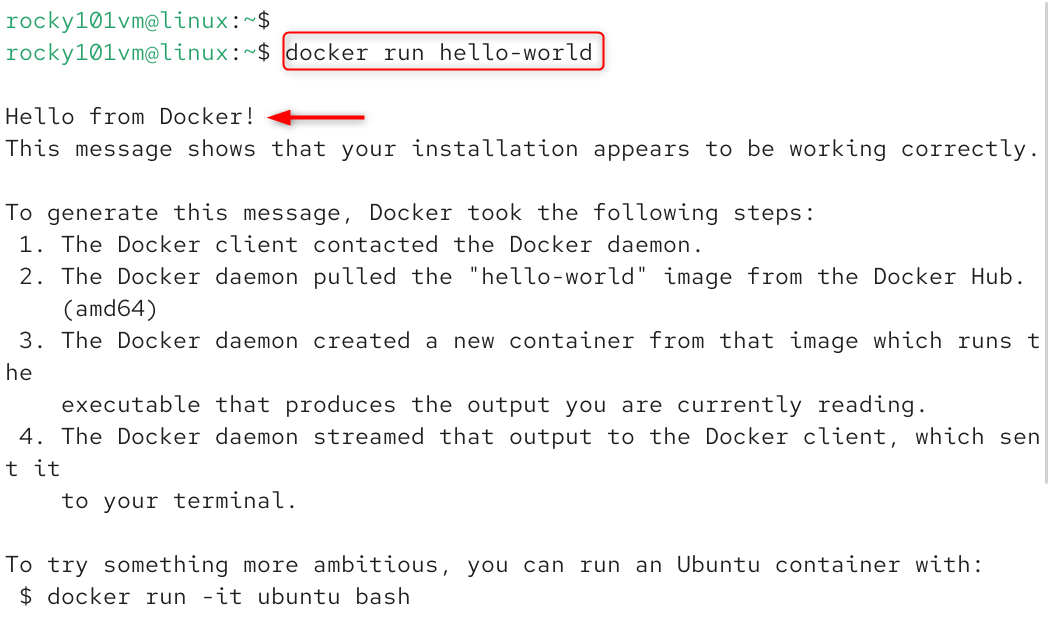
If this runs without needing sudo, you’re set.
Step 6: Configure Firewalld for Container Traffic
Firewalld runs by default on most Rocky Linux installs, and Docker manipulates iptables directly to manage container networking, which can create friction if you’re not aware of it. If you’re exposing a container port to the outside world, open it explicitly:
sudo firewall-cmd –permanent –add-port=8080/tcp sudo firewall-cmd –reload |
|---|

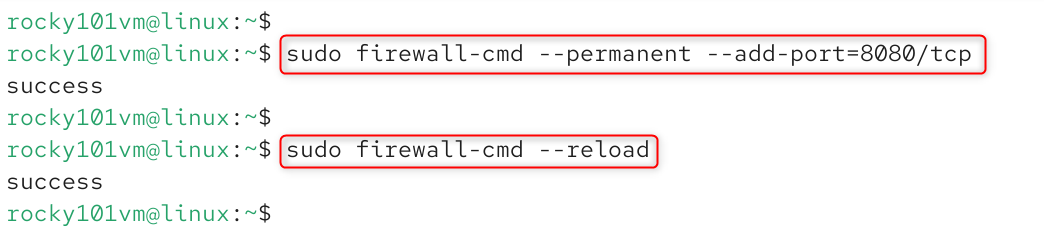
For production environments running several containers, it’s worth setting up a dedicated firewalld zone for Docker traffic rather than opening ports one at a time, which gives you more precise control as your container count grows.
Using Docker on Rocky Linux 10
To use Docker on Rocky Linux 10, you need to add the official repository, install the Docker Engine packages, and enable the system service. Since Rocky Linux 10 is fully compatible with Red Hat Enterprise Linux (RHEL) binaries, you can safely use the official RHEL or CentOS repository streams.
Pulling the Official Rocky Linux Image
If you’re building containers that need a Rocky Linux base rather than something like Alpine or Debian, Docker Hub hosts an official Rocky Linux image maintained by the Rocky Enterprise Software Foundation itself:
docker pull rockylinux/rockylinux:10 |
|---|


If you’re still supporting an older project, the Rocky Linux 9 image works the same way; just swap the tag:
docker pull rockylinux/rockylinux:9 |
|---|
Running a Container Interactively
To explore the Rocky Linux image directly and poke around inside it:
docker run -it rockylinux/rockylinux:10 bash |
|---|


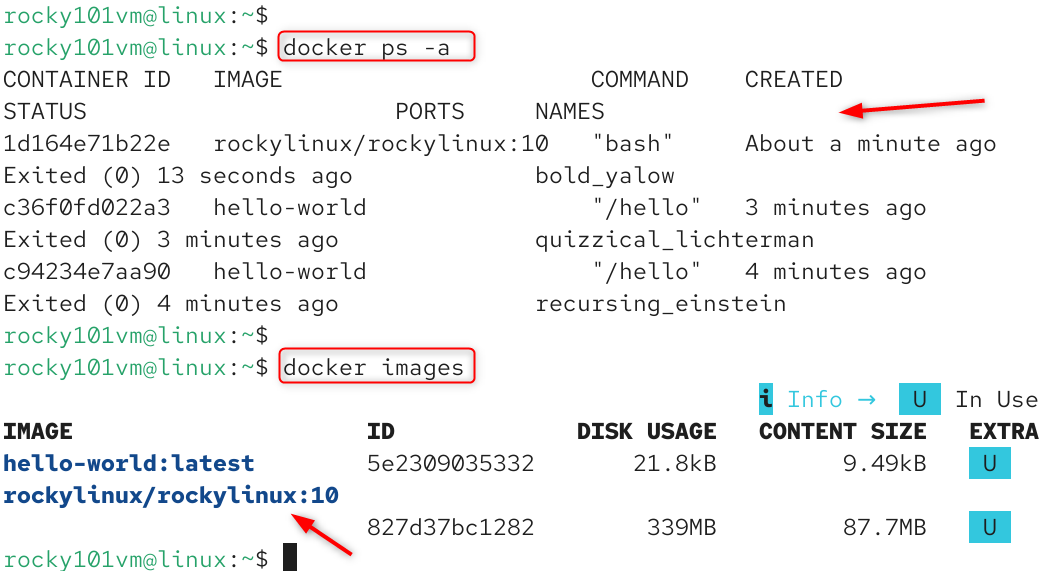
Managing Containers
A few commands you’ll reach for constantly:
docker ps -a # list all containers, including stopped ones docker images # list downloaded images |
|---|

Troubleshooting Common Issues
- Docker service fails to start with an iptables or xt_addrtype error. This almost always means Step 5 was skipped. Install kernel-modules-extra and restart the service:
- “Cannot connect to the Docker daemon” errors. Confirm the service is actually running with sudo systemctl status docker, and that your user was added to the docker group in Step 9.
- Containers can’t reach the internet. Check that IP forwarding is enabled using sudo sysctl net.ipv4.ip_forward.
- A container port isn’t reachable from outside the host. Check firewalld directly, since Docker’s own port mapping doesn’t automatically punch through sudo firewall-cmd –list-ports.
Conclusion
Installing Docker on Rocky Linux 10 is a quick and easy process. To install and use Docker on Rocky Linux 10, add the official RHEL-compatible repository by running sudo dnf config-manager –add-repo https://download.docker.com/linux/rhel/docker-ce.repo, install the engine and its plugins via sudo dnf -y install docker-ce docker-ce-cli containerd.io docker-buildx-plugin docker-compose-plugin, and then start and enable the service using sudo systemctl –now enable docker, as outlined in the Rocky Linux Documentation. Finally, verify your installation and begin using the tool by running sudo docker run hello-world to test a sample container.
Frequently Asked Questions
1. Does Rocky Linux 10 come with Docker preinstalled?
No. Rocky Linux 10 ships with Podman as its default container tool instead. You need to add Docker’s official repository and install it manually, which this guide walks through step by step.
2. Why does Docker fail to start after installing it on Rocky Linux 10?
This is almost always caused by a missing kernel module. Rocky Linux 10 minimal and cloud images don’t include kernel-modules-extra by default, and without it, Docker can’t load the module iptables needed to manage container networking.
3. Is there an official Rocky Linux image on Docker Hub?
Yes. The Rocky Enterprise Software Foundation maintains an official image at rockylinux/rockylinux on Docker Hub, with tags available for both Rocky Linux 10 and the still widely used Rocky Linux 9 image, making it easy to pin your base image to whichever version your project targets.
4. Can I run Docker and Podman side by side on Rocky Linux 10?
Technically yes, but it’s not recommended. Both tools can conflict over the same container runtime components, and most guides, including this one, recommend removing Podman and its related packages before installing Docker to avoid unpredictable behavior.
5. How do I run Docker commands without typing sudo every time on Rocky Linux 10? Add your user account to the docker group with sudo usermod -aG docker $USER, then either log out and back in or run newgrp docker to apply the change immediately. This lets your user run Docker commands directly without elevated privileges for every single command.