LAMP (Linux, Apache, MariaDB, and PHP) remains the most widely deployed web server stack for hosting WordPress sites, custom PHP applications, and traditional dynamic websites. On AlmaLinux 10, all four components are available directly through the default repositories, meaning you can go from a bare OS to a fully working web server in about 15 minutes. This guide covers the complete installation of the LAMP stack on AlmaLinux 10: Apache, MariaDB, PHP 8.3, database security, firewall configuration, and a working PHP test page to confirm everything’s connected correctly.
Table of Content
- What You Need to Install LAMP Stack on AlmaLinux 10
- Install and Set Up LAMP Stack on AlmaLinux 10
- Step 1: Update Your System
- Step 2: Install Apache on AlmaLinux 10
- Step 3: Install MariaDB on AlmaLinux 10
- Step 4: Secure the MariaDB Installation
- Step 5: Install PHP 8.3 on AlmaLinux 10
- Step 6: Test PHP Is Working With Apache
- Step 7: Create a Database for Your Application
- Step 8: Configure SELinux for Web Applications
- Step 9: Set Up a Virtual Host (Optional, Recommended for Multiple Sites)
- Step 10: Install an SSL Certificate (Recommended for Production)
- Conclusion
- Frequently Asked Questions
What You Need to Install LAMP Stack on AlmaLinux 10
Some of the prerequisites are below:
- An AlmaLinux 10 server with root or sudo access
- At least 1 GB RAM (2 GB+ recommended if you’ll run anything beyond a small site)
- A stable internet connection for package downloads
- Port 80 (and 443 if you’ll add SSL) reachable through your firewall
What You’ll Install
- Apache 2.4, the web server, handling HTTP requests
- MariaDB 10.11, the database server, AlmaLinux 10’s default relational database
- PHP 8.3, the scripting language, included directly in AlmaLinux 10’s AppStream repository with no module stream configuration needed
Install and Set Up LAMP Stack on AlmaLinux 10
If you’re installing a LAMP stack on AlmaLinux 10, the process is straightforward: install a LAMP stack on AlmaLinux 10 by setting up Apache as the web server, MariaDB for database management, and PHP for dynamic web applications.
This LAMP stack setup can be completed by following a few simple steps, whether you’re looking for a guide on how to install LAMP stack on AlmaLinux 10 or want to install and configure the LAMP stack on AlmaLinux 10 for a production server. Once the components are installed, you’ll have a working LAMP server on AlmaLinux 10 ready to host PHP-based websites and applications.
To install a LAMP Stack (Linux, Apache, MariaDB/MySQL, PHP) on AlmaLinux 10, follow the quick steps below:
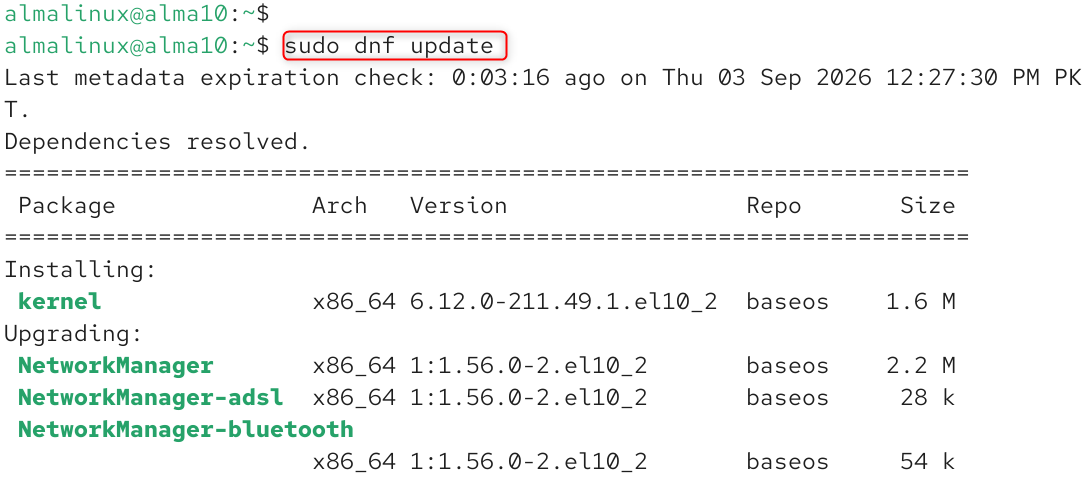
Step 1: Update Your System
Always start with a fully current package index before installing anything new:
sudo dnf update |
|---|

Step 2: Install Apache on AlmaLinux 10
Apache (httpd) is available directly from AlmaLinux 10’s AppStream repository:
sudo dnf install httpd -y |
|---|

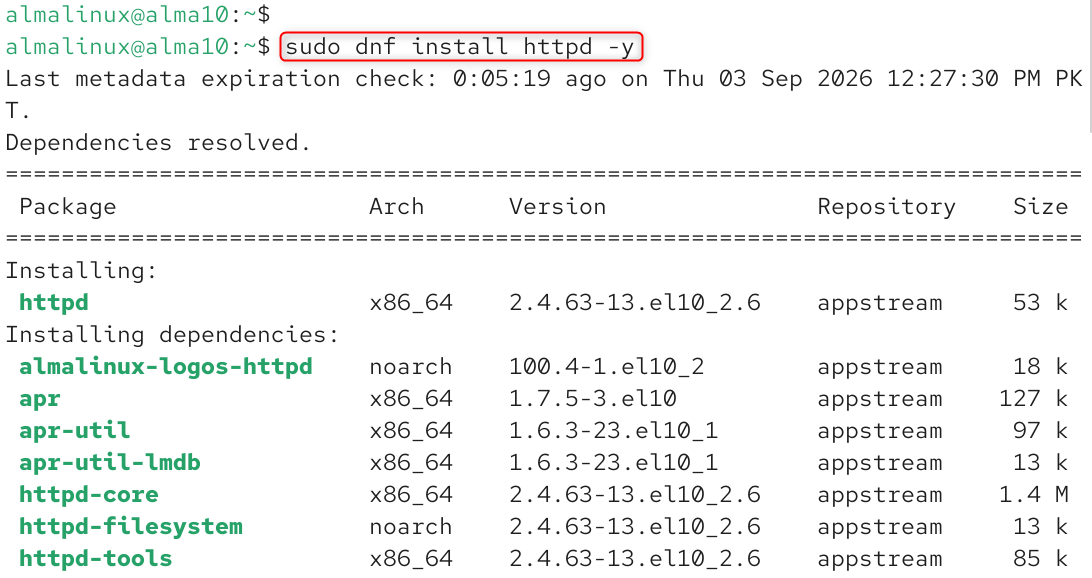
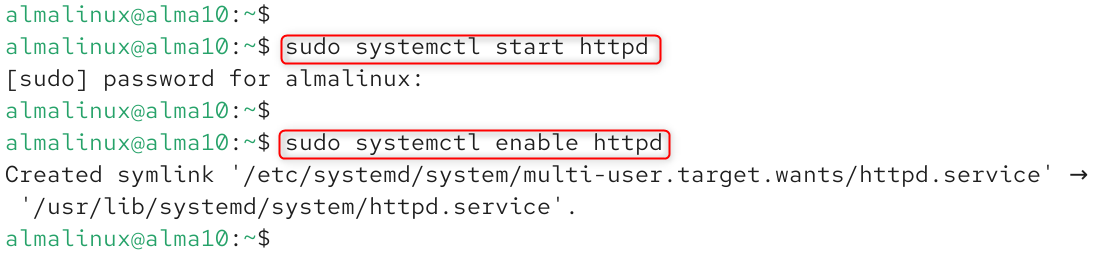
Start the service and enable it to launch on every boot:
sudo systemctl start httpd sudo systemctl enable httpd |
|---|

Confirm it’s running:
sudo systemctl status httpd |
|---|

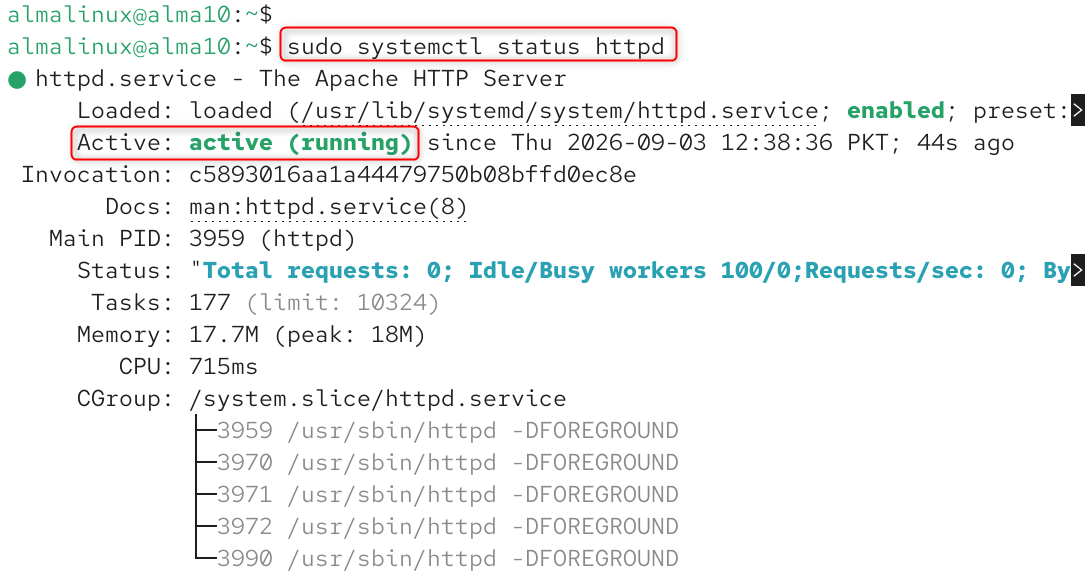
You should see active (running) in green.
Open Apache in the Firewall
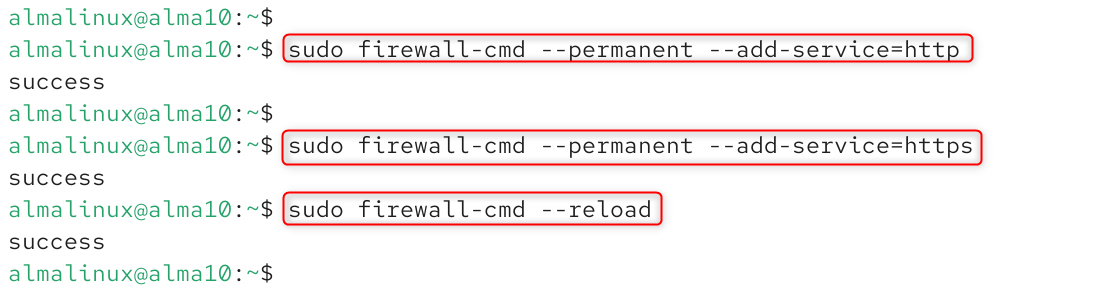
AlmaLinux 10 uses firewalld by default. Open HTTP (and HTTPS, if you’ll use SSL) so Apache is actually reachable:
sudo firewall-cmd –permanent –add-service=http sudo firewall-cmd –permanent –add-service=https sudo firewall-cmd –reload |
|---|

Test Apache Is Working
Open your server’s IP address in a browser:
http://your-server-ip |
|---|

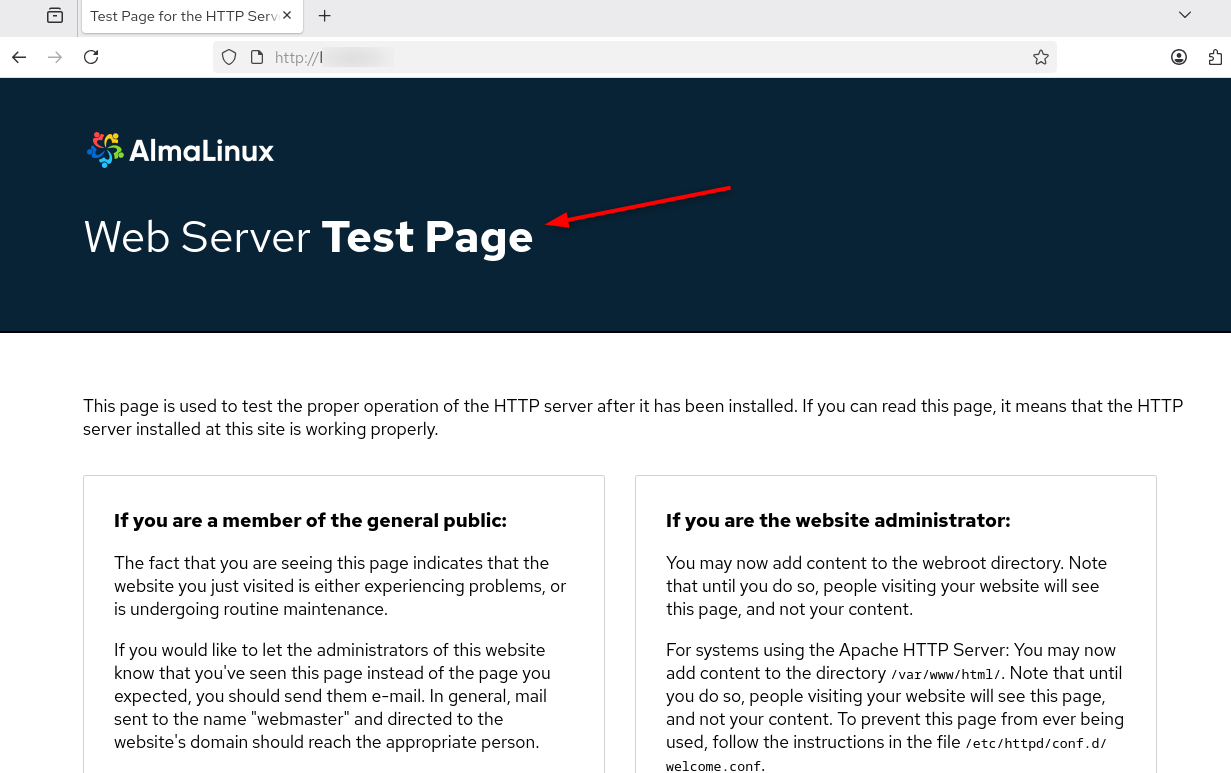
You should see AlmaLinux’s default Apache test page. If you can’t reach it, double-check the firewall step above and confirm httpd is actually running.
Step 3: Install MariaDB on AlmaLinux 10
MariaDB is also included in AlmaLinux 10’s default repository; no extra repo setup required:
sudo dnf install mariadb-server mariadb -y |
|---|

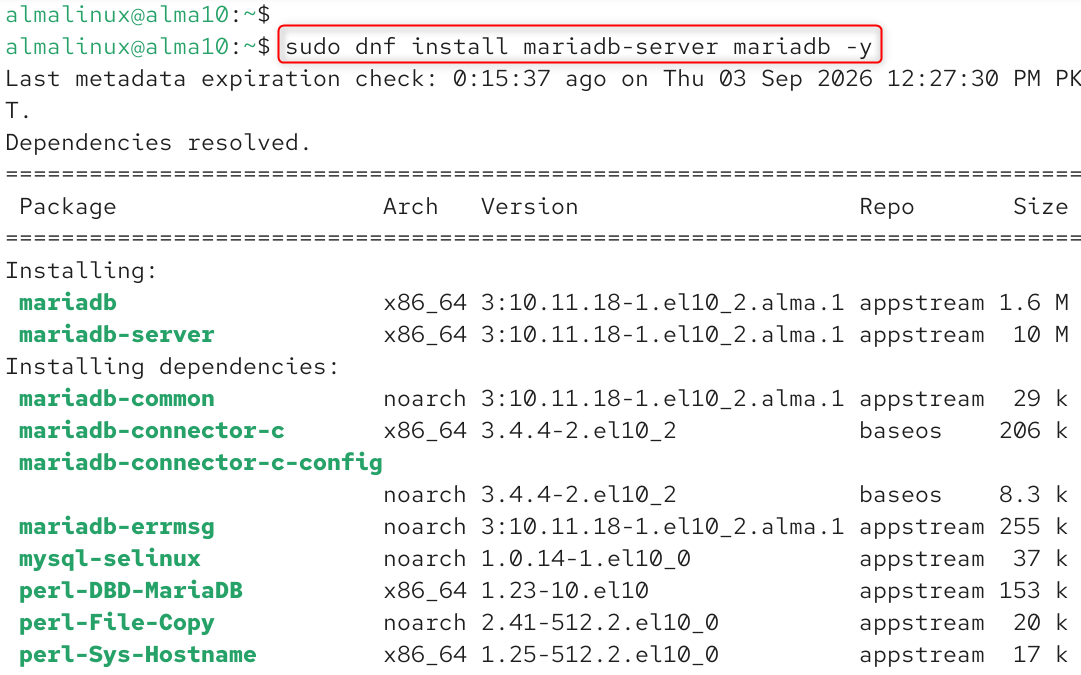
Start and enable the service:
sudo systemctl start mariadb sudo systemctl enable mariadb |
|---|

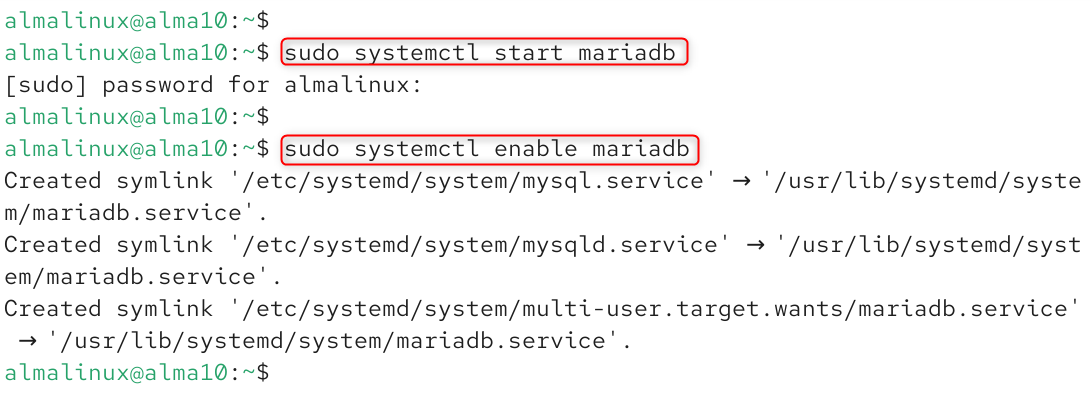
Verify it’s running:
sudo systemctl status mariadb |
|---|

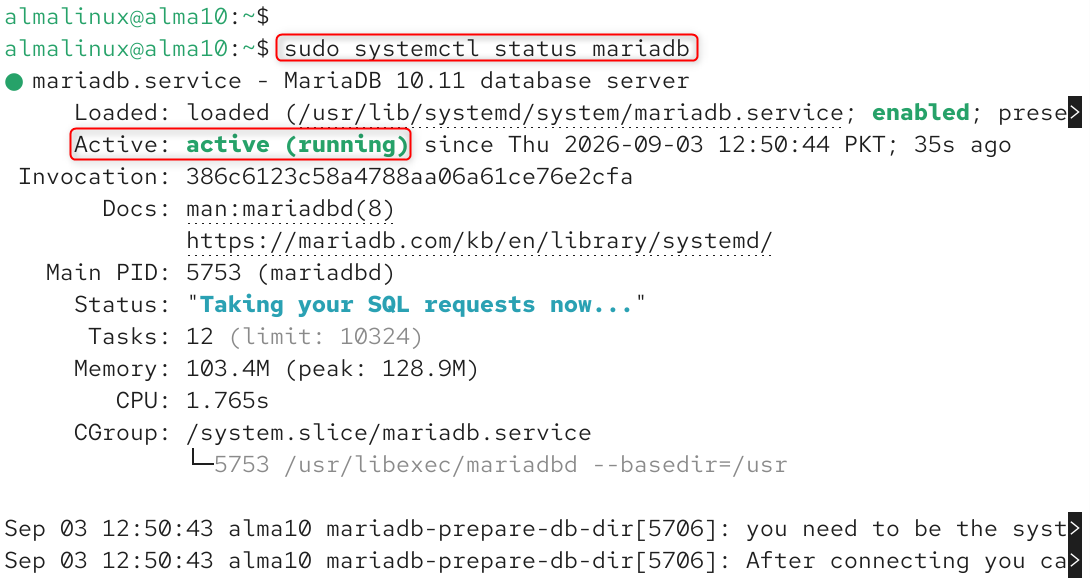
Step 4: Secure the MariaDB Installation
This step is essential and should never be skipped on a production server. MariaDB installation includes a built-in script that removes insecure defaults:
sudo mysql_secure_installation |
|---|

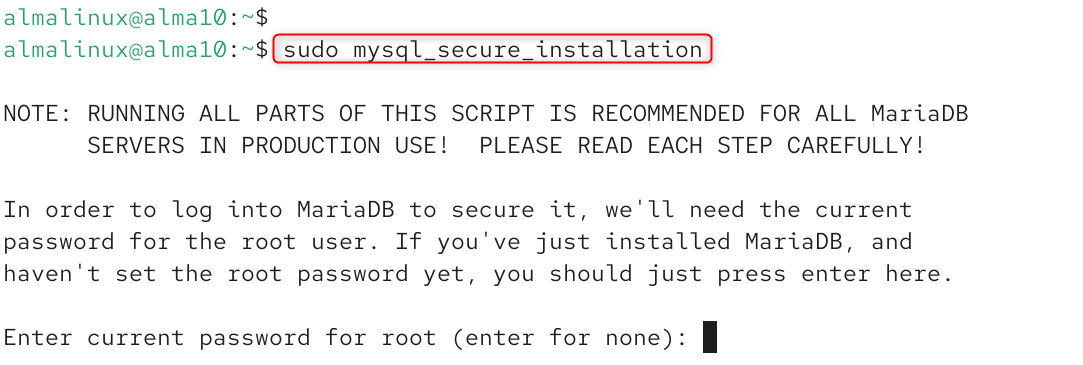
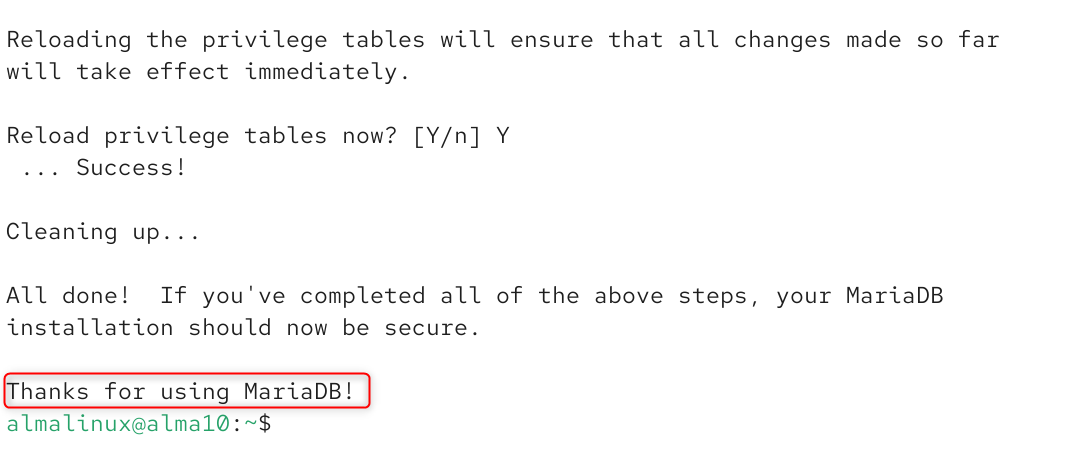
Answer the prompts as follows:
- Enter current password for root: Press Enter (blank on a fresh install)
- Switch to unix_socket authentication: Y
- Change the root password: Y, set a strong password
- Remove anonymous users: Y
- Disallow root login remotely: Y
- Remove test database and access to it: Y
- Reload privilege tables now: Y

Step 5: Install PHP 8.3 on AlmaLinux 10
RHEL 10 and its derivatives, including AlmaLinux 10, dropped the old modular repository system, so PHP 8.3 installs directly from AppStream without enabling any module stream:
sudo dnf install php php-cli php-fpm php-mysqlnd php-gd php-mbstring php-xml php-curl php-zip php-opcache php-intl php-soap -y |
|---|

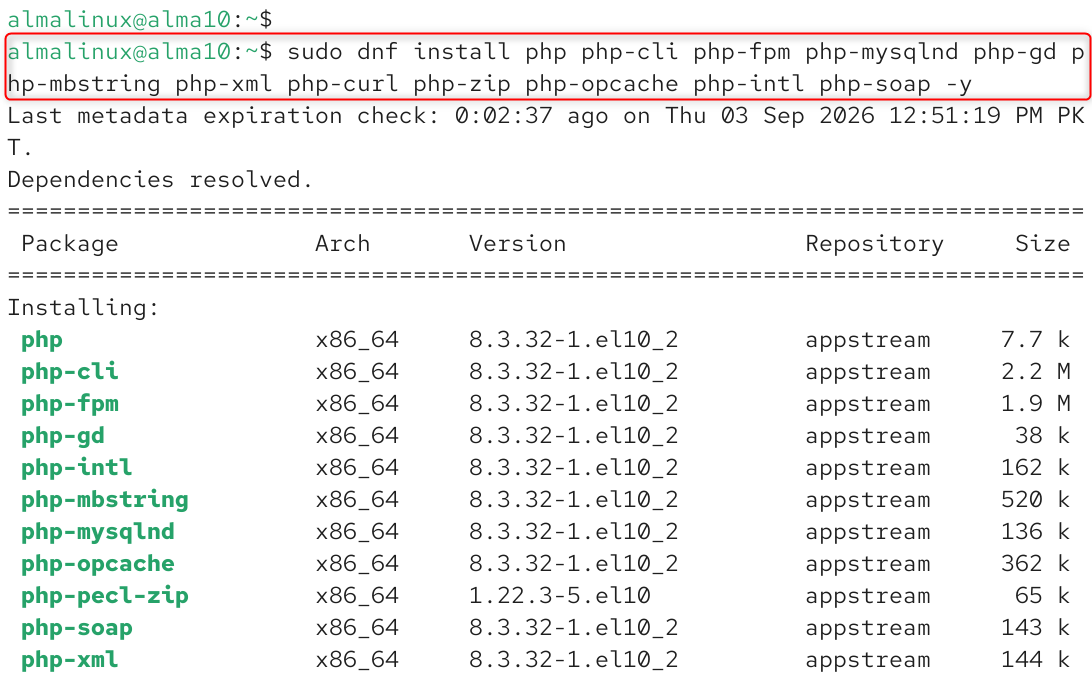
This installs PHP along with the extensions most web applications and CMS platforms (like WordPress) actually require.
Verify the installed version:
php -v |
|---|

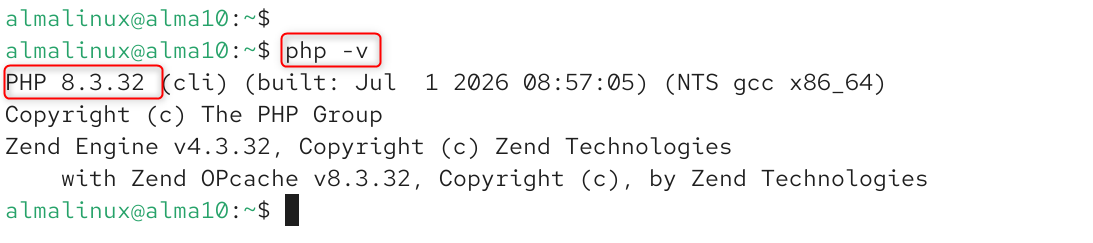
Note: If your application specifically needs PHP 8.4 or 8.5 for newer language features, those are available through the Remi repository rather than AppStream. This is worth knowing, but PHP 8.3 covers the vast majority of production applications through its full support window.
Restart Apache to Load PHP
sudo systemctl restart httpd |
|---|


Step 6: Test PHP Is Working With Apache
Create a simple test file in Apache’s web root:
sudo nano /var/www/html/info.php |
|---|
Add the following:
<?php phpinfo(); ?> |
|---|

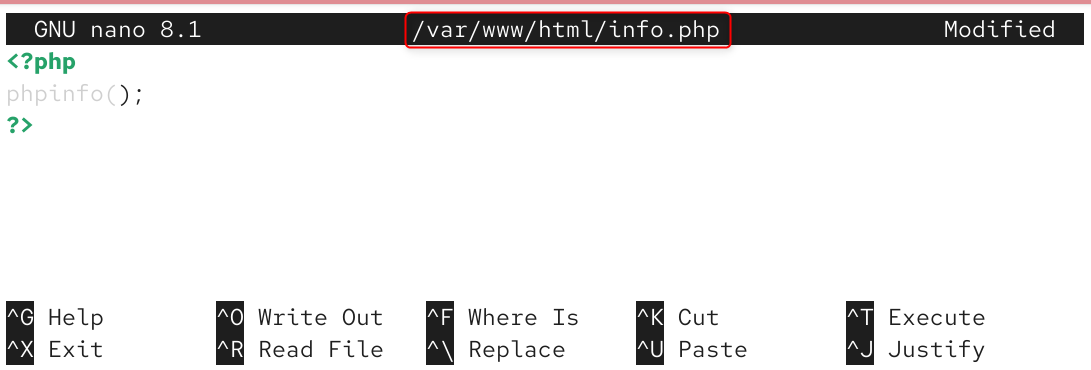
Save the file, then visit it in your browser:
http://your-server-ip/info.php |
|---|

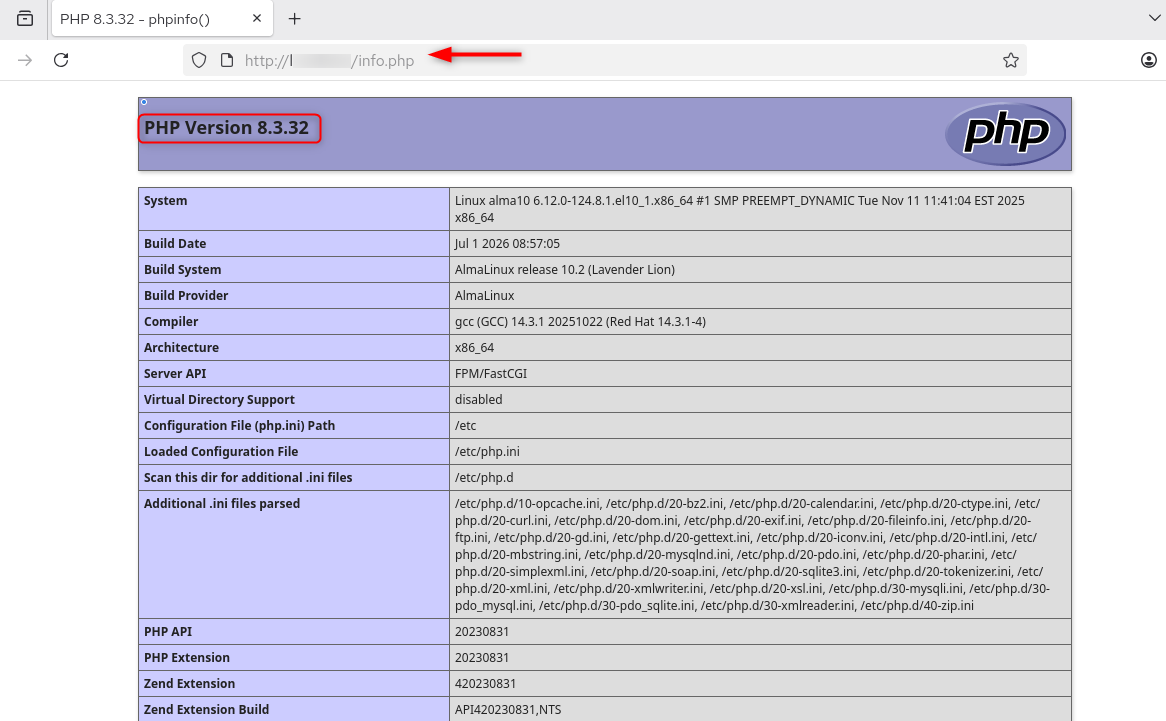
You should see a detailed PHP configuration page. If you see the raw PHP code instead of a rendered page, Apache isn’t correctly processing PHP files. Double-check that php-fpm or mod_php is installed and Apache was restarted.
Important: Delete this file once you’ve confirmed PHP is working. A phpinfo() page publicly exposes server configuration details that are useful to attackers.
sudo rm /var/www/html/info.php |
|---|


Step 7: Create a Database for Your Application
Log into MariaDB:
sudo mysql -u root -p |
|---|

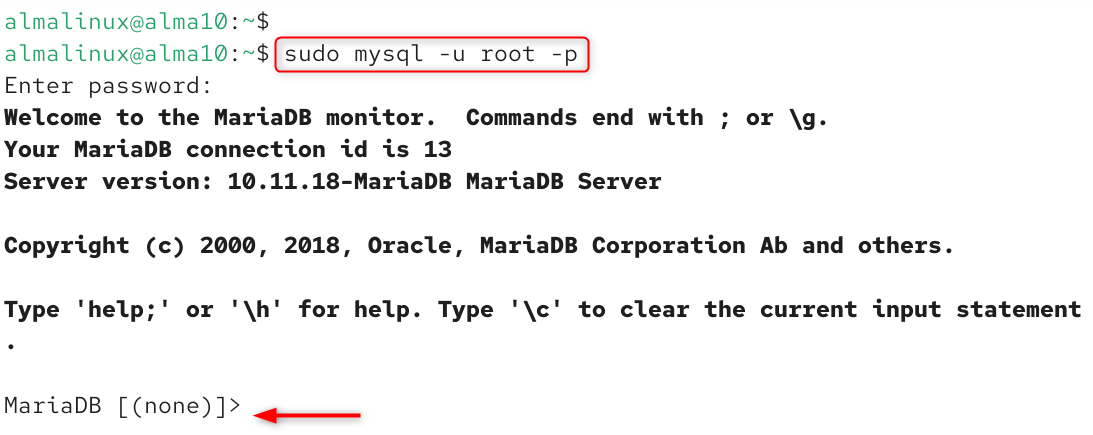
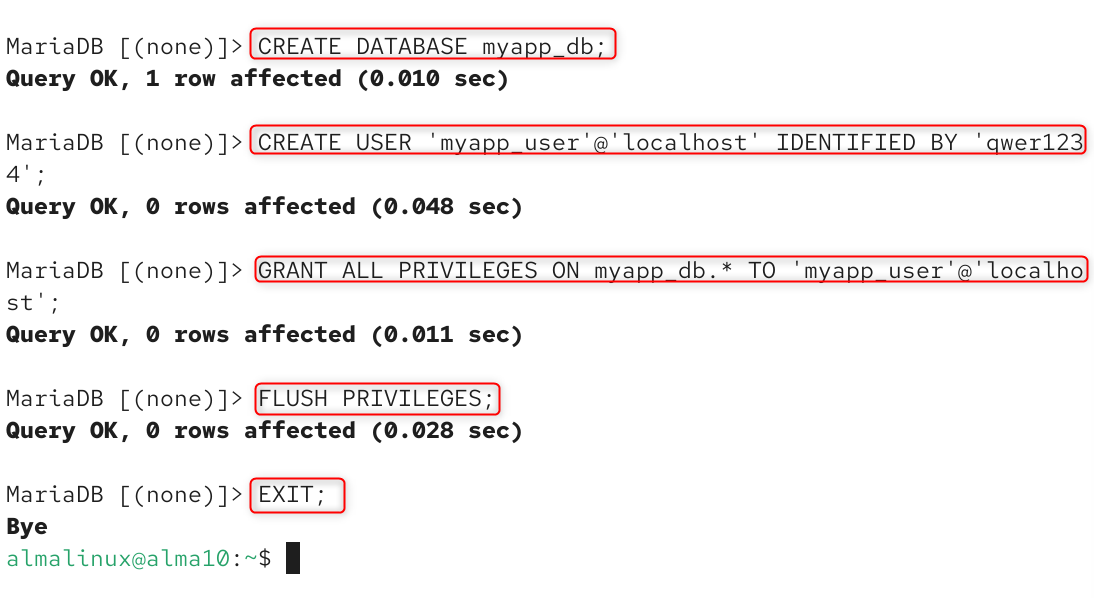
Create a database and a dedicated user; never run your application against the root database account:
CREATE DATABASE myapp_db; CREATE USER ‘myapp_user’@’localhost’ IDENTIFIED BY ‘StrongPasswordHere!’; GRANT ALL PRIVILEGES ON myapp_db.* TO ‘myapp_user’@’localhost’; FLUSH PRIVILEGES; EXIT; |
|---|

Step 8: Configure SELinux for Web Applications
AlmaLinux 10 runs SELinux in enforcing mode by default, which restricts what Apache is allowed to do, including writing to directories. If your application needs to write files (uploads, cache, logs), set the appropriate context rather than disabling SELinux:
sudo semanage fcontext -a -t httpd_sys_rw_content_t “/var/www/html/uploads(/.*)?” |
|---|


If Apache needs to make outbound network connections (common for applications calling external APIs):
sudo setsebool -P httpd_can_network_connect 1 |
|---|


Step 9: Set Up a Virtual Host (Optional, Recommended for Multiple Sites)
If you’re hosting more than one site on this server, create a dedicated virtual host instead of using the default document root:
sudo mkdir -p /var/www/example.com/public_html sudo nano /etc/httpd/conf.d/example.com.conf |
|---|


Add:
<VirtualHost *:80> ServerName example.com ServerAlias www.example.com DocumentRoot /var/www/example.com/public_html ErrorLog /var/log/httpd/example.com-error.log CustomLog /var/log/httpd/example.com-access.log combined </VirtualHost> |
|---|

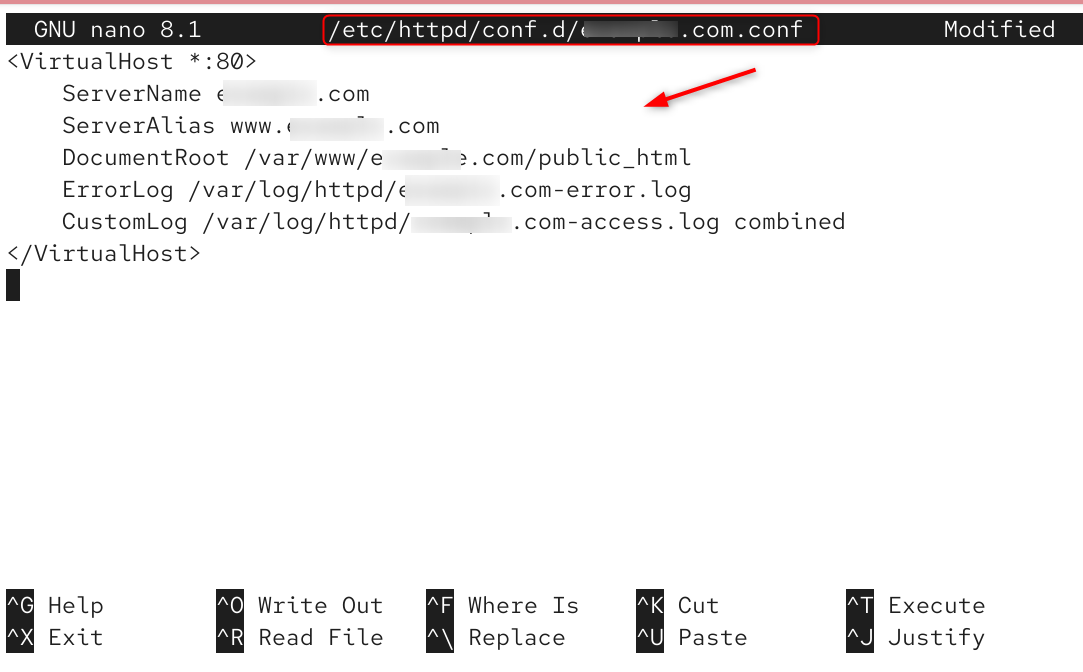
Set the correct SELinux context and permissions, then restart Apache:
sudo restorecon -Rv /var/www/example.com sudo systemctl restart httpd |
|---|


Step 10: Install an SSL Certificate (Recommended for Production)
Serving a production site over plain HTTP is a security and SEO liability. Install Certbot for a free Let’s Encrypt certificate:
sudo dnf install epel-release -y sudo dnf install certbot python3-certbot-apache -y sudo certbot –apache -d example.com -d www.example.com |
|---|

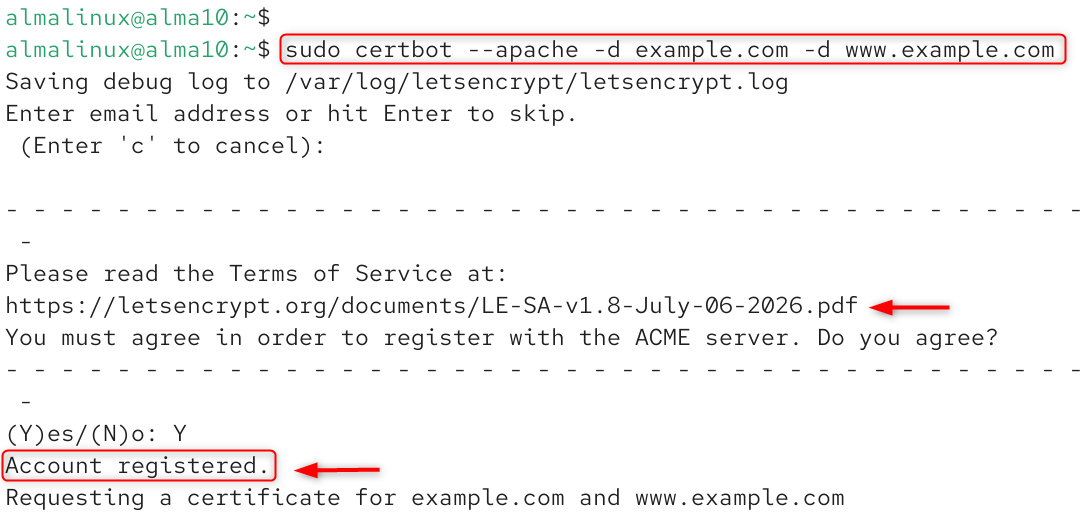
Certbot handles certificate issuance and Apache configuration automatically, including HTTP-to-HTTPS redirects.
Conclusion
Installing the LAMP stack on AlmaLinux 10 is straightforward because all three core components, Apache, MariaDB, and PHP 8.3, ship directly in the default AppStream repository with no extra module configuration required. The steps that actually separate a working demo from a production-ready server are the ones people skip: running mysql_secure_installation, creating scoped database users instead of using root, opening only the firewall ports you need, and working with SELinux rather than disabling it. Get those right from the start, and your AlmaLinux 10 server is ready for real traffic.
Frequently Asked Questions
1. Does AlmaLinux 10 use MySQL or MariaDB by default?
AlmaLinux 10 uses MariaDB as its default database engine, continuing the direction RHEL took after Oracle’s MySQL acquisition. The mysql and mariadb commands point to the same binary, so most MySQL tutorials and tools still work without modification.
2. What PHP version does AlmaLinux 10 install by default?
AlmaLinux 10 ships PHP 8.3 directly in the AppStream repository, installable with a single dnf install php command and no module stream configuration needed. Newer versions like PHP 8.4 and 8.5 are available through the Remi repository if a specific application requires them.
3. How do I know if my LAMP stack is fully working?
Create a phpinfo() test file in /var/www/html/, visit it in a browser, and confirm the PHP configuration page renders correctly rather than downloading as raw code. This confirms Apache, PHP, and the connection between them are all functioning; just remember to delete the file afterward for security.
4. Why can’t my PHP application write to a folder even though permissions look correct? This is almost always SELinux, not standard Linux file permissions. AlmaLinux 10 runs SELinux in enforcing mode by default, so directories need the correct SELinux context (like httpd_sys_rw_content_t) in addition to standard chmod/chown permissions before Apache can write to them.
5. Is it safe to skip mysql_secure_installation when setting up LAMP?
No. A fresh MariaDB install has no root password, allows anonymous logins, and includes a test database accessible without authentication, all real security risks on an internet-facing server. Running mysql_secure_installation immediately after installation closes these gaps and takes less than a minute.