systemctl is the single most important command-line tool for any AlmaLinux 10 system administrator. It is the primary interface to systemd, the init system and service manager that controls every background process on your server from the moment it boots. Whether you are running a web server with Apache or Nginx, a database with MariaDB or PostgreSQL, a firewall with firewalld, or any custom application service, systemctl is how you start, stop, restart, enable, disable, and inspect all of them.
This guide covers every essential systemctl command for AlmaLinux 10, from managing systemd services with systemctl on linux through advanced operations including systemctl list services, journalctl log analysis, dependency inspection, creating custom unit files, and managing system targets with real-world examples.
TABLE OF CONTENTS
- What are systemd and systemctl on AlmaLinux 10?
- Prerequisites
- How to Manage Services with systemctl (Start, Stop, Enable) in AlmaLinux 10
- 1. Check Service Status
- 2. Start, Stop, and Restart Services
- 3. Enable and Disable Services at Boot
- 4. Listing All Services (Active & Inactive)
- 5. Mask and Unmask Services
- Conclusion
- Frequently Asked Questions
What are systemd and systemctl on AlmaLinux 10?
systemd is the init system and service manager that AlmaLinux 10 uses, as do all RHEL-based and most modern Linux distributions. It is the first process launched by the kernel at boot (PID 1), and it is responsible for bringing the rest of the system up: mounting filesystems, initializing hardware, starting background services in the correct dependency order, and managing the system state throughout its runtime.
systemctl (system control) is the command-line interface that communicates with the systemd daemon. Every interaction you have with services on AlmaLinux 10, starting an Apache web server, confirming whether a firewall is running, enabling a database to auto-start on reboot, or reading why a service failed, goes through systemctl. Understanding it deeply is the foundation of professional Linux server administration.
In AlmaLinux 10 (based on RHEL 10), systemd manages units, structured configuration files that define how a service, socket, mount, device, or timer behaves. The most common unit type is the .service unit, which defines a background daemon. Service unit files live in two key locations:
● /usr/lib/systemd/system/, package-provided unit files (do not edit these directly)
● /etc/systemd/system/, administrator-created or overridden unit files (these take precedence)
Prerequisites
To follow this guide, you need access to an AlmaLinux 10 server or workstation with the following.
● A non-root user account with sudo privileges, or direct root access
● SSH access to the server, or a local terminal session
● Basic familiarity with the Linux command line
AlmaLinux 10 is the community rebuild of RHEL 10. All systemctl commands in this guide apply equally to AlmaLinux 9, Rocky Linux 8/9/10, and any RHEL-based distribution running systemd. The service names used in examples (httpd, sshd, firewalld, mariadb) are the standard RHEL-family package names.
How to Manage Services with systemctl (Start, Stop, Enable) in AlmaLinux 10
systemctl is the standard systemd utility in AlmaLinux 10 for managing services, allowing you to start, stop, restart, enable, disable, and monitor them from the command line. Mastering these commands helps maintain reliable system performance and simplifies Linux server administration.
1. Check Service Status
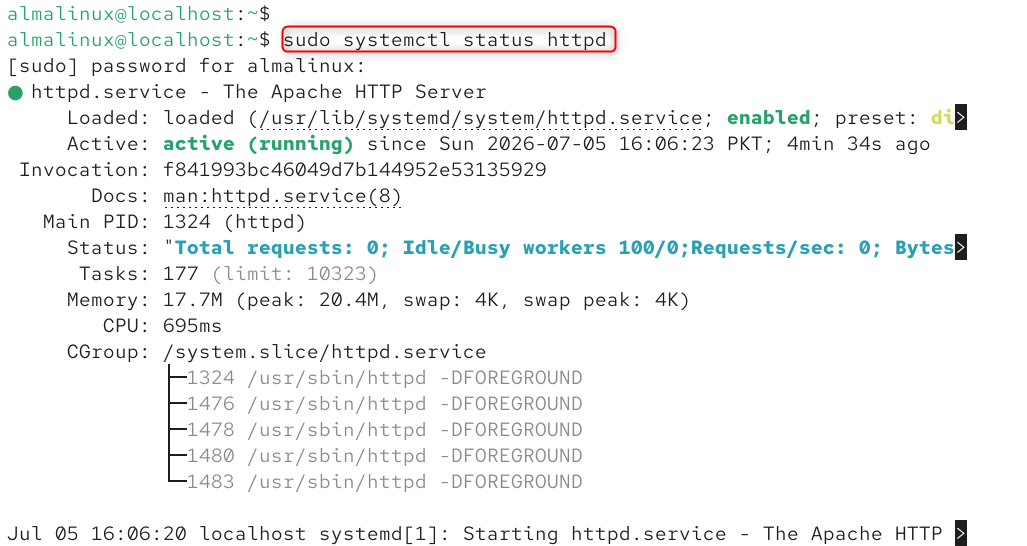
Before starting, stopping, or modifying any service, the first command you should know is systemctl status. It gives you a live snapshot of a service’s current state: whether it is running or stopped, its process ID, how long it has been running, and the most recent log entries from journald, all in a single, readable output.
Check the status of the Apache web server (httpd)
sudo systemctl status httpd |
|---|

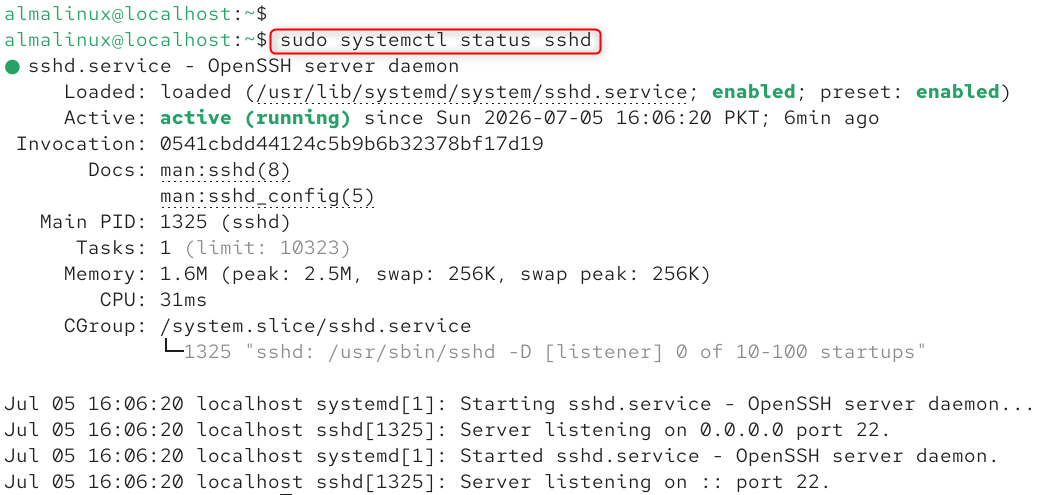
Check the status of the SSH daemon.
sudo systemctl status sshd |
|---|

Check the status of the firewall service.
sudo systemctl status firewalld |
|---|

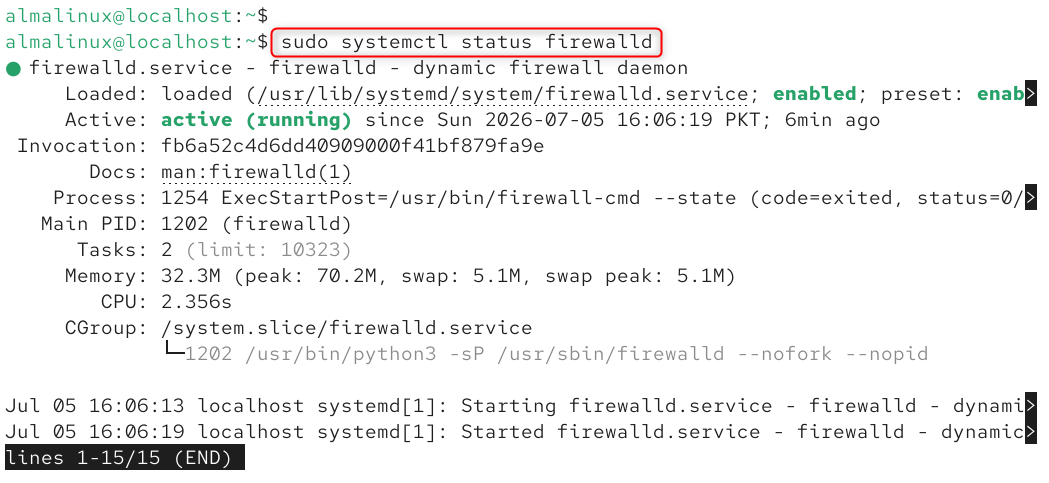
The status output contains several key fields. The ‘Loaded’ line shows the path to the unit file and whether the service is enabled or disabled at boot. The ‘Active’ line reports the current runtime state: ‘active (running)’ means the service is up; ‘inactive (dead)’ means it is stopped; ‘failed’ means it crashed or exited with an error.
2. Start, Stop, and Restart Services
The three most frequently used systemctl operations for day-to-day service management are start, stop, and restart. These commands affect the service’s current running state but do not change whether it starts automatically on the next boot, which is controlled separately by enable and disable, covered in the next section.
Start a service
Start the Apache web server immediately.
sudo systemctl start httpd |
|---|


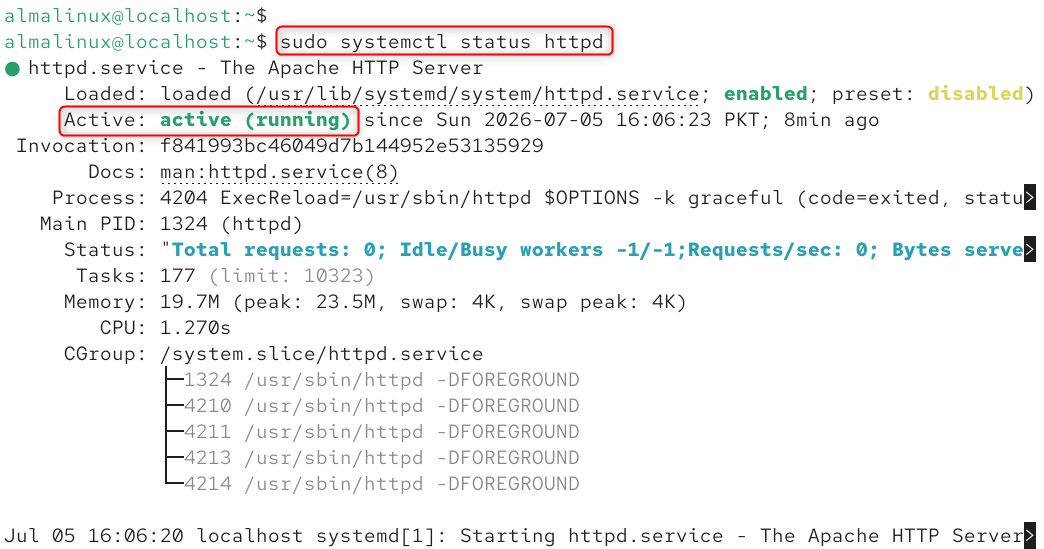
Verify the service is now running.
sudo systemctl status httpd |
|---|

Stop a service
Gracefully stop the Apache web server.
sudo systemctl stop httpd |
|---|


Stop the firewall service.
sudo systemctl stop firewalld |
|---|
Restart a service (stop then start)
Restarting a service applies configuration changes that require a full process restart.
sudo systemctl restart httpd |
|---|


Restart the SSH daemon after editing sshd_config.
sudo systemctl restart sshd |
|---|


If you are connected to your AlmaLinux 10 server over SSH, restarting sshd drops all existing SSH sessions, including yours. Test your sshd configuration with ‘sshd -t’ first, ensure you have console or out-of-band access as a fallback, and only then run sudo systemctl restart sshd.
3. Enable and Disable Services at Boot
Starting a service with systemctl start only runs it for the current session. If the server reboots, the service will not automatically come back up unless you have explicitly enabled it. Enabling a service creates a symbolic link in the appropriate systemd wants directory, telling systemd to start that service during the boot sequence.
Enable a service to start automatically at boot
Enable Apache to start on every boot.
sudo systemctl enable httpd |
|---|


Enable and START immediately in one command (most efficient approach).
sudo systemctl enable –now httpd |
|---|


Disable a service from starting at boot
Disable a service from auto-starting at boot.
sudo systemctl disable httpd |
|---|


Disable and STOP immediately in one command.
sudo systemctl disable –now httpd |
|---|

Check if a service is enabled
Check enabled/disabled state without full status output.
systemctl is-enabled httpd |
|---|
Check if a service is currently active (running).
systemctl is-active httpd |
|---|


Use in scripts; returns exit code 0 if enabled, non-zero if not.
systemctl is-enabled httpd && echo ‘enabled’ || echo ‘disabled’ |
|---|


The –now flag combines two operations into one: sudo systemctl enable –now httpd both enables the service for all future boots AND starts it in the current session. This is the recommended idiom for setting up a new service on AlmaLinux 10; there is no reason to run enable and start as separate commands.
4. Listing All Services (Active & Inactive) on AlmaLinux 10
You can inspect every service on the system with systemctl list services, whether running, stopped, failed, or inactive, using systemctl list-units and related commands.
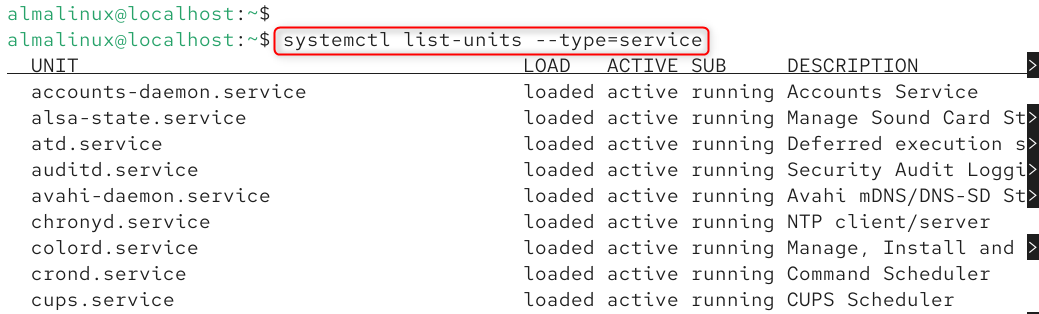
List all currently loaded service units and their state.
systemctl list-units –type=service |
|---|

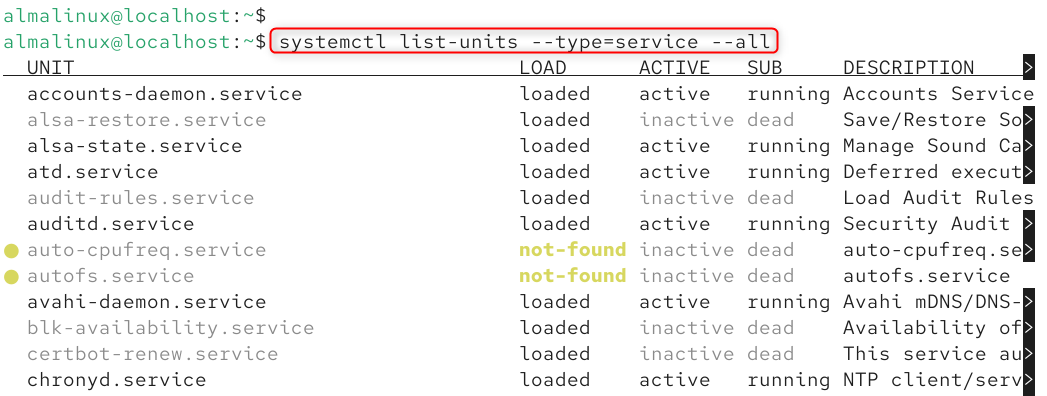
List ALL services, including inactive and not-loaded ones.
systemctl list-units –type=service –all |
|---|

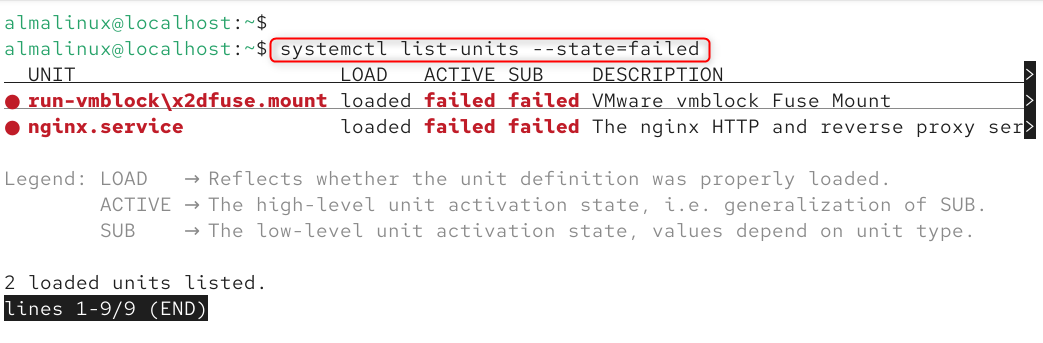
List only FAILED services, the most useful command after a reboot issue.
systemctl list-units –state=failed |
|---|

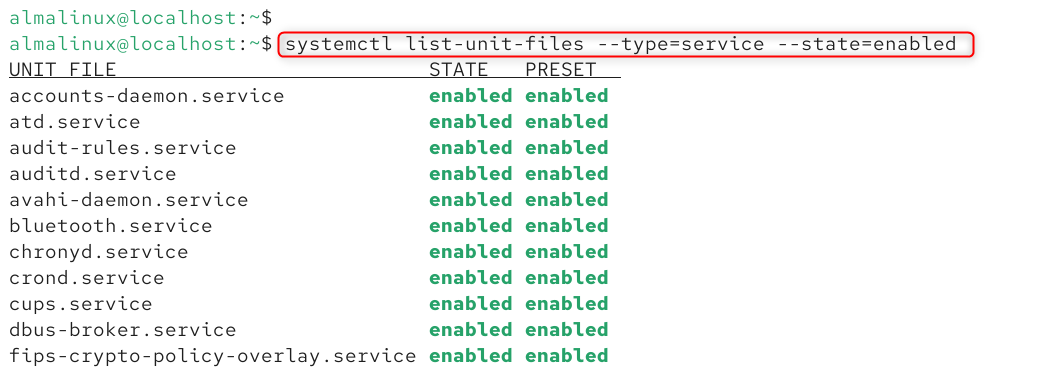
List all services that are enabled at boot.
systemctl list-unit-files –type=service –state=enabled |
|---|

5. Mask and Unmask Services
Disabling a service prevents it from starting at boot, but it can still be started manually with systemctl start. Masking is a stronger operation: it symlinks the service unit file to /dev/null, making it impossible to start the service by any means, manually or as a dependency, until it is unmasked. Use masking for services you absolutely never want running on a particular server.
Mask a service cannot be started manually or as a dependency.
sudo systemctl mask bluetooth.service |
|---|


Unmask to restore normal behaviour.
sudo systemctl unmask bluetooth.service |
|---|


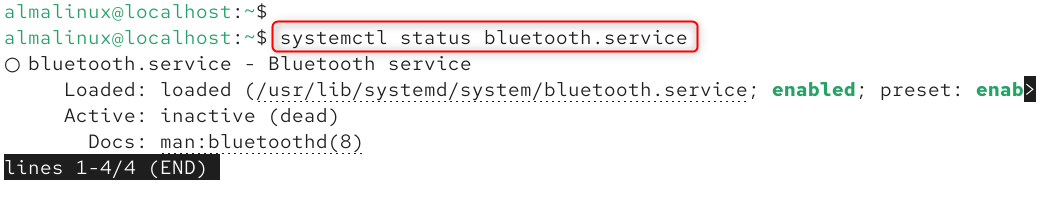
Confirm that a masked service is truly blocked.
systemctl status bluetooth.service |
|---|

Conclusion
Managing Linux services becomes simple and efficient once you understand the systemctl command. In AlmaLinux 10, systemctl is the standard tool for controlling systemd services, allowing you to start, stop, restart, enable, disable, and monitor services with just a few commands.
Throughout this guide, you’ve learned how to start, stop, restart, and reload services safely. Enable and disable services at boot, check service status, and troubleshoot failed services. List running, inactive, failed, and all available services. View service logs for easier debugging. Manage timers and other systemd units.
Frequently Asked Questions
1. What is systemctl in Linux, and what is the systemctl command used for?
The systemctl command is the primary utility for managing services and system resources in systemd Linux environments that use the systemd init system. If you’re wondering what systemctl in Linux is, it allows you to start, stop, restart, enable, disable, and monitor services. The systemctl command in Linux also lets administrators manage units such as services, sockets, mounts, and timers from a single interface.
2. How do I use systemctl to list all services?
If you’re looking for how to list all services with systemctl, you can use commands like systemctl list-units –type=service or systemctl list services that are currently loaded. To systemctl list all services, including inactive ones, use systemctl list-unit-files –type=service. You can also use systemctl list running services, systemctl list units, systemctl list failed, systemctl list failed units, and systemctl list timers, depending on the information you need.
3. Where are systemctl service files located?
Many users ask, where are systemctl service files or where are systemctl service files located. Most service unit files are stored in /usr/lib/systemd/system/ or /lib/systemd/system/, while custom or administrator-created service files are commonly placed in /etc/systemd/system/. These directories are where systemd looks when managing services through the systemctl command.
4. How can I view service logs with systemctl?
Although systemctl logs is a common search term, service logs are typically viewed using the journalctl utility. For example, you can display logs for a specific service using journalctl -u service_name. This works alongside the systemctl command and is the recommended way to troubleshoot services managed by systemctl in Linux.
5. Why do I get the “systemctl command not found” error?
The systemctl command not found error usually means your Linux distribution does not use systemd, or the required package is missing from your system. Older distributions, lightweight containers, or systems using alternative init systems such as SysVinit or OpenRC may not support the systemctl command in Linux. Verify that your operating system uses systemctl in Linux before attempting to manage services with it.