Python scripts running automatically on Linux VPSs are a powerful way to automate tasks such as backups, monitoring, and data processing. Email alerts and API integrations can also be automated. You can eliminate manual work and save time by learning to schedule Python scripts in Linux, whether you’re a system administrator, developer, or business owner.
This guide will explain how to create Python code, test it safely, and then schedule it using cron.
Table of Content
How to Write and Schedule Python Scripts on Linux VPS
Writing and scheduling Python scripts on a Linux VPS involves creating a Python script, testing it manually, and then using the cron scheduler to run it automatically at defined intervals. After ensuring that Python is installed, write your script with proper executable permissions, use absolute paths to avoid environment issues, and verify that it runs correctly from the terminal.
Then, you add a cron job using crontab -e, specifying the correct Python binary and script location, while redirecting output to logs for monitoring. This approach allows reliable automation of tasks such as backups, monitoring, data processing, and notifications on a Linux VPS.
Step 1: Connect to Your Linux VPS
You must first access your VPS safely before you can write or schedule scripts. SSH lets you log in remotely to your server and manage it directly from the terminal.
|
ssh username@your_vps_ip |
|---|

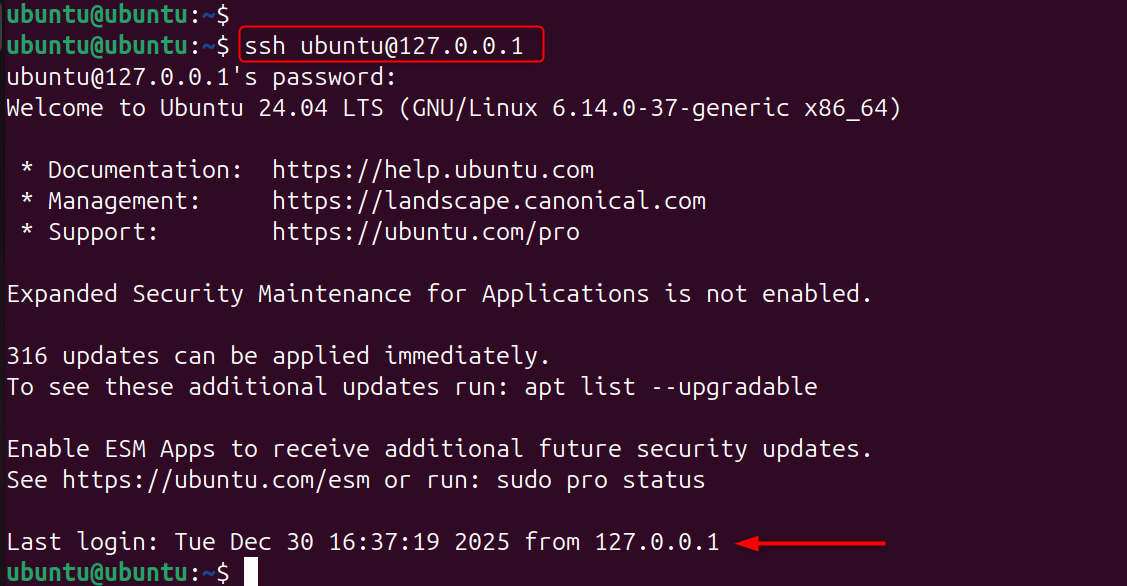
This ensures that you’re working on the correct server environment, where your Python script is actually going to run.
Step 2: Check if Python Is Installed
Python is pre-installed on most modern Linux distributions. Verifying the version is important to ensure compatibility and avoid runtime errors.
|
python3 –version |
|---|


Python 3 is the recommended version because Python 2 has been deprecated.
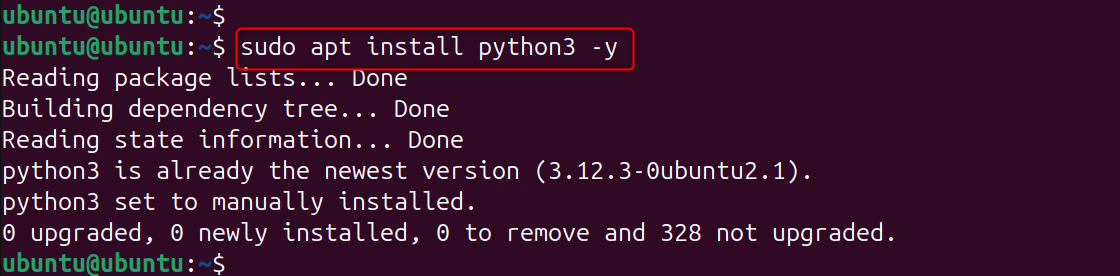
Install Python using your package manager if it isn’t already installed.
|
sudo apt install python3 -y |
|---|

Step 3: Create a Directory for Python Scripts
Organizing your scripts in a dedicated directory keeps your VPS clean and maintainable. This makes it easier to manage automation, backups, and permissions.
|
mkdir ~/python-scripts cd ~/python-scripts |
|---|


Typically, a standard location such as /opt/scripts (or /scripts) is used.
Step 4: Write Your First Python Script
You’ll now create a Python script to perform a specific task. This example adds a timestamp to a log file. It is useful to learn automation basics. Using a text editor like nano ensures simplicity for beginners.
|
sudo nano hello.py |
|---|
Add the following code:
|
#!/usr/bin/env python3 from datetime import datetime with open(“script.log”, “a”) as f: f.write(f”Script ran at {datetime.now()}\n”) |
|---|

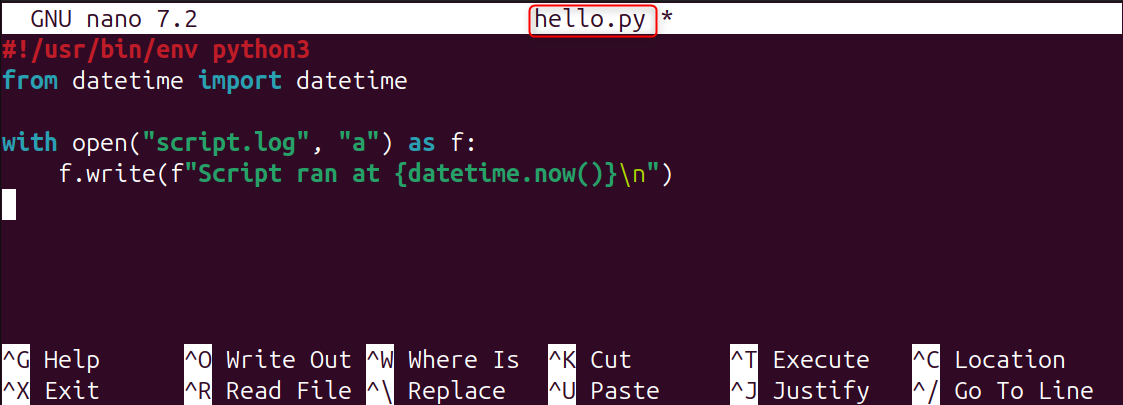
This script logs the execution time every time it runs.
Step 5: Make the Python Script Executable
Linux requires execution permission before running scripts directly. Without this step, cron jobs and manual execution may fail.
|
sudo chmod +x hello.py |
|---|


Setting executable permissions ensures the script can run independently.
Step 6: Test the Python Script Manually
Always test scripts manually before scheduling them. This helps catch syntax errors, permission issues, or missing dependencies.
|
python3 hello.py cat script.log |
|---|


If the script runs correctly now, it will likely work correctly when scheduled.
Step 7: Use Absolute Paths in Scripts
Cron jobs run in a limited environment and do not inherit your shell paths. Using absolute paths prevents file-not-found errors. Modify your script to use full paths:
|
with open(“/home/username/python-scripts/script.log”, “a”) as f: |
|---|
Step 8: Understand Cron Jobs (Linux Scheduler)
Cron is the default Linux task scheduler used to run commands automatically at specific times. It’s lightweight, reliable, and perfect for Python automation. Cron jobs run in the background without user interaction.
Step 9: Open the Crontab Editor
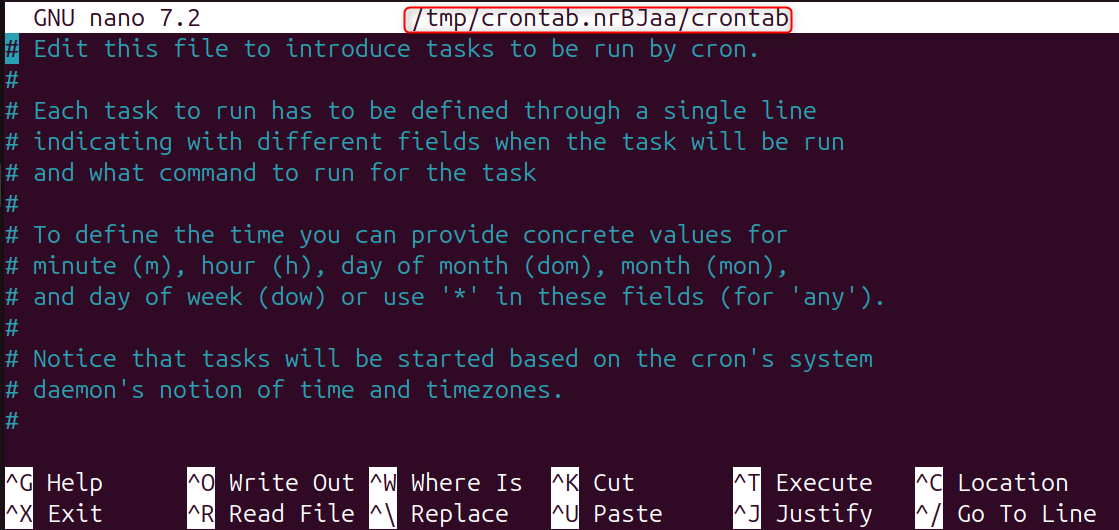
Each user has their own crontab file. Editing it allows you to define scheduled tasks using cron syntax. This step ensures your Python script runs at the desired interval.
|
crontab -e |
|---|

Step 10: Schedule the Python Script
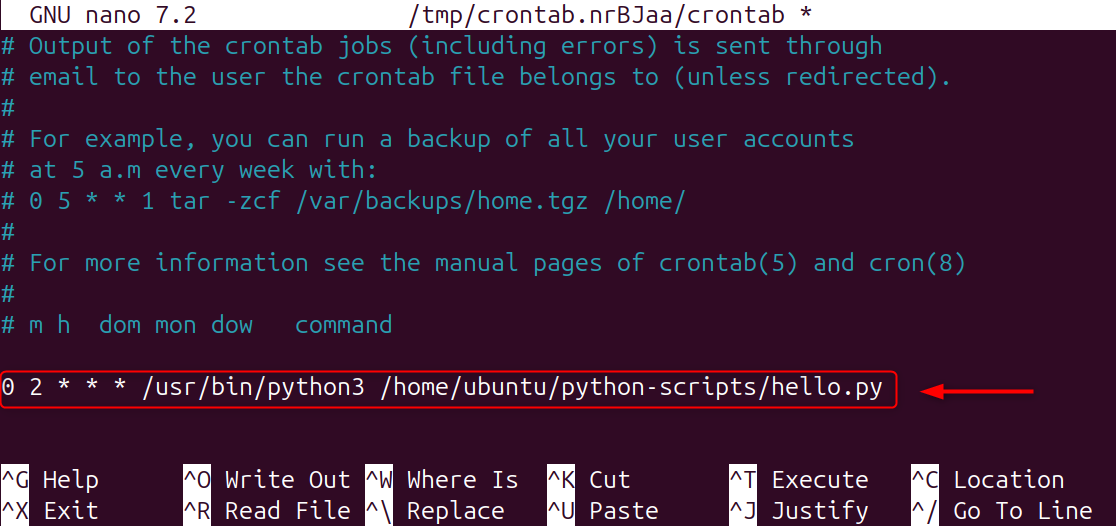
Cron uses five time fields followed by the command. This example runs the script every day at 2 AM.
Scheduling allows your automation to run consistently without manual execution.
|
0 2 * * * /usr/bin/python3 /home/ubuntu/python-scripts/hello.py |
|---|

Step 11: Verify Cron Job Installation
After saving the crontab, confirm the job was added successfully. This prevents silent failures due to syntax errors.
|
crontab -l |
|---|

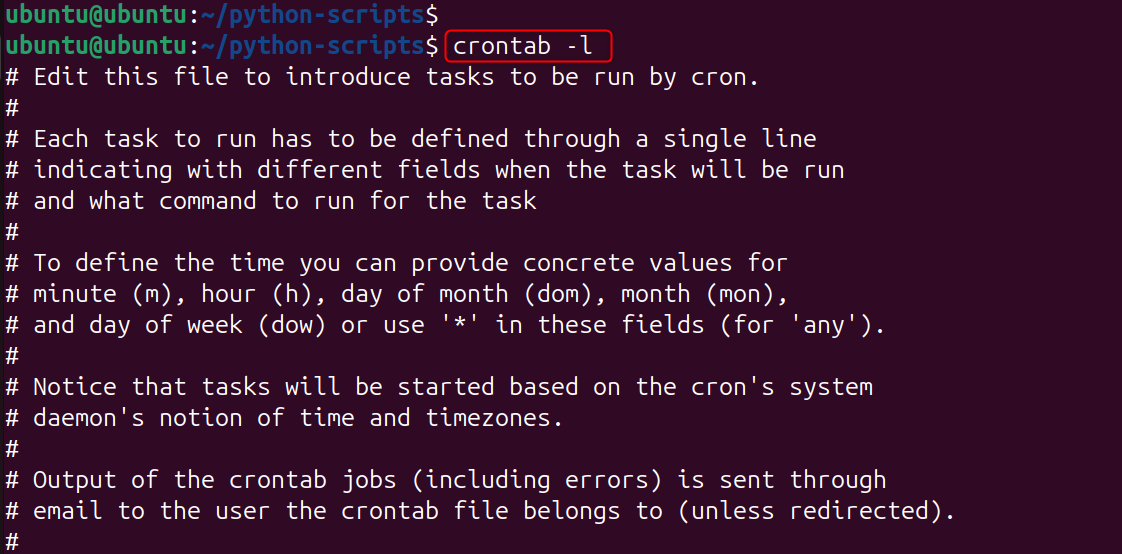
Listing cron jobs ensures everything is set up correctly.
Step 12: Check Cron Execution Logs
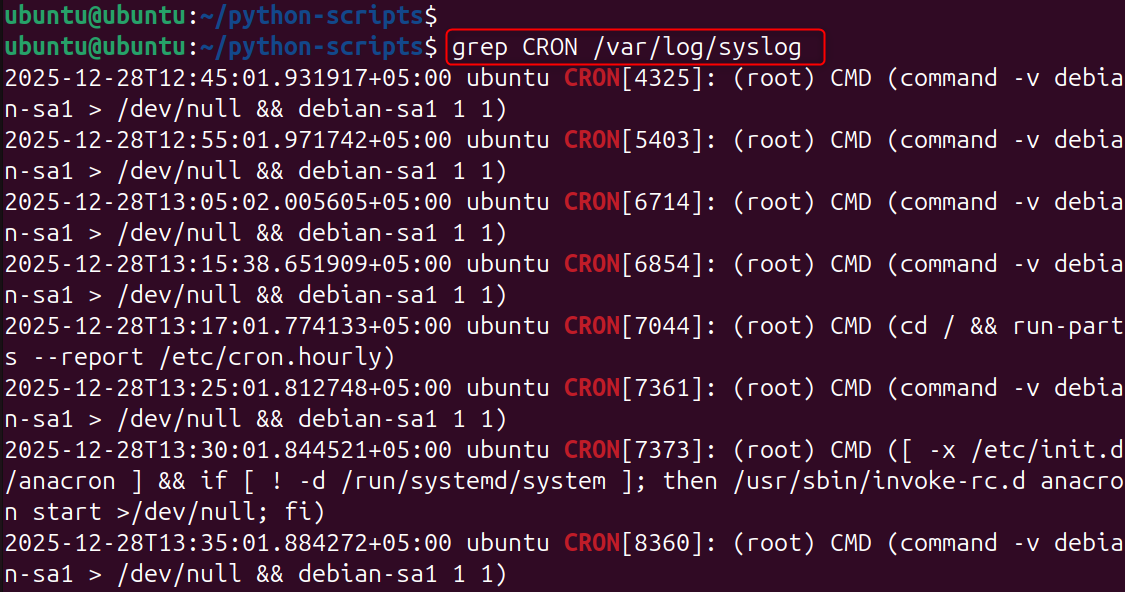
If a scheduled Python script doesn’t run, cron logs provide critical debugging information. These logs help identify permission issues, missing paths, or command errors.
|
grep CRON /var/log/syslog |
|---|

Step 13: Redirect Output and Errors
Cron does not display output by default. Redirecting output ensures you capture logs and errors for troubleshooting.
|
0 2 * * * /usr/bin/python3 script.py >> cron.log 2>&1 |
|---|

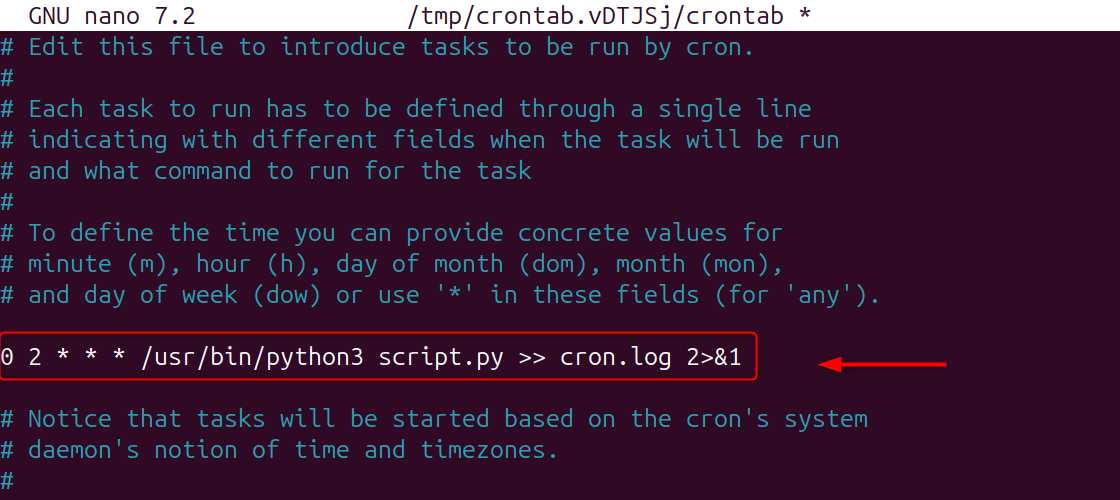
This is essential for long-running or critical automation tasks.
Step 14: Use Virtual Environments (Recommended)
Virtual environments isolate dependencies, preventing conflicts between system Python packages and your script’s requirements.
|
python3 -m venv venv source venv/bin/activate pip install requests |
|---|

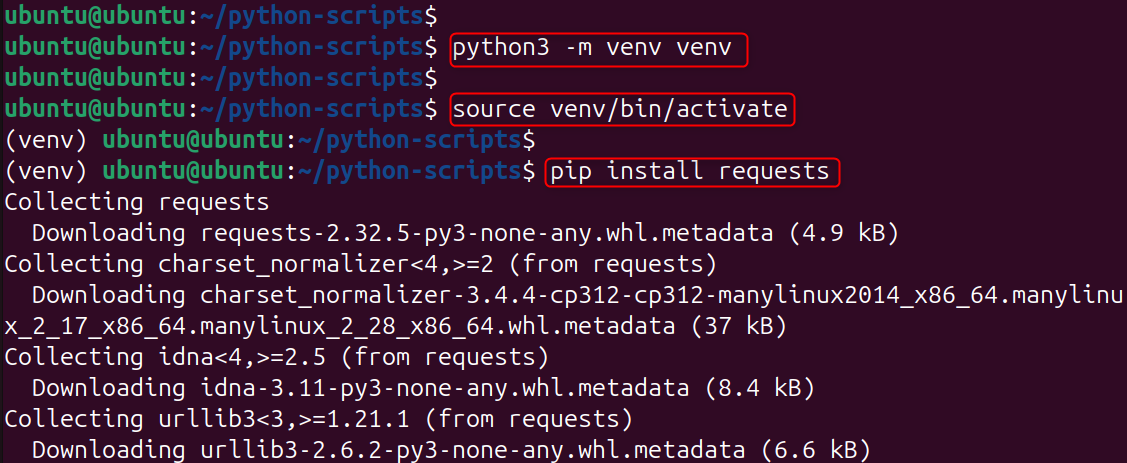
This is especially important for automation involving APIs or third-party libraries.
Step 15: Schedule Scripts Using Virtual Environments
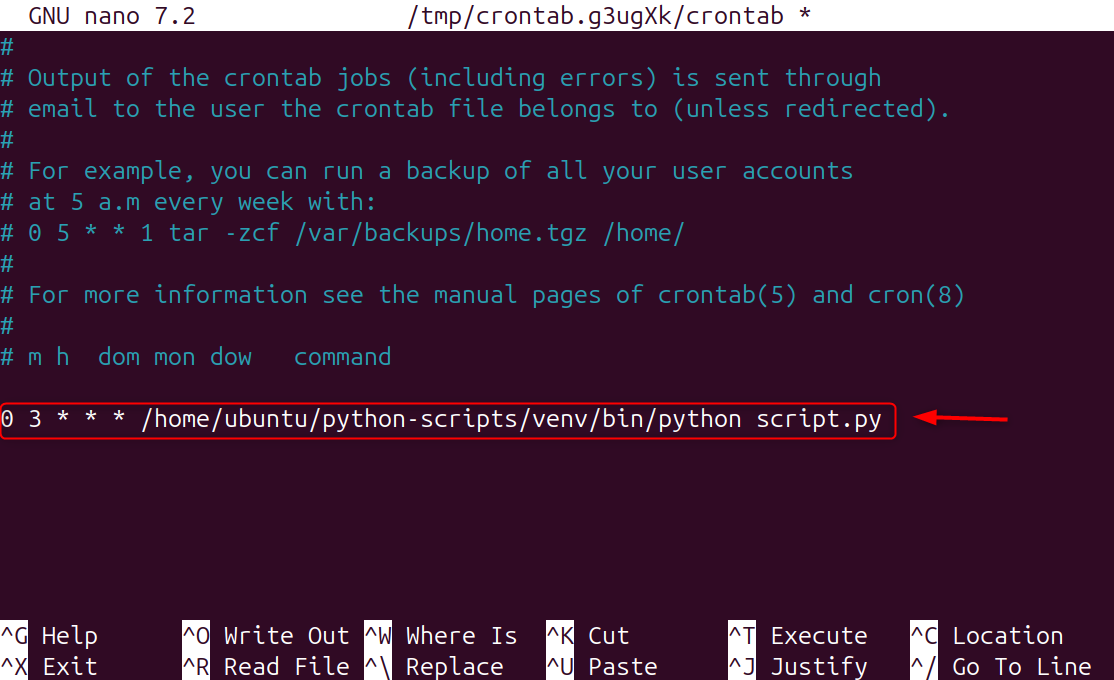
When using virtual environments, cron must reference the Python binary inside the venv. This ensures your script runs with the correct dependencies.
|
0 3 * * * /home/username/python-scripts/venv/bin/python script.py |
|---|

Step 16: Secure Python Scripts on a VPS
Security is critical when running scheduled scripts. Limit permissions and avoid storing sensitive data in plain text.
|
sudo chmod 700 script.py |
|---|


Use environment variables or .env files for secrets.
Troubleshooting Common Issues
“ssh: connect to host 127.0.0.1 port 22: Connection refused” error means the SSH service is not running or not listening on port 22 on the local system (127.0.0.1). To fix it, start or restart the SSH server and verify that the correct port is configured and allowed by the firewall.
If your Python cron job doesn’t run:
- Check permissions
- Verify Python path
- Confirm cron syntax
- Review logs
- Ensure script executable
Most issues are environment-related rather than code-related.
Conclusion
Writing and scheduling Python scripts on a Linux VPS is a foundational skill for automation, server management, and productivity. By creating well-structured scripts, testing them manually, and scheduling them properly with cron, you can automate repetitive tasks reliably. Using absolute paths, logging output, and following security best practices ensures your Python automation runs smoothly and safely in production environments.