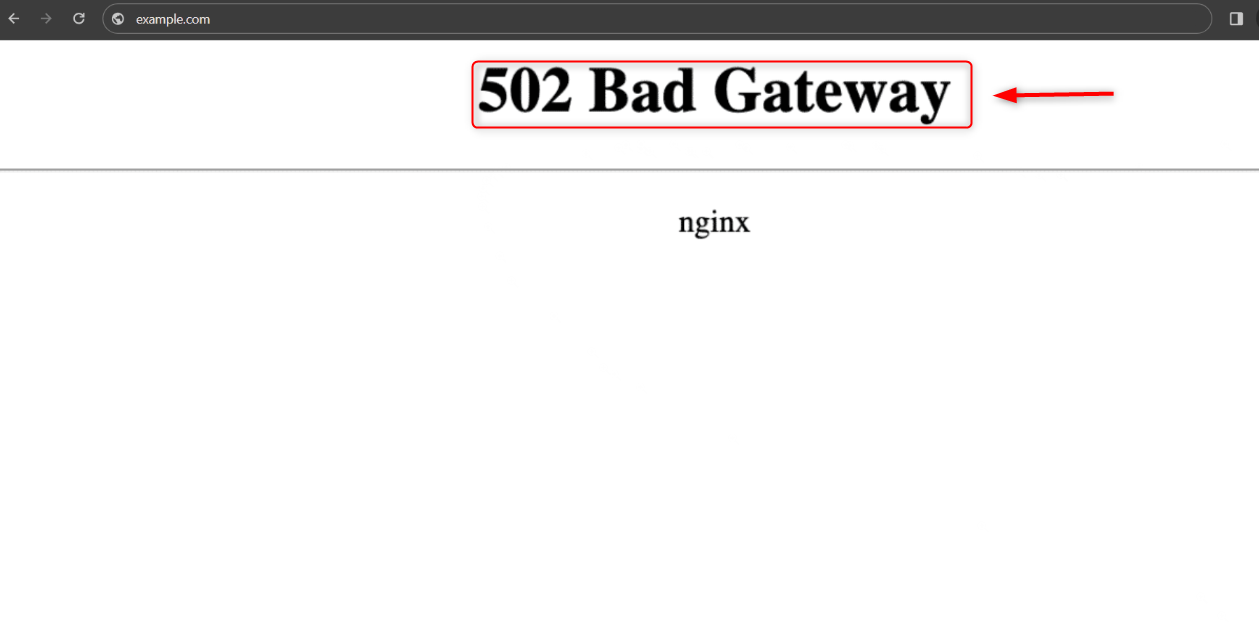
The 502 Bad Gateway error occurs in Nginx when the server does not receive a valid response back from a downstream service, such as PHP-FPM or Node.js. Check Nginx logs and those of the backend services. Correct configuration and monitoring will prevent 502 errors from occurring on Linux VPS environments. Understanding this error is crucial for maintaining performance and uptime, whether you’re running a WordPress website, a Laravel application, a Node.js application, an API, or a Docker container.
This guide will show you how to resolve the Nginx 500 Bad Gateway error.
Troubleshooting Nginx 502 Bad Gateway Errors on Linux VPS
Nginx 502 Bad Gateway errors on Linux VPSs occur when Nginx is unable to receive a valid response from a backend service upstream, such as PHP-FPM or Node.js. It can be resolved by checking Nginx logs and the application logs. You will also need to verify service status, fix socket or port mismatches, and correct permissions. Monitoring and configuration can help to prevent 502 errors from recurring.

Step 1: Check Nginx Error Logs
You should always check the Nginx logs before changing any configuration. These logs contain detailed information on why Nginx was unable to communicate with upstream services, including connection issues and permission errors.
The error logs can often be used to pinpoint the exact cause of an issue, saving you time and preventing configuration changes that are not necessary.
|
sudo tail -f /var/log/nginx/error.log |
|---|


Step 2: Verify That Nginx Is Running
The Nginx server itself cannot send requests to the backend. This can occur after a system upgrade, configuration error, or an unexpected crash.
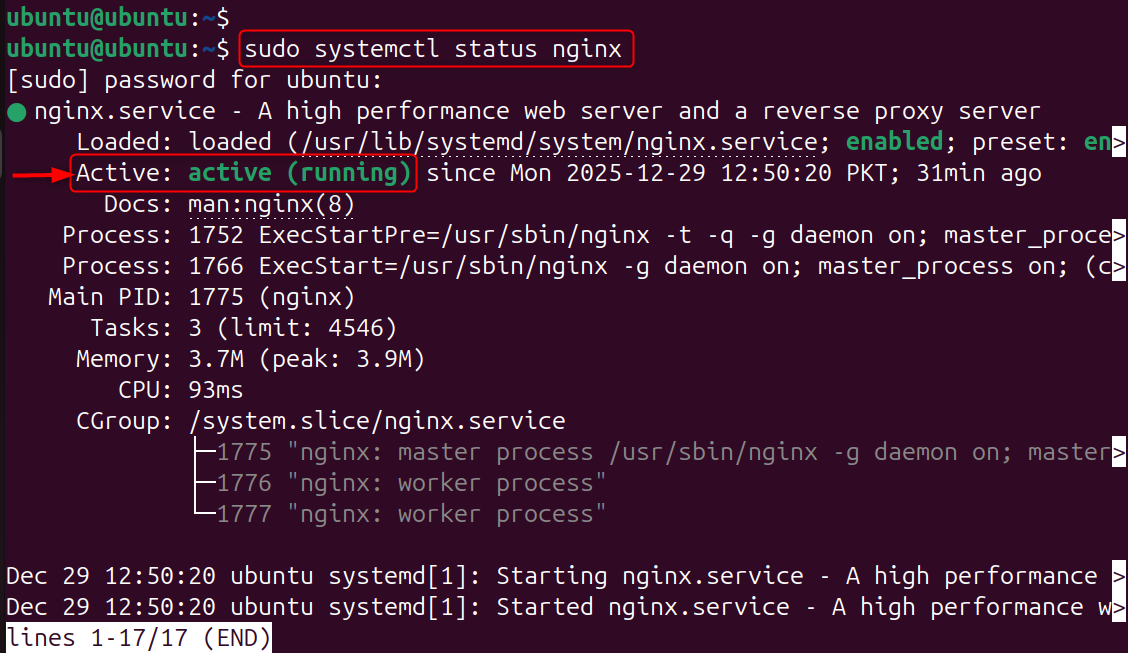
The service status will confirm if Nginx has been listening to incoming requests and is active.
|
sudo systemctl status nginx |
|---|

Step 3: Check Backend Application Status
Nginx is completely dependent on the backend application to process requests. Nginx cannot forward requests if the backend service does not run. This results in a 502 Error. This ensures that your application server is responding properly and is active.
PHP-FPM
|
sudo systemctl status php-fpm |
|---|
Node.js (PM2)
|
pm2 status |
|---|
Python (Gunicorn)
|
sudo systemctl status gunicorn |
|---|
Step 4: Restart Backend Services
Backend services may crash because of memory exhaustion or due to temporary bugs. Restarting the services clears out stuck processes and reloads settings.
This is the fastest and most effective way to fix Nginx error 502.
|
sudo systemctl restart php-fpm |
|---|
Step 5: Restart Nginx Service
Nginx must reinitialize and reconnect with backend services after restarting. Nginx can keep stale connections upstream that lead to persistent gateway errors.
Communication problems can be resolved immediately by a clean restart.
|
sudo systemctl restart nginx |
|---|


Step 6: Verify Nginx Upstream Configuration
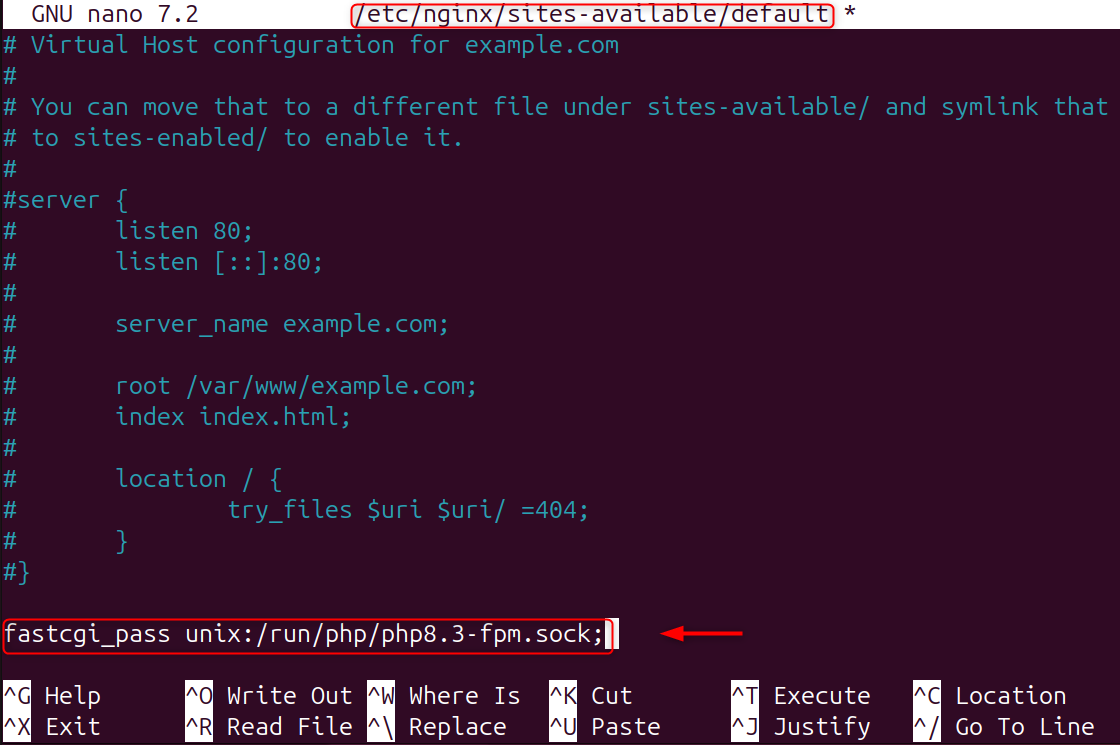
Nginx needs to be configured with the right backend port or socket. A 502 error will be generated if there is even a slight mismatch between the upstream configured and the actual listener.
This ensures that Nginx points to the correct endpoint.
|
sudo nano /etc/nginx/sites-available/default |
|---|
Example:
|
fastcgi_pass unix:/run/php/php8.3-fpm.sock; |
|---|

Step 7: Confirm PHP-FPM Socket or Port
PHP-FPM will listen to either a Unix Socket or a TCP port. Nginx should use the same communication protocol as defined in PHP-FPM.
Nginx will not be able to establish a connection if these values do not match.
|
sudo nano /etc/php/8.3/fpm/pool.d/www.conf |
|---|


Step 8: Fix File and Socket Permissions
Nginx may be unable to access backend sockets and application files if the ownership or permissions are incorrect. This happens a lot after manual uploads and migrations.
By ensuring that Nginx is properly configured, it can communicate with the backend services securely.
|
sudo chown -R www-data:www-data /var/www/html sudo chmod -R 755 /var/www/html |
|---|


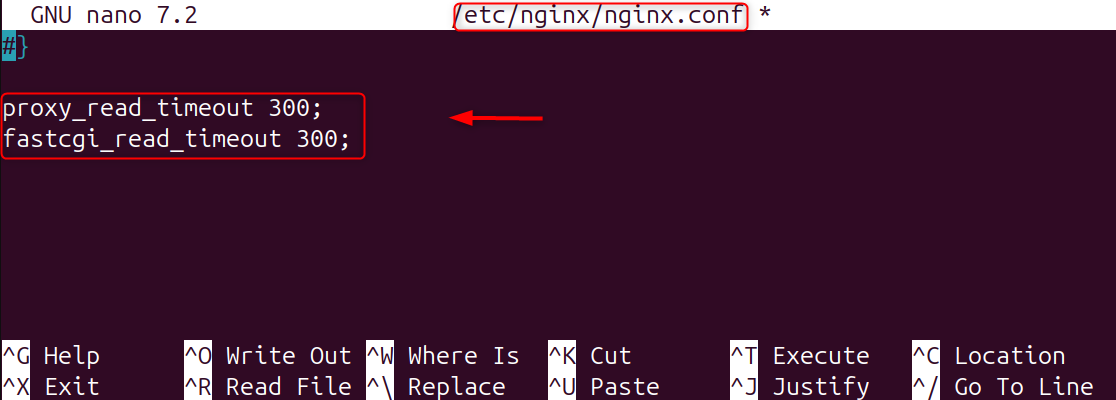
Step 9: Increase Nginx Timeout Settings
Some applications can take longer to respond, particularly during high traffic or complex operations. The default timeout values are too low, and Nginx may return an error 502 prematurely.
Increased timeout values give backend services additional time to respond.
|
proxy_read_timeout 300; fastcgi_read_timeout 300; |
|---|

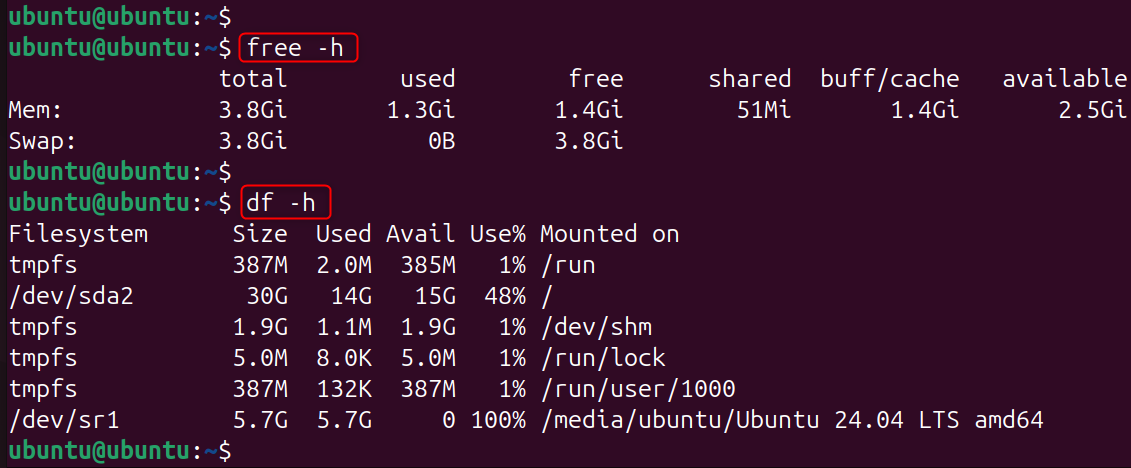
Step 10: Check System Resource Usage
Backend services can crash suddenly due to low memory, CPU overload, or full disks. Nginx will not respond and return a 502 error when this occurs.
Monitoring system resources can help identify performance bottlenecks.
|
free -h df -h |
|---|

Step 11: Review Firewall and Security Policies
Communication between Nginx services and backend services can be blocked by firewalls or security policies such as SELinux. This can happen on hardened servers or after firewall rule modifications.
Silent failures can be prevented by ensuring that the required ports and connections are available.
|
sudo ufw status |
|---|


Step 12: Validate Nginx Configuration
Even if the services are running, configuration syntax errors can cause upstream communication to be broken. Test the configuration before reloading to avoid unnecessary downtime.
This step will ensure that your Nginx configuration has been applied correctly and safely.
|
sudo nginx -t |
|---|


Step 13: Inspect Application-Level Logs
Nginx can sometimes be the problem, but it could also be the application. Nginx 502 errors are often caused by application errors, crashes, or uncaught errors.
You can fix the issue by checking your application logs.
Examples:
- WordPress debug logs
- Laravel storage/logs
- Node.js application logs
Step 14: Adjust PHP-FPM Resource Limits
PHP-FPM can terminate processes when memory or worker limits fall too low. Nginx will receive no response from this and return a 502 Error.
With the right tuning, PHP will handle spikes in traffic without crashing.
|
pm.max_children = 20 memory_limit = 512M |
|---|


Step 15: Reboot the VPS (Last Resort)
A reboot of the system can be used to restore stability if multiple services are unstable or kernel issues exist. Only do this after all other troubleshooting measures have failed.
By rebooting, all services are reset, and low-level resource lockouts are cleared.
|
sudo reboot |
|---|


That is all from the guide.
Conclusion
To fix the 502 Bad Gateway error, refresh the page, check the site status, clear your browser cache, try in Incognito mode, and flush the DNS cache. Nginx 500 Bad Gateway errors usually are not Nginx-related. You can diagnose the problem quickly by checking logs, confirming services, correcting settings, and monitoring resources. Your Linux VPS will be able to handle traffic efficiently with preventive measures and avoid gateway errors.
Nginx 502 Bad Gateway errors occur when a web server receives a successful request from a user but does not get a valid reply from a backend service upstream. This error usually occurs on a Linux VPS when Nginx has been configured as a reverse proxy for PHP, Node.js, or Python (Gunicorn) applications.