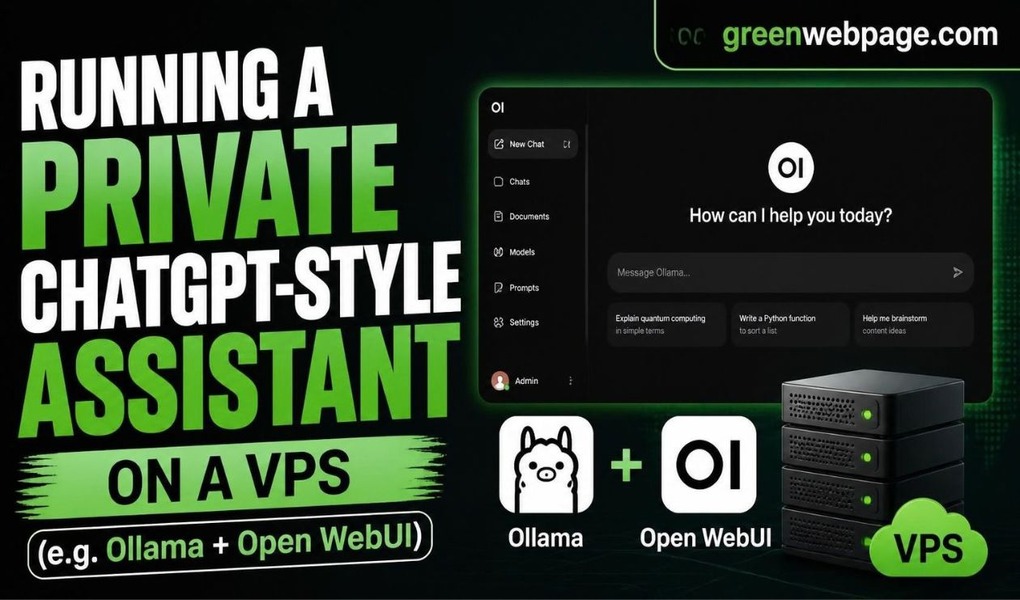
You cannot install ChatGPT itself on a server, since it is a closed product running on OpenAI’s own infrastructure. What you actually can do, and what a lot of people searching for this are really after, is run an open model behind a chat interface that looks and feels almost identical, sitting entirely on hardware you control.
This guide covers building exactly that on a VPS using Ollama to run the model and Open WebUI as the browser-based front end, with no data ever leaving your own server.
Table of Content
- Why People Build This Instead of Just Using ChatGPT
- What You Are Actually Building
- Choosing the Right VPS
- How to Run a Private ChatGPT-Style Assistant on a VPS
- Managing Models Going Forward
- Troubleshooting Common Issues
- Conclusion
- Frequently Asked Questions
Why People Build This Instead of Just Using ChatGPT
The appeal here is not that a self-hosted model beats a frontier commercial one on raw capability, because for most open-weight models it still does not. The appeal is control. Every conversation stays on your own infrastructure instead of a third party’s servers; there is no per-token billing that creeps up as usage grows, and you can run it fully offline once the model is downloaded if that matters for your use case.
Teams handling sensitive internal data, developers who want a private coding assistant, and anyone who just wants predictable flat cost instead of a usage-based bill all tend to land here for similar reasons.
What You Are Actually Building
Ollama is the piece that runs the actual language model. It handles downloading open-weight models like Llama, Qwen, and Mistral, loading them into memory, and serving an API that other tools can talk to.
Open WebUI is the part people actually see, a polished, browser-based chat interface that connects to Ollama behind the scenes and gives you something that looks and behaves close to ChatGPT, including conversation history, multiple models, and document chat.
Choosing the Right VPS
This decision matters more than any command you will run later, so get it right first.
CPU-only VPS. A plain CPU VPS with 16 GB of RAM or more can run smaller quantized models reasonably well, things in the 7 to 8 billion parameter range like Llama 3.3 8B or Qwen3 8B. Responses will be noticeably slower than ChatGPT, often several seconds per sentence rather than near-instant, but it is a genuinely usable setup for personal use or light internal tooling, and it is the cheapest way to get started.
GPU VPS. If you want responses that actually feel snappy, or you plan to run larger models in the 30 billion parameter range and up, a GPU-equipped VPS changes the experience entirely. A single mid-range GPU with 16 to 24 GB of VRAM comfortably handles most practical model sizes with response times closer to what people expect from a commercial chat product.
As a rough starting point, budget at least 16 GB of RAM for a CPU-only setup running smaller models, and plan for 50 GB or more of disk space, since model files alone can run from a few gigabytes to well over twenty depending on size.
How to Run a Private ChatGPT-Style Assistant on a VPS (Ollama Plus Open WebUI)
Running a private, self-hosted ChatGPT-style assistant on a Virtual Private Server (VPS) uses Ollama for model inference and Open WebUI for the browser-based chat interface, deployed via Docker or Docker Compose.
Step 1: Prepare the Server
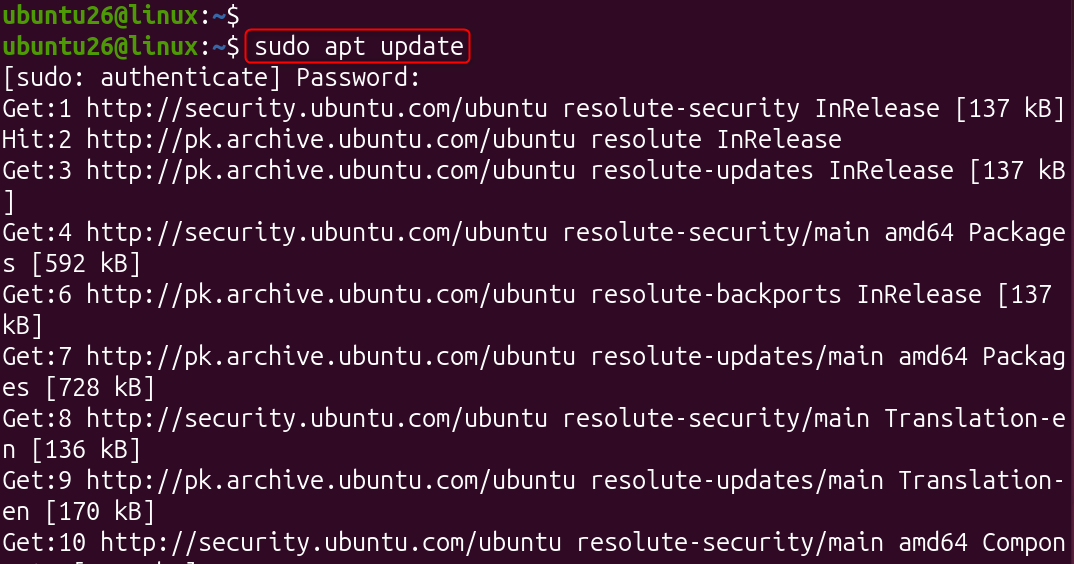
Update the system first, regardless of which distribution your VPS runs:
sudo apt update |
|---|

Install Docker
Running both Ollama and Open WebUI through Docker keeps the setup clean and makes updates painless later:
curl -fsSL https://get.docker.com | sudo sh |
|---|

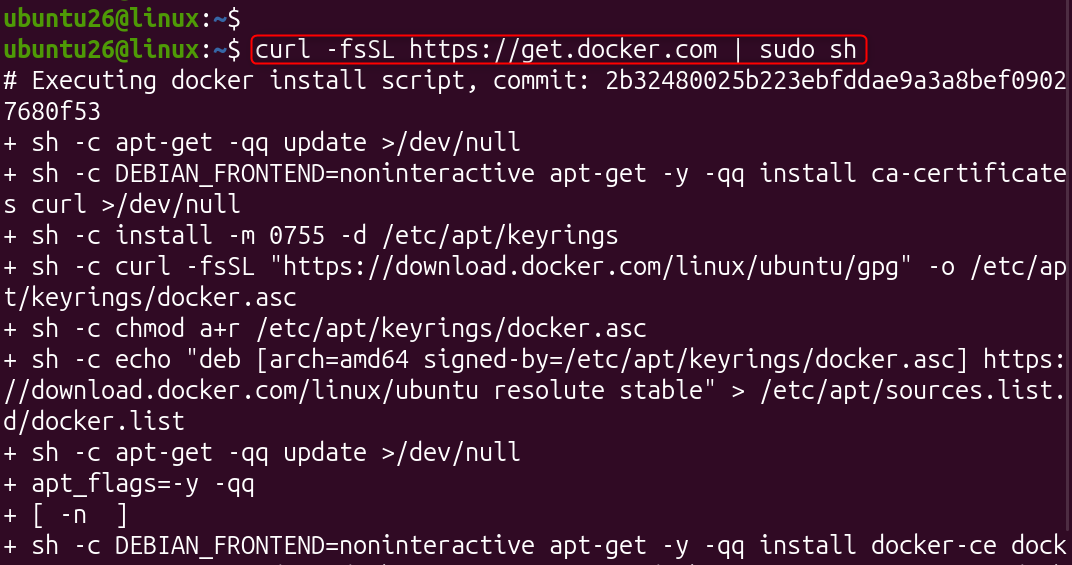
Log out and back in for the group change to apply, then confirm Docker is working:
sudo usermod -aG docker $USER docker –version |
|---|


Step 2: Set Up the Project Structure
Now, set up the project structure and navigate into it.
mkdir -p ~/ai-assistant cd ~/ai-assistant |
|---|


Create a Docker Compose file that defines both services together:
nano docker-compose.yml |
|---|
Paste the following:
services: ollama: image: ollama/ollama:latest container_name: ollama restart: always volumes: – ollama-data:/root/.ollama ports: – “11434:11434” open-webui: image: ghcr.io/open-webui/open-webui:main container_name: open-webui restart: always depends_on: – ollama environment: – OLLAMA_BASE_URL=http://ollama:11434 volumes: – webui-data:/app/backend/data ports: – “3000:8080” volumes: ollama-data: webui-data: |
|---|

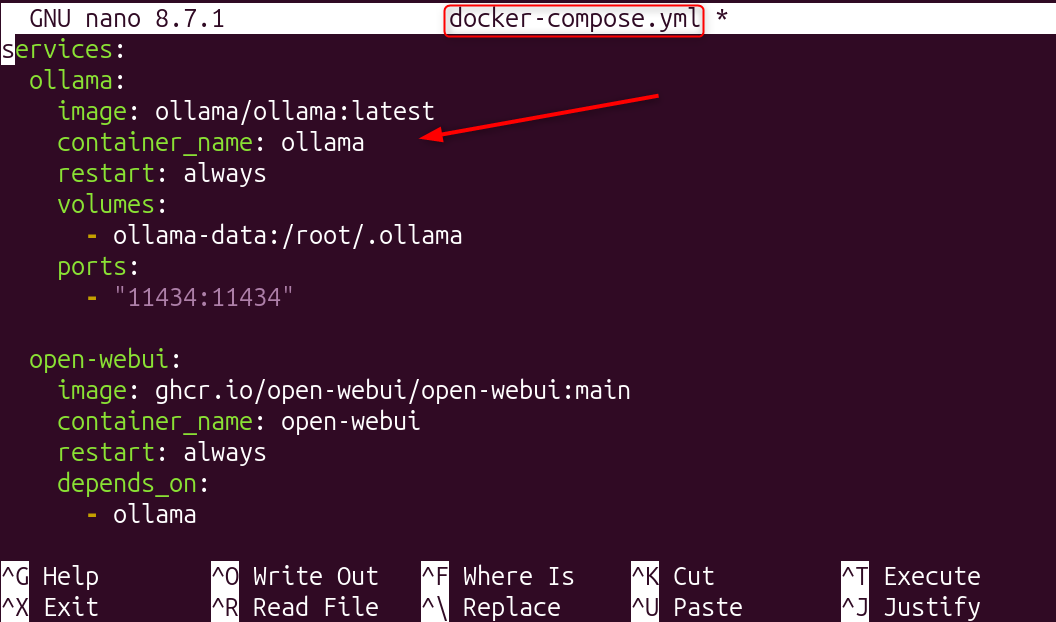
If your VPS has a GPU attached and you want Ollama to use it, add deploy.resources.reservations.devices with the GPU driver configuration under the ollama service, which the Docker documentation covers in detail for your specific GPU vendor.
Step 3: Launch the Stack
Finally, launch the Stack using the docker compose command.
docker compose up -d |
|---|


Check that both containers are actually running:
docker compose ps |
|---|


Step 4: Download a Model
With Ollama running, pull a model directly through its container:
docker exec -it ollama ollama pull qwen3:8b |
|---|


Qwen3 8B is a solid starting point for a CPU-only VPS, balancing response quality against the hardware most people are realistically running. If your VPS has a capable GPU, something larger like Llama 3.3 or a bigger Qwen3 variant gives noticeably better answers.
Confirm the model downloaded correctly:
docker exec -it ollama ollama list |
|---|


Step 5: Access Open WebUI
Open a browser and visit your server’s IP address on port 3000:
http://your-server-ip:3000 |
|---|

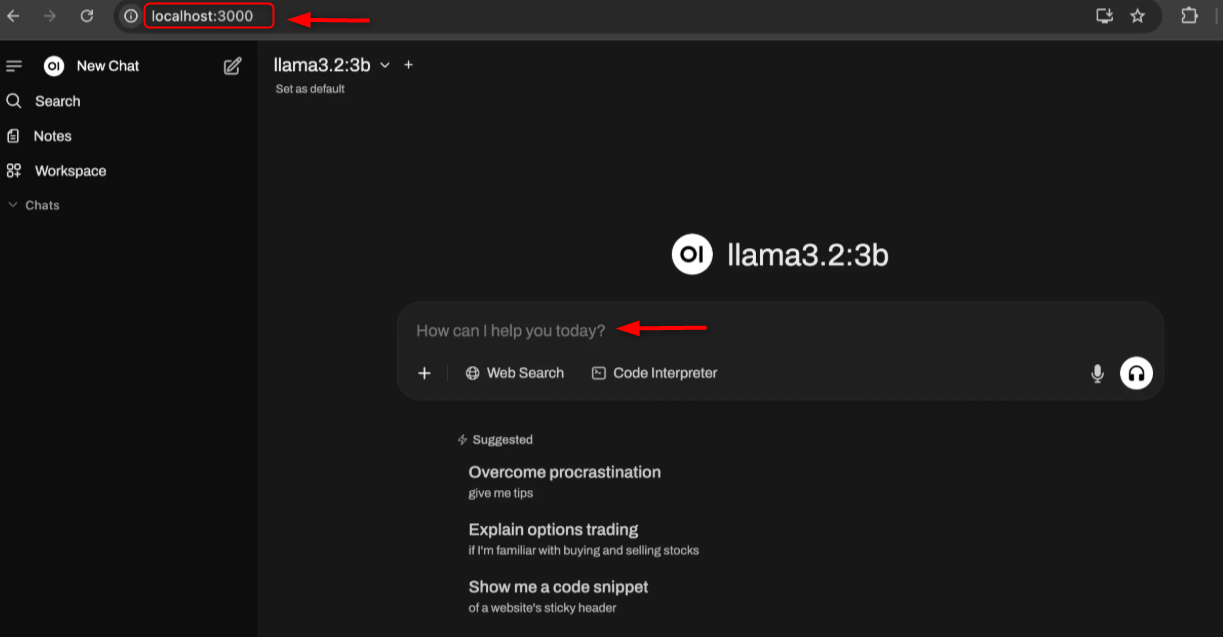
The first account you create becomes the administrator. From the model selector inside the interface, choose the model you just pulled, and you have a working, private chat assistant running entirely on your own server.
Managing Models Going Forward
A few commands you will use regularly once the stack is running.
docker exec -it ollama ollama list # see installed models docker exec -it ollama ollama pull llama3.3 # download another model docker exec -it ollama ollama rm qwen3:8b # remove a model you no longer need docker compose logs -f open-webui # check logs if something misbehaves docker compose pull && docker compose up -d # update both containers to the latest image |
|---|
Troubleshooting Common Issues
Open WebUI loads but shows no models available. Confirm Ollama actually finished pulling a model with docker exec -it ollama ollama list, and that the OLLAMA_BASE_URL environment variable in your compose file matches the internal container name.
Responses are extremely slow. This almost always comes down to hardware. A CPU-only VPS running an 8-billion-parameter model will never feel instant. If speed matters more than cost, moving to a GPU-equipped VPS or switching to a smaller model are the two real options.
The container runs out of memory and crashes. Check available RAM against the model size you are trying to load. As a rough guide, a model needs roughly double its listed parameter count in gigabytes of RAM when running unquantized, though quantized versions need considerably less.
Nginx returns a bad gateway error. This usually means Open WebUI is not actually running or not listening on the port Nginx expects. Check with docker compose ps and confirm the container is healthy before troubleshooting the proxy configuration itself.
Conclusion
To run a private, ChatGPT-style assistant on a Virtual Private Server (VPS), you can deploy Ollama alongside Open WebUI using Docker for a streamlined and secure setup. First, provision a VPS with sufficient resources, ideally a GPU-enabled server or a high-performance CPU instance with at least 16GB of RAM, and install Docker.
Next, spin up the Ollama container to manage and serve your chosen open-source large language models (such as Llama 3 or Mistral), and pair it with an Open WebUI container, which provides a polished, feature-rich chat interface identical to ChatGPT. Finally, secure the deployment by configuring an Nginx reverse proxy, enabling SSL/TLS encryption via Let’s Encrypt, and enforcing Open WebUI’s built-in user authentication to ensure your private assistant remains inaccessible to the public.
Frequently Asked Questions
1. Can you actually self-host ChatGPT on a VPS?
Not ChatGPT itself, since it is a closed, proprietary product that only runs on OpenAI’s own servers. What you can self-host is an open-weight model like Llama or Qwen behind a chat interface like Open WebUI, which gives a very similar day-to-day experience under your own control.
2. How much RAM do I need to run a local AI model on a VPS?
For a smaller 7- to 8-billion-parameter model running quantized, 16 GB of RAM is a reasonable working minimum. Larger models need considerably more, and a dedicated GPU with enough VRAM becomes the better investment once you move beyond that range.
3. Is Ollama free to use on a VPS?
Yes. Ollama itself is free and open source, and so is Open WebUI, so your only real ongoing cost is the VPS hosting it. There are no per-token or per-message charges the way there are with a commercial API based assistant.
4. What is the difference between Ollama and Open WebUI?
Ollama is the backend engine that actually downloads and runs the language model, exposing an API for other software to use. Open WebUI is the browser-based chat interface that connects to that API and gives you the ChatGPT-style experience people actually interact with.
5. Do I need a GPU to run a private AI assistant on a VPS?
No, a GPU is not strictly required. Smaller models run acceptably on CPU-only hardware with enough RAM, though responses will be noticeably slower than a commercial service. A GPU becomes worth the added cost once you want faster responses or plan to run larger, more capable models.