AlmaLinux 10 ships lean by design, stable, security-hardened, and limited to a conservative set of packages. That’s great for production reliability, but it means common tools like htop, fail2ban, ffmpeg, or certbot simply aren’t available through the default repositories. That’s what EPEL is for.
This guide covers exactly how to install and enable EPEL on AlmaLinux 10, verify it’s working, enable the CodeReady Builder (CRB) repository it often depends on, and troubleshoot the most common issues, including an important architecture detail specific to AlmaLinux 10 that most tutorials don’t mention.
Table of Content
- What Is EPEL and Why You Need It
- A Note on AlmaLinux 10 and x86_64_v2 Support
- How to Enable EPEL Repository on AlmaLinux 10
- Enabling or Disabling EPEL for Specific Installs
- Troubleshooting Common EPEL Issues
- Final Thoughts
- FAQs
What Is EPEL and Why You Need It
EPEL (Extra Packages for Enterprise Linux) is a community-maintained repository, backed by the Fedora Project, that provides thousands of additional packages built and tested to work cleanly with RHEL-based distributions like AlmaLinux. Rather than compiling software from source or relying on random third-party repos, EPEL gives you a trusted, well-maintained source for tools the base OS doesn’t ship with.
Common examples of packages only available through EPEL include monitoring tools, compression utilities, developer libraries, and security tools like fail2ban and certbot.
A Note on AlmaLinux 10 and x86_64_v2 Support
If you’re running AlmaLinux 10 on older x86_64_v2 hardware, there’s a detail worth knowing: RHEL 10 upstream moved to requiring x86_64_v3, which meant standard EPEL packages initially didn’t support older CPUs. AlmaLinux OS resolved this by rebuilding EPEL packages from Fedora’s source RPMs specifically for x86_64_v2 systems, distributed with an .alma_altarch suffix for easy identification.
In practice, this means EPEL now works the same way on AlmaLinux 10 regardless of whether you’re on modern or older x86_64 hardware; you don’t need to do anything differently, but it’s useful context if you see that suffix in package names.
How to Enable EPEL Repository on AlmaLinux 10
To enable the EPEL repository on AlmaLinux 10, first update your system with sudo dnf update -y, then install the repository package with sudo dnf install epel-release -y. Since some EPEL packages depend on libraries in the CodeReady Builder repository, also run sudo dnf config-manager –set-enabled crb. Finally, refresh the package cache with sudo dnf clean all && sudo dnf makecache and confirm EPEL is active by running sudo dnf repolist enabled | grep -i epel. The entire process takes under a minute and requires no manual downloads, since AlmaLinux 10 provides the epel-release package directly through its default repositories.
Step 1: Update Your System First
Before adding any new repository, make sure your existing packages and metadata are current:
sudo dnf update |
|---|

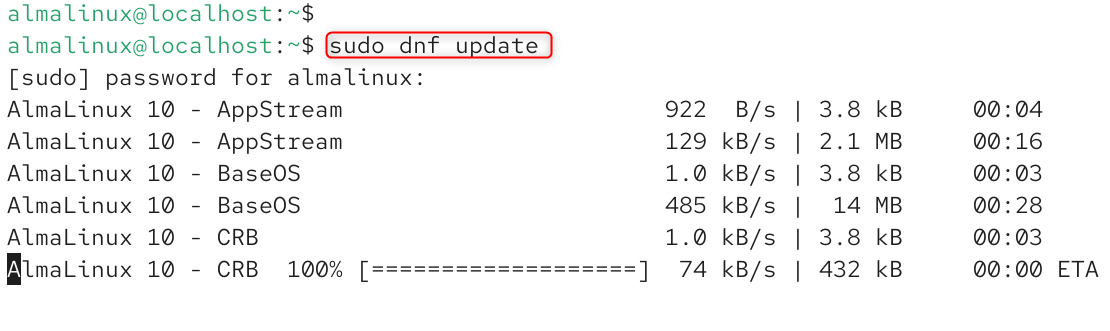
This avoids dependency conflicts later and ensures your GPG keys and repo metadata are fresh.
Step 2: Install the EPEL Release Package
On AlmaLinux 10, the epel-release package is available directly and installs everything needed, repository configuration files, GPG keys, and metadata, in one command:
sudo dnf install epel-release -y |
|---|

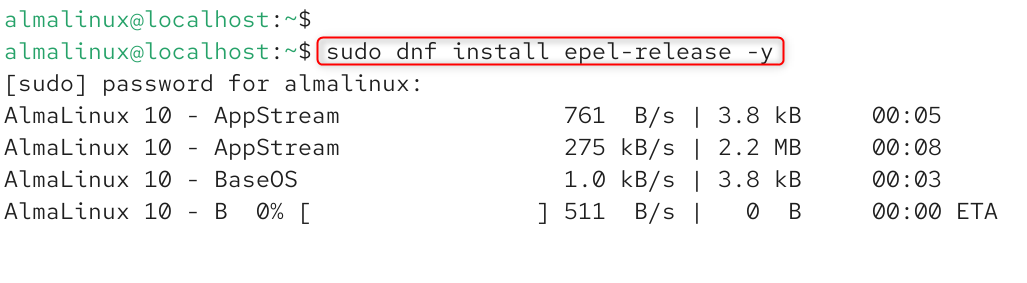
That’s it. Unlike some older RHEL-based distros, you don’t need to manually download an RPM from a URL; AlmaLinux 10 provides epel-release through its own repositories by default.
Step 3: Enable the CodeReady Builder (CRB) Repository
Some EPEL packages depend on libraries found in the CodeReady Builder (CRB) repository, which is disabled by default. Enable it with:
sudo dnf config-manager –set-enabled crb |
|---|


Skipping this step is one of the most common causes of “nothing provides X” dependency errors when installing EPEL packages later.
Step 4: Refresh the DNF Cache
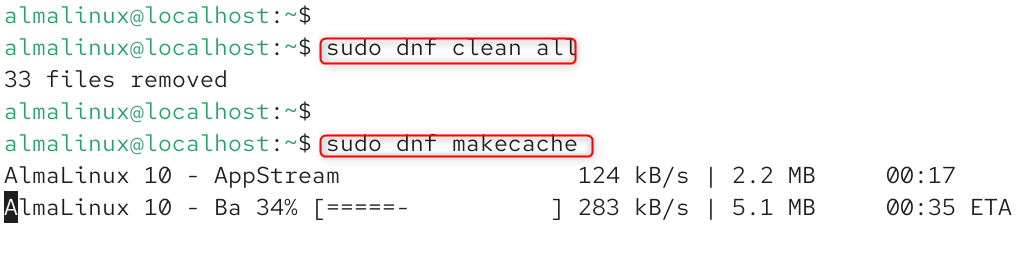
After enabling new repositories, clear and rebuild the package cache so dnf picks up the new metadata:
sudo dnf clean all sudo dnf makecache |
|---|

Step 5: Verify EPEL Is Enabled
Confirm the repository is active and listed:
sudo dnf repolist enabled | grep -i epel |
|---|


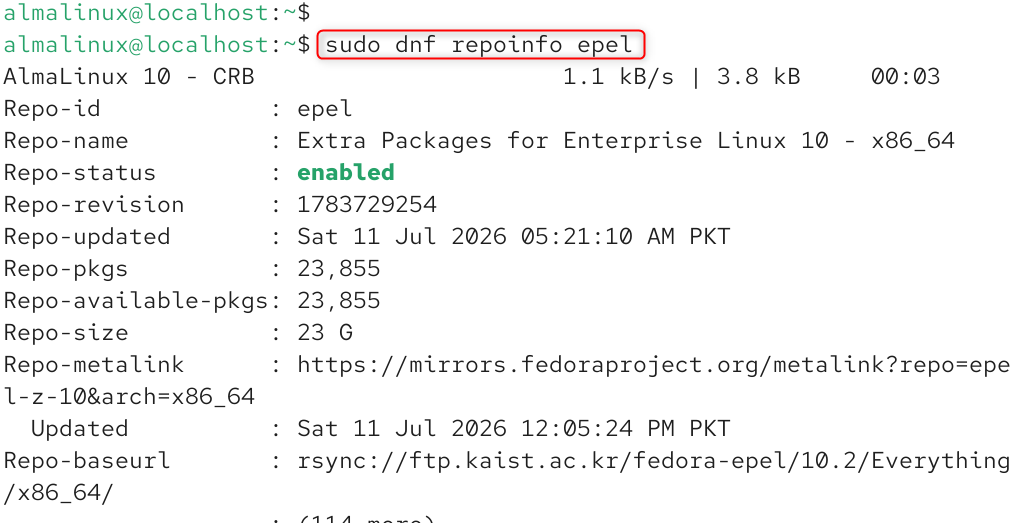
You can also check repository details directly:
sudo dnf repoinfo epel |
|---|

Step 6: Test It by Installing an EPEL Package
Confirm everything works end-to-end by installing a common EPEL-only tool:
sudo dnf install htop -y htop –version |
|---|

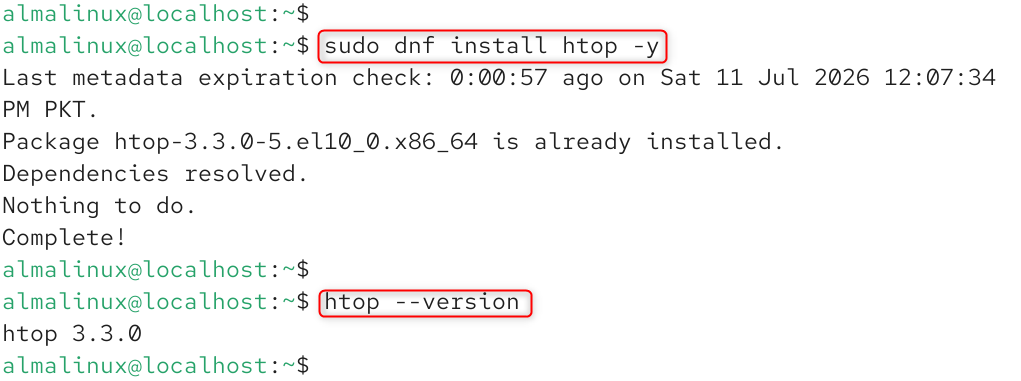
If the install succeeds and the version prints correctly, EPEL is fully functional on your system.
Enabling or Disabling EPEL for Specific Installs
You don’t always want EPEL active for every transaction; some admins prefer to enable it only when needed, to reduce the chance of pulling in unexpected package versions.
To temporarily enable EPEL for a single install without leaving it enabled system-wide:
sudo dnf install –enablerepo=epel <package-name> |
|---|

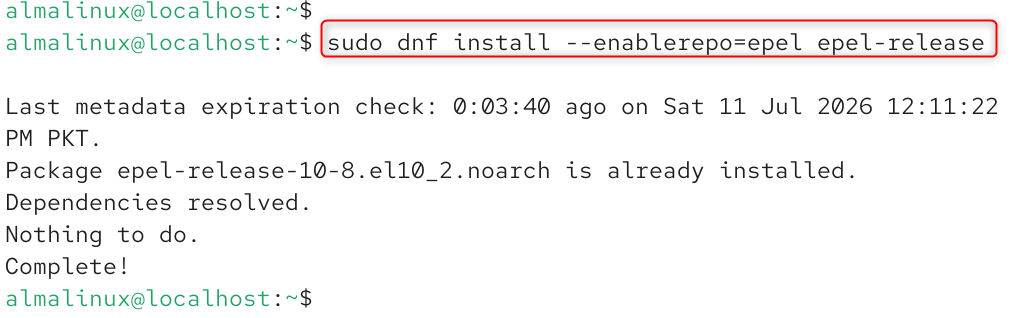
To temporarily disable EPEL for a single transaction:
sudo dnf install –disablerepo=epel <package-name> |
|---|

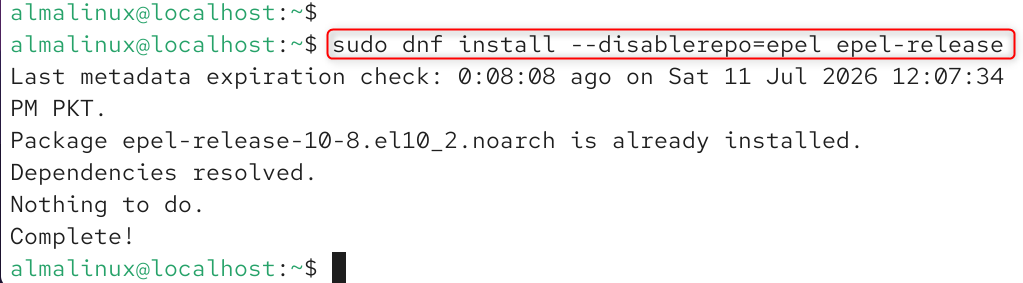
To permanently toggle EPEL on or off:
sudo dnf config-manager –set-disabled epel sudo dnf config-manager –set-enabled epel |
|---|


Troubleshooting Common EPEL Issues
“No match for argument: epel-release”
This usually means your base repositories aren’t reachable or are misconfigured. Verify your repo list and network connection:
sudo dnf repolist ping -c 4 8.8.8.8 |
|---|

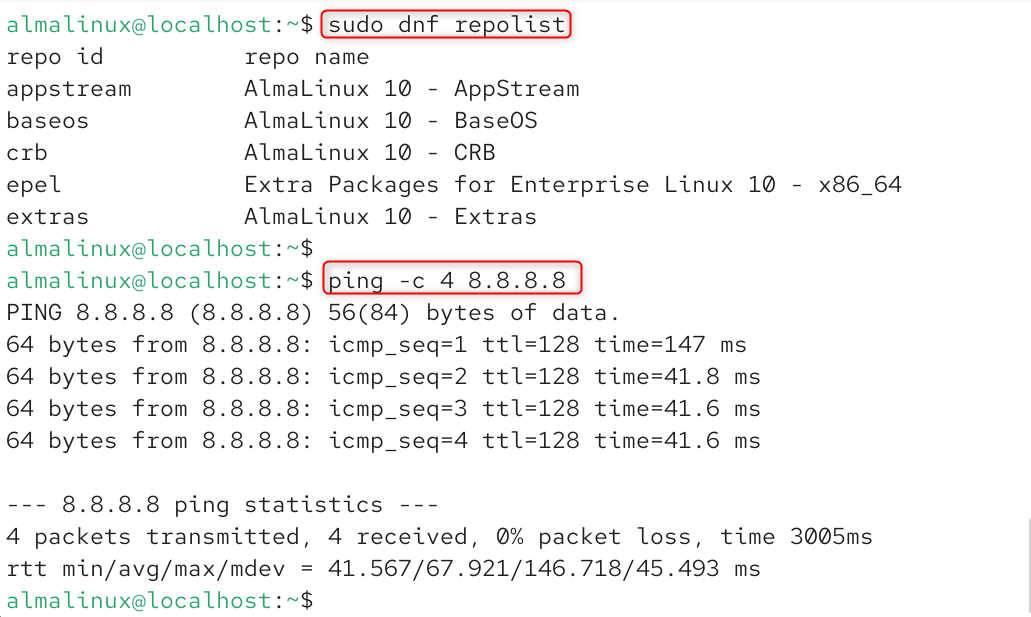
GPG Key Errors During Install
If you see a warning about an unsigned or unverified package, make sure the EPEL GPG key was imported correctly during installation:
sudo rpm -qa gpg-pubkey* –qf ‘%{name}-%{version}-%{release} –> %{summary}\n’ | grep -i epel |
|---|


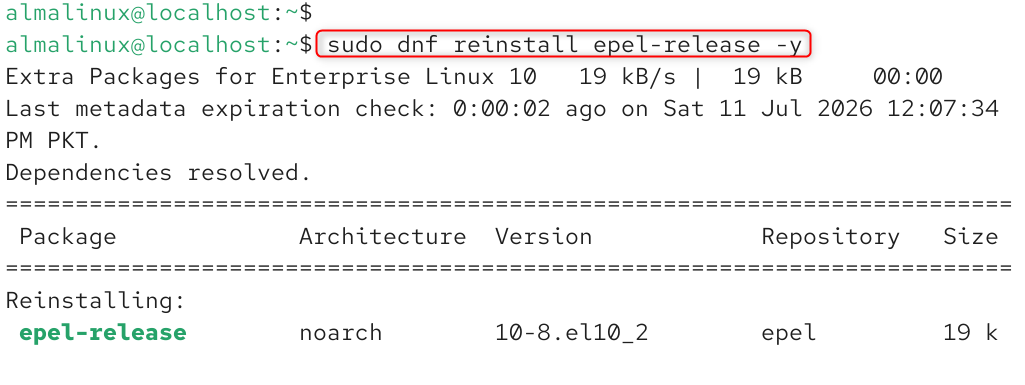
If it’s missing, reinstall the release package:
sudo dnf reinstall epel-release -y |
|---|

Dependency Errors When Installing EPEL Packages
This is almost always the CRB repository being disabled. Double-check it’s active:
sudo dnf repolist enabled | grep -i crb |
|---|


Final Thoughts
Enabling EPEL on AlmaLinux 10 takes less than a minute, but it dramatically expands the software available on an otherwise minimal, security-focused base install. The key steps to remember are installing epel-release, enabling CRB alongside it, and refreshing your dnf cache before testing an install. If you manage a fleet of AlmaLinux 10 servers, consider standardizing this setup into your provisioning scripts or configuration management tooling (Ansible, Puppet, etc.) so every new server gets EPEL configured consistently from day one.
FAQs
1. Is EPEL safe to install on AlmaLinux 10?
Yes. EPEL is maintained by the Fedora Project specifically to be compatible with RHEL-based distributions, and all packages are GPG-signed. It’s widely used in production environments, though it’s still good practice to review what you’re installing rather than blindly enabling every optional repo.
2. Do I need to enable CRB every time I install an EPEL package?
No, you only need to enable CRB once per system. It’s a one-time dnf config-manager –set-enabled crb command, after which it stays enabled for all future installs unless you manually disable it.
3. Why do I get “nothing provides X” errors after installing EPEL?
This almost always means the CRB repository is still disabled. EPEL packages frequently depend on development libraries housed in CRB, so if you skip that step, dependency resolution fails even though EPEL itself installed correctly.
4. Can I remove or disable EPEL later without breaking my system?
Yes, as long as you’re not actively using packages that came from it. Run sudo dnf config-manager –set-disabled epel to disable it, or sudo dnf remove epel-release to remove it entirely. Any packages already installed from EPEL will remain unless you remove them separately.
5. Does EPEL work the same way on older x86_64_v2 hardware in AlmaLinux 10?
Yes, but with a caveat worth knowing: RHEL 10 upstream only supports x86_64_v3, so AlmaLinux rebuilt EPEL packages specifically for x86_64_v2 systems (marked with an .alma_altarch suffix). The install steps are identical either way; you don’t need to do anything different.