Few things stop an AlmaLinux 10 server faster than a broken package manager. Whether dnf install hangs indefinitely, yum update throws a wall of dependency errors, or you get a flat Cannot find a valid baseurl for repo message, you can’t patch, install, or remove anything until it’s fixed. The good news on AlmaLinux 10 (built on RHEL 10) is that yum is simply a compatibility alias for dnf, so fixing one fixes both, or the yum update not working error.
This guide walks through the most common causes, in the order you should actually check them, with the exact commands to diagnose and resolve each one.
Table of Content
- Quick Diagnostic: Run This First
- How to Fix “yum/dnf not working” in AlmaLinux 10
- 1. Check Your Network and DNS Connection
- 2. Check for a Stuck dnf Lock File
- 3. Clean and Rebuild the DNF Cache
- 4. Verify Your Repositories Are Enabled and Reachable
- 5. Fix GPG Key Errors
- 6. Resolve Dependency Conflicts
- 7. Fix a Corrupted RPM Database
- 8. Check Disk Space
- 9. Check for SELinux or Permission Issues
- 10. When All Else Fails: Reset dnf/yum Configuration
- Quick Reference: Fix Checklist
- Final Thoughts
- FAQs
Quick Diagnostic: Run This First
Before digging into specific fixes, get a clear picture of the error:
sudo dnf update -v |
|---|

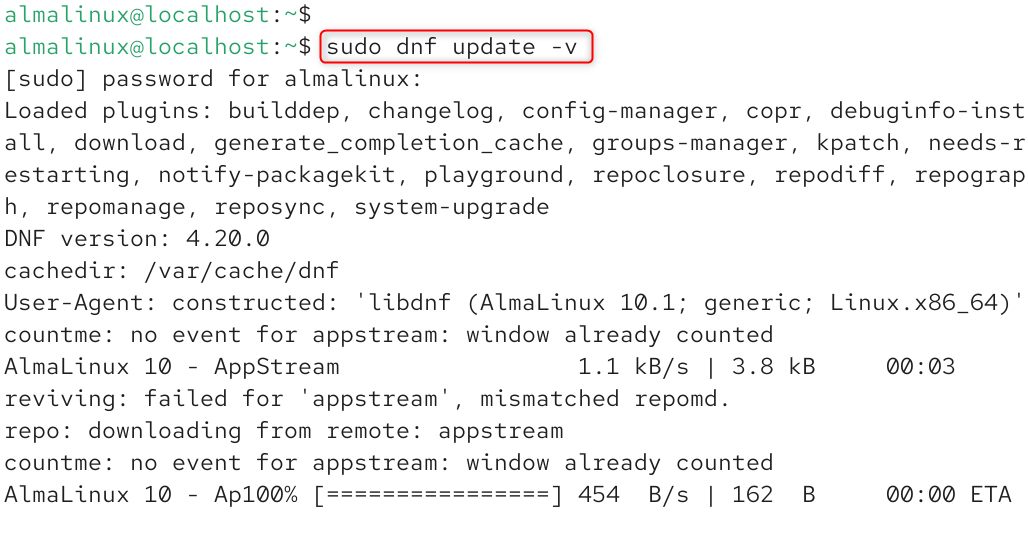
The -v (verbose) flag shows exactly where dnf is failing: network timeout, GPG key mismatch, repo metadata error, or dependency conflict, which tells you which section below to jump to.
How to Fix “yum/dnf not working” in AlmaLinux 10
If yum or dnf is not working in AlmaLinux 10, the issue is usually caused by repository errors, outdated cache, GPG key problems, dependency conflicts, RPM database corruption, or low disk space.
First, check network connectivity using ping -c 4 8.8.8.8, then refresh DNF metadata with sudo dnf clean all && sudo dnf makecache. Verify repositories with sudo dnf repolist enabled, fix GPG issues using sudo rpm –import /etc/pki/rpm-gpg/RPM-GPG-KEY-AlmaLinux-10, resolve dependency conflicts with sudo dnf update –skip-broken, repair the RPM database using sudo rpm –rebuilddb, and check disk space with df -h /.
After completing these steps, run sudo dnf update again to confirm that package management is working properly.
1. Check Your Network and DNS Connection
The single most common cause of “dnf not working” is a broken network or DNS connection, since dnf needs to reach AlmaLinux’s mirrors to fetch metadata.
Test basic connectivity:
ping -c 4 8.8.8.8 |
|---|

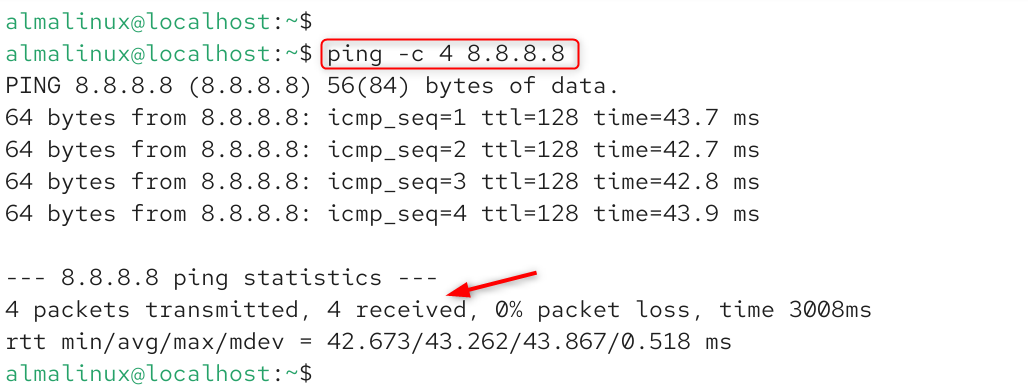
If that works but package installs still fail, DNS resolution is likely the problem. Test it directly:
nslookup mirrors.almalinux.org |
|---|

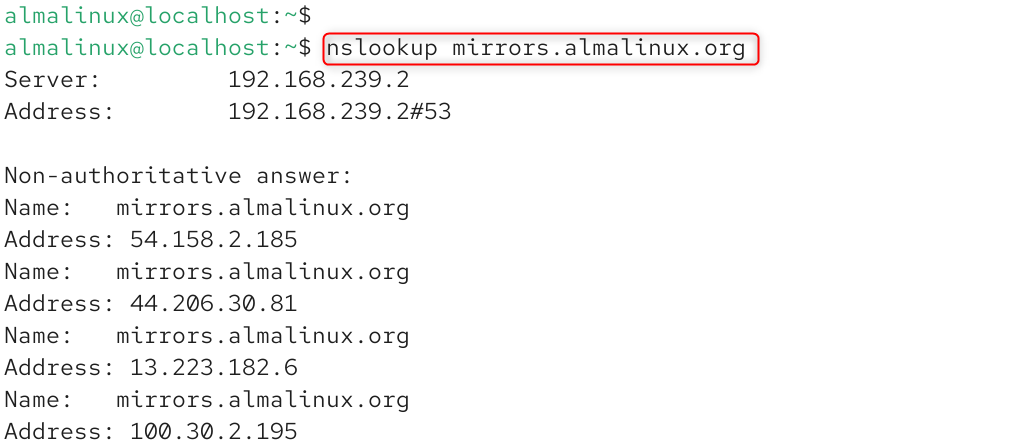
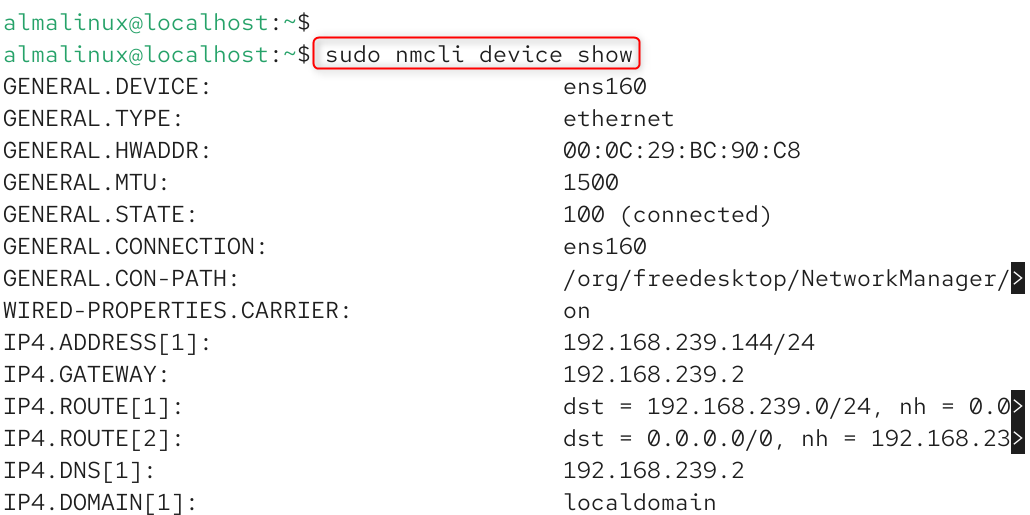
If DNS fails, check /etc/resolv.conf for valid nameservers, or fix it through NetworkManager (AlmaLinux 10 uses NetworkManager exclusively; the legacy network-scripts package and /etc/sysconfig/network-scripts/ files were removed in RHEL 10):
sudo nmcli device show sudo nmcli connection modify <connection-name> ipv4.dns “8.8.8.8 1.1.1.1” sudo nmcli connection up <connection-name> |
|---|

Restart NetworkManager if you’ve made changes:
sudo systemctl restart NetworkManager |
|---|


2. Check for a Stuck dnf Lock File
If dnf hangs or returns Error: Could not obtain lock, another process (or a previous crashed run) is likely holding the lock. First, check whether dnf is genuinely still running:
ps aux | grep -i dnf |
|---|


If nothing legitimate is running, remove the stale lock:
sudo rm -f /var/lib/rpm/.rpm.lock sudo rm -f /var/cache/dnf/*.pid |
|---|


Then retry your command.
3. Clean and Rebuild the DNF Cache
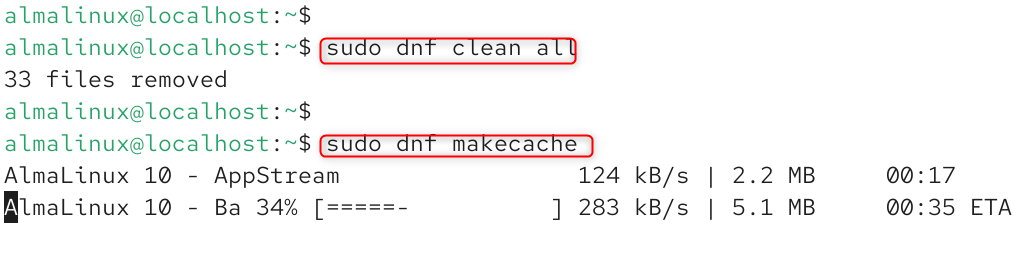
Corrupted or stale cached metadata is a frequent cause of strange errors like “repo not found,” failed downloads, or checksum mismatches. Clear everything and force a fresh pull:
sudo dnf clean all sudo dnf makecache |
|---|

If a specific repository is the problem (visible in your error output), rebuild just that one:
sudo dnf makecache –repo=<repo-name> |
|---|
4. Verify Your Repositories Are Enabled and Reachable
List your currently enabled repositories:
sudo dnf repolist enabled |
|---|

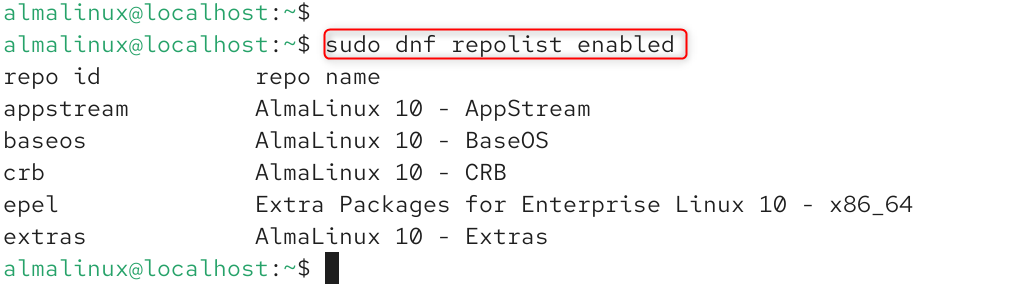
If AppStream, BaseOS, or CRB is missing, re-enable it:
sudo dnf config-manager –set-enabled crb |
|---|


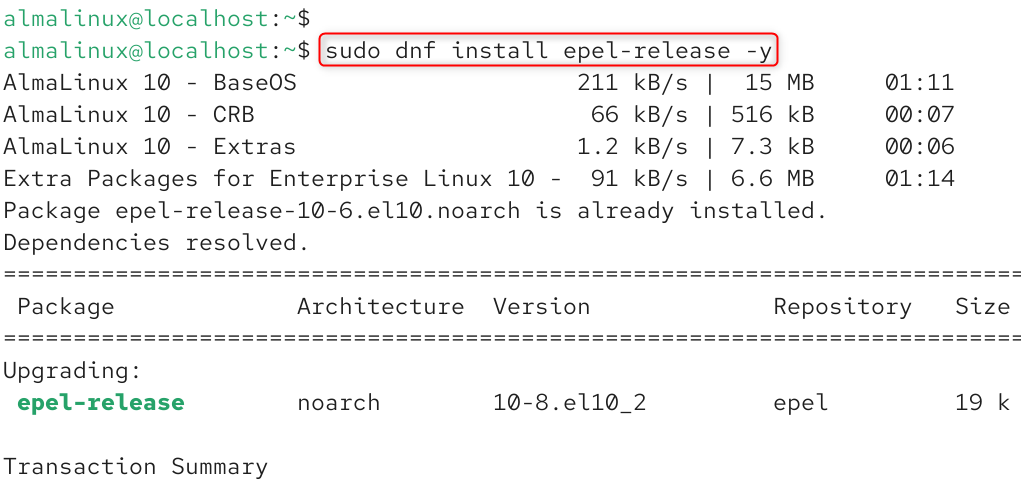
For EPEL packages, make sure the EPEL repo is actually installed (a common oversight after a fresh AlmaLinux 10 install):
sudo dnf install epel-release -y |
|---|

If a specific .repo file looks broken or has an outdated baseurl, inspect it directly:
cat /etc/yum.repos.d/almalinux-appstream.repo |
|---|

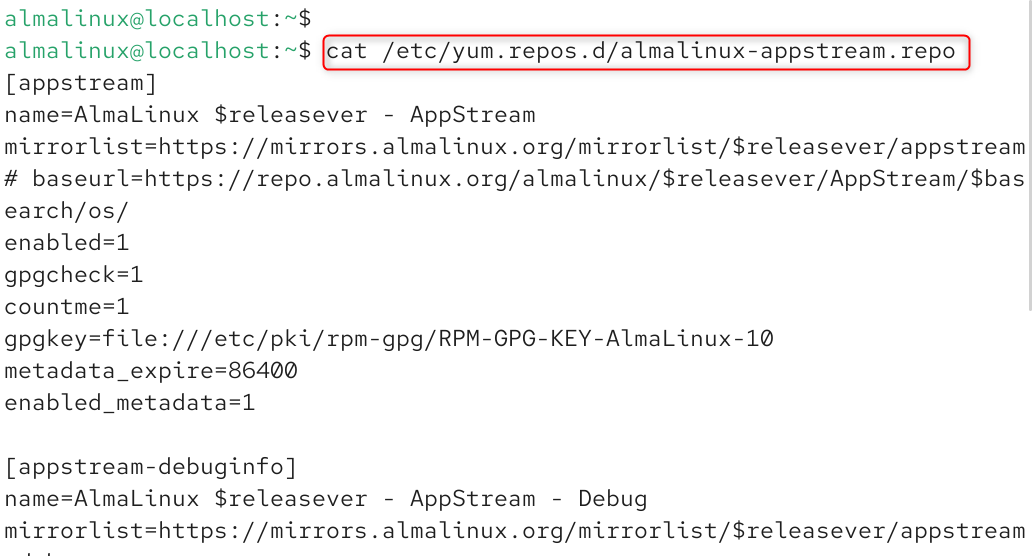
Compare it against a fresh copy from the official AlmaLinux repo configuration if you suspect corruption, and restore it if needed.
5. Fix GPG Key Errors
If you see GPG key retrieval failed or Package signature could not be verified, your GPG keys may be missing or expired. Re-import AlmaLinux’s official signing keys:
sudo rpm –import /etc/pki/rpm-gpg/RPM-GPG-KEY-AlmaLinux-10 |
|---|


If the key file doesn’t exist locally, reinstall the release package that provides it:
sudo dnf reinstall almalinux-release -y |
|---|


6. Resolve Dependency Conflicts
Dependency errors (“cannot install both X and Y,” “nothing provides Z”) are common after partial upgrades or third-party repo installs. Try letting dnf resolve it automatically first:
sudo dnf update –allowerasing |
|---|

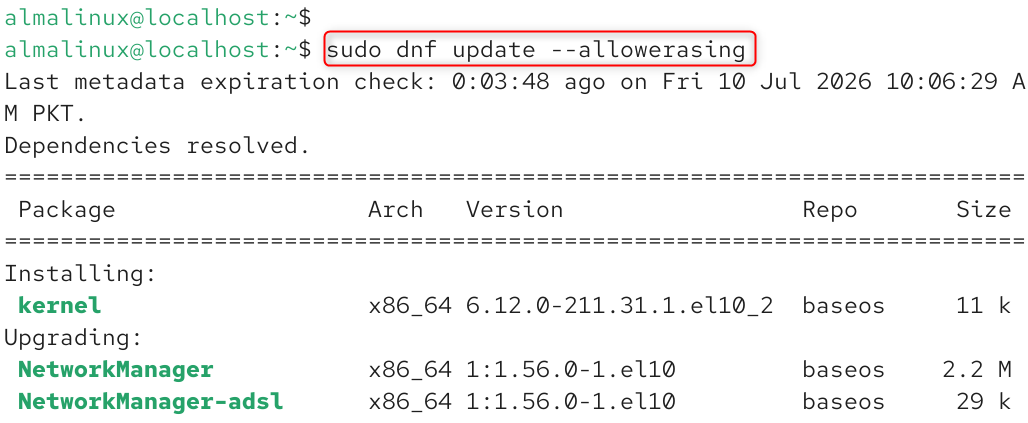
If that’s too aggressive for a production system, try a softer approach:
sudo dnf update –skip-broken |
|---|

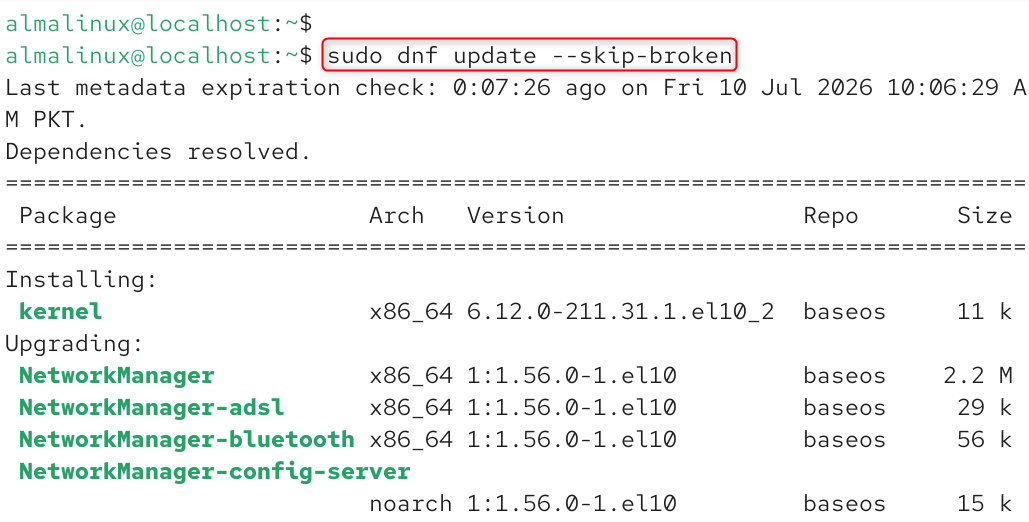
To see exactly what’s conflicting before forcing anything:
sudo dnf check |
|---|


7. Fix a Corrupted RPM Database
If dnf fails with database-related errors (rpmdb: unable to open or similar), the local RPM database itself may be corrupted. Rebuild it:
sudo rm -f /var/lib/rpm/__db* sudo rpm –rebuilddb |
|---|


Then retry your dnf operation.
8. Check Disk Space
A full disk causes dnf to fail in confusing ways: incomplete downloads, transaction failures, or silent hangs. Check available space:
df -h / |
|---|


If /var is nearly full (a common location for cached packages and logs), clear the dnf cache and old kernels:
sudo dnf clean all sudo dnf remove –oldinstallonly |
|---|

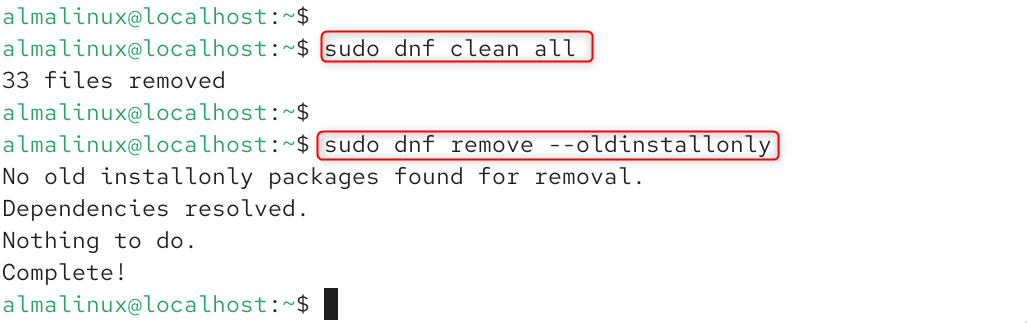
9. Check for SELinux or Permission Issues
If dnf fails only for a specific action (like installing a package to a custom directory) and the message references “permission denied” or avc: denied, SELinux may be blocking it. Check recent denials:
sudo journalctl -u auditd –since “10 minutes ago” | grep -i denied |
|---|


If a genuine denial is logged, avoid disabling SELinux outright; instead, generate a proper policy exception with audit2allow, or verify the operation should be allowed in the first place.
10. When All Else Fails: Reset dnf/yum Configuration
To fix yum or dnf issues in AlmaLinux 10, fix broken repository metadata & cache, resolve DNS and network connectivity issues, and repair damaged system Python environments.
If you’ve tried everything above and dnf is still broken, reset its configuration to defaults by reinstalling the core release packages:
sudo dnf reinstall dnf dnf-plugins-core almalinux-release |
|---|


This restores default repo definitions and GPG keys without touching your installed applications.
Quick Reference: Fix Checklist
Command | Purpose |
|---|---|
ping -c 4 8.8.8.8 | Test network connectivity when yum update or dnf update is not working |
sudo dnf clean all && sudo dnf makecache | Clear the DNF cache and rebuild the metadata to fix update issues |
sudo dnf repolist enabled | Check enabled repositories when packages cannot be found or updated |
sudo rpm –import /etc/pki/rpm-gpg/RPM-GPG-KEY-AlmaLinux-10 | Import GPG keys to resolve package signature or verification errors |
sudo dnf update –skip-broken | Skip broken dependencies and continue package updates |
sudo rpm –rebuilddb | Repair a corrupted RPM database causing YUM/DNF failures |
df -h / | Check available disk space when updates fail due to insufficient storage |
Final Thoughts
To fix yum or dnf issues in AlmaLinux 10, you should first clean your package manager’s cache and rebuild its metadata using sudo dnf clean all && sudo dnf makecache. Since yum is a symbolic link to dnf, any core failure in dnf breaks both commands.
Most “yum/dnf not working” problems on AlmaLinux 10 trace back to one of a handful of causes: network/DNS issues, stale cache or lock files, misconfigured repositories, expired GPG keys, or a full disk. Work through the checks above roughly in order, network first, then cache, then repos, then dependencies, and you’ll isolate the root cause quickly rather than guessing at fixes.
FAQs
1. Why is yum update not working?
yum update may fail due to repository issues, network problems, outdated metadata, or package conflicts. Check repository status and run yum clean all before retrying.
2. Why is yum update not working in CentOS 7?
In CentOS 7, yum update may fail if repositories are unavailable or the system has reached end-of-life. Verify repository URLs and update configurations.
3. Why is the yum command not working in Linux?
The yum command may not work if it is not installed, permissions are missing, or package repositories are misconfigured. Run it with proper privileges using sudo.
4. Why is dnf system upgrade reboot not working?
This issue can occur due to incomplete upgrade steps, missing plugins, or package conflicts. Check upgrade logs and ensure all required DNF packages are installed.
5. Why is dnf groupinstall not working?
dnf groupinstall may fail if the package group name is incorrect, repositories are unavailable, or group metadata is missing. Refresh DNF metadata and verify available groups.