
A failed service, a full disk, or a server that suddenly cannot resolve a hostname usually comes with an error message that means little on its own. ChatGPT is good at turning that message into a short list of likely causes and the commands that confirm each one. It is not a replacement for knowing your system, and it will sometimes be confidently wrong.
This guide shows how to use it as a fast second pair of eyes while you troubleshoot a Linux server, what to paste, what to hide, and which suggestions to refuse.
Quick Insights
- Should I Use ChatGPT to Troubleshoot Linux Issues?
- How to Troubleshoot Linux Server Errors with ChatGPT
- Common Linux Server Errors You Can Troubleshoot with ChatGPT
- How to Use ChatGPT to Debug Linux Shell Scripts and Code
- Common ChatGPT Mistakes in Linux Troubleshooting
- Can You Use ChatGPT Without Logging In?
- How to Fix ChatGPT Internal Server Errors
- Conclusion
- Frequently Asked Questions
Should I Use ChatGPT to Troubleshoot Linux Issues?
Yes, with rules. ChatGPT works well for reading long logs, explaining unfamiliar errors, and proposing diagnostic commands you had not thought of. It works badly as an authority you obey without thinking. A model can mix up distributions, invent flags that do not exist, or suggest an old fix that no longer applies to your version.
Use it to narrow the search, then verify everything against the man page or official documentation before you change anything. Searches like gp chat ai, gpchat ai, and al gpt usually mean the same thing: a ChatGPT-style chat assistant. The method below works with any of them, including a model you host yourself. Just be careful with unfamiliar third-party wrapper sites that use similar names, and never paste server logs into a service you cannot vet.
How to Troubleshoot Linux Server Errors with ChatGPT
Good Linux troubleshooting follows the same loop whether a human or a model helps. Collect facts, form a guess, test it with a harmless command, and only then change something. ChatGPT speeds up the middle two steps.
Step 1: Collect Linux System Information and Error Logs
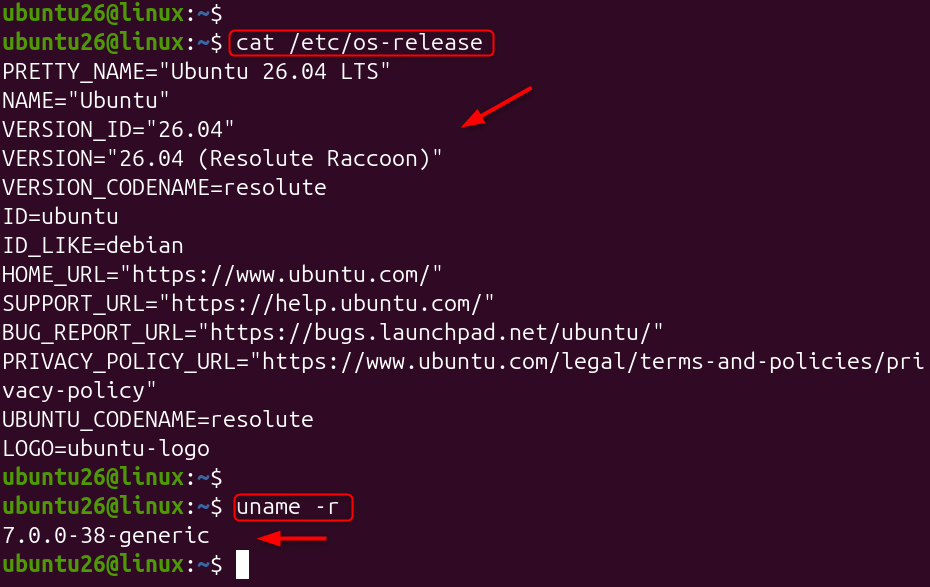
A vague question gets a vague answer. Gather these basics first:
cat /etc/os-release uname -r |
|---|

For example, Swap nginx for the service that is failing.
systemctl –failed journalctl -xeu nginx –no-pager -n 80 |
|---|
The first two commands tell ChatGPT which distribution and kernel you run, which matters more than people expect. Advice for Ubuntu or Debian can break an AlmaLinux server, and RHEL 10-style systems no longer use the old network scripts that many tutorials still describe.
Step 2: Remove Sensitive Information from Server Logs
Logs often hold IP addresses, email addresses, hostnames, and sometimes tokens. Mask the obvious ones before you paste:
journalctl -u nginx -n 100 –no-pager \ | sed -E ‘s/[0-9]{1,3}(\.[0-9]{1,3}){3}/x.x.x.x/g; s/[A-Za-z0-9._%+-]+@[A-Za-z0-9.-]+/user@example.com/g’ > nginx-log.txt |
|---|


That command catches IPv4 addresses and email addresses only. It will not catch passwords, API keys, or private hostnames, so open the file and read it yourself before sharing it.
Step 3: Write an Effective ChatGPT Troubleshooting Prompt
Tell the model about your system, what changed, what you expected, and what happened. Then limit what it may suggest. Here is a template you can reuse:
I run Ubuntu 26.04 LTS (kernel 7.0) on a VPS. Nginx fails to start after I added a new server block. Expected: nginx starts. Actual: the error below. Output of systemctl status nginx and journalctl -xeu nginx is pasted underneath. Give me the three most likely causes, ranked. For each one, give a single read-only command that confirms it. Do not suggest any changes yet. |
|---|

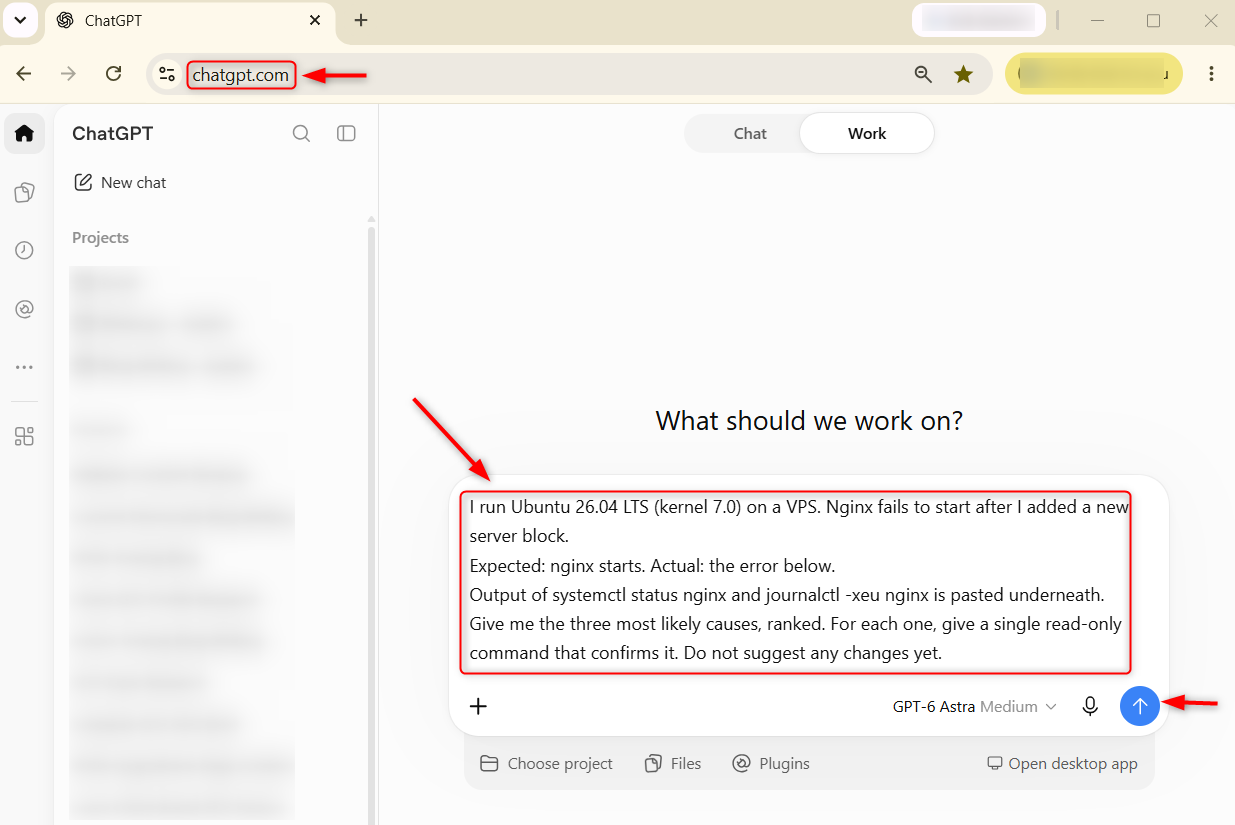
The last two sentences do most of the work. Asking for read-only checks first keeps the model from jumping to a fix, and asking for rank causes it to reason instead of listing everything it knows.
Step 4: Verify ChatGPT’s Suggestions with Diagnostic Commands
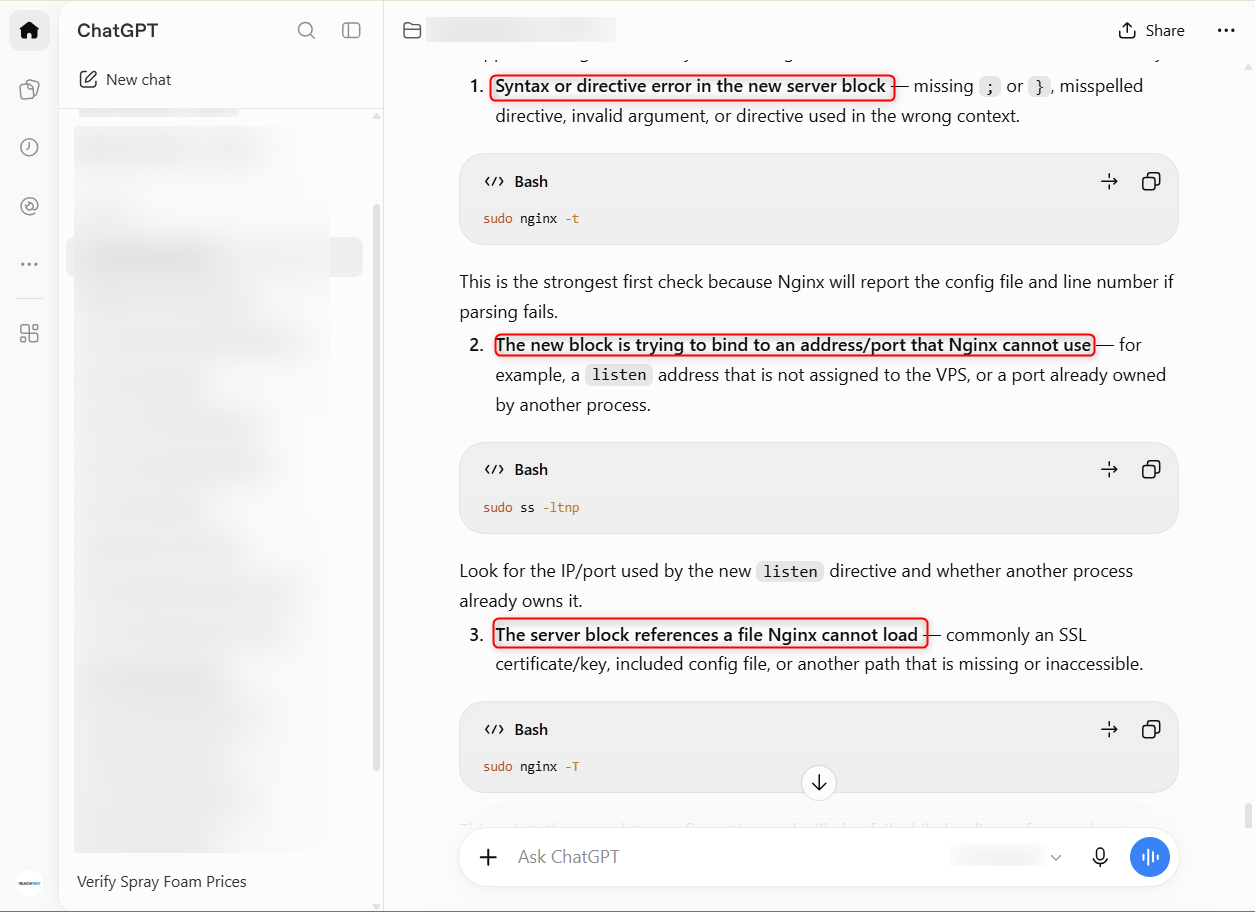
Run the suggested commands, paste the results, and let the model narrow the list. Two or three rounds usually reach the cause. When it proposes a fix, ask what the command does, what it could break, and how to undo it.

Common Linux Server Errors You Can Troubleshoot with ChatGPT
This table covers the situations people hit most often when they troubleshoot a Linux server.
Symptom | Commands to collect | What to ask |
|---|---|---|
No internet access | ip -br a, ip route, ping -c 3 1.1.1.1 | Which layer is failing: link, address, route, or gateway? |
Names fail, IPs work | resolvectl status, dig example.com, cat /etc/resolv.conf | Is this a resolver or upstream DNS problem? |
Service will not start | systemctl status, journalctl -xeu | Rank the likely causes and give a read-only check for each |
Disk full | df -h, df -i, du -xh / –max-depth=1 | sort -h | tail | What is using the space, and what is safe to remove? |
Slow or killed processes | free -h, uptime, dmesg -T | grep -i oom | Was a process killed for memory, and which one? |
How to Troubleshoot Linux Network Connectivity with ChatGPT
Work from the bottom up. Check that the network interface is up and has an address, then that a default route exists, then that the gateway answers, then that a public IP answers. Paste the output of ip -br a and ip route and ask which step is the first one to fail. That single question is far more useful than asking why the internet is broken.
How to Troubleshoot DNS Resolution Errors on Linux
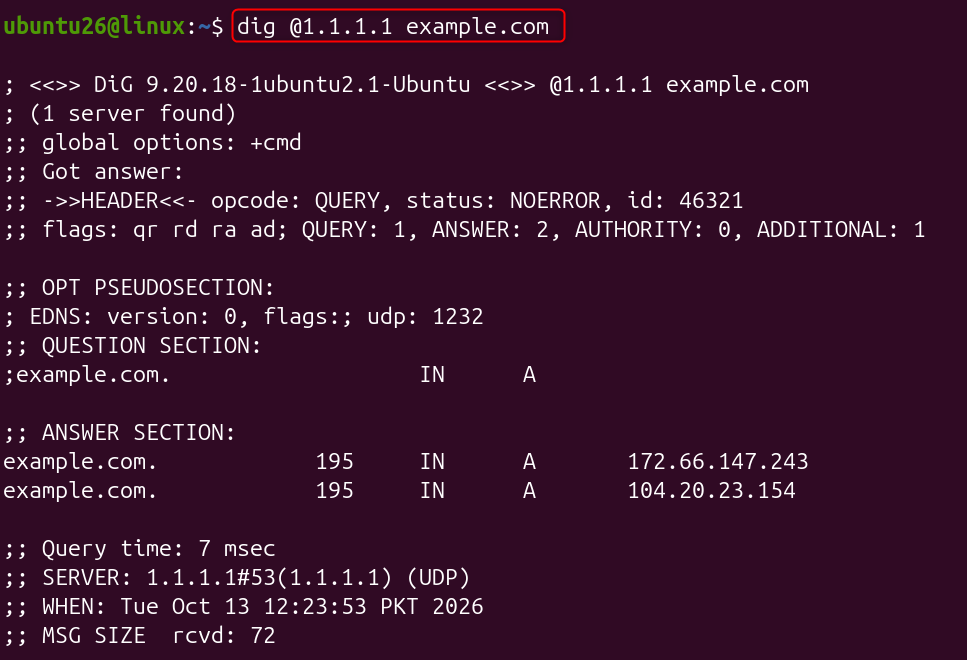
If ping 1.1.1.1 works but ping example.com fails, the network is fine, and DNS is the problem. Compare your local resolver with a public one:
dig @1.1.1.1 example.com |
|---|

Now, check the status of network connectivity.
resolvectl status |
|---|

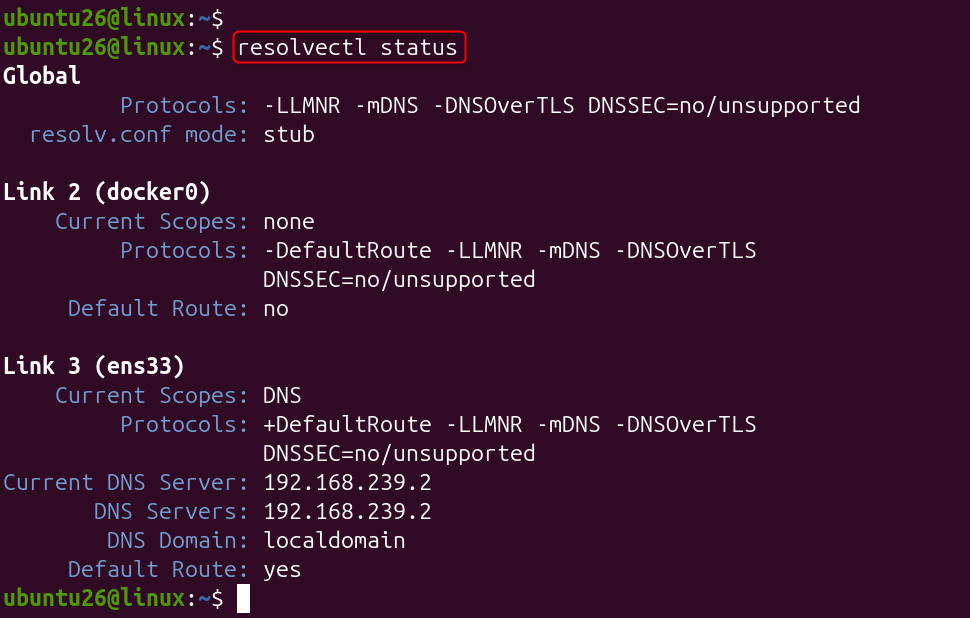
If the public resolver answers and your local one does not, give ChatGPT both outputs along with your /etc/resolv.conf. It can usually spot a wrong nameserver, a stub resolver misconfiguration, or a firewall blocking port 53.
How to Troubleshoot KVM Virtualization Errors on Linux
KVM, short for kernel-based virtual machine, is the virtualization layer built into Linux, and libvirt errors on it can be cryptic. Collect these before asking for help:
lscpu | grep -i virtualization |
|---|


If /dev/kvm is missing on a VPS, the provider has probably not enabled nested virtualization, and no setting on your side will fix it. ChatGPT can explain each line of the virt-host-validate report, which saves a lot of searching.
How to Use ChatGPT to Debug Linux Shell Scripts and Code
The same approach works when a shell script or config template fails. To use ChatGPT to fix a code error, paste the script, the exact error, and the shell it runs under. Run shellcheck script.sh first and include its output, since it points at real problems instead of guesses. Also run bash -n script.sh to catch syntax errors and bash -x script.sh to trace execution. Ask for the smallest possible change as a diff, not a full rewrite, so you can see exactly what moved.
Common ChatGPT Mistakes in Linux Troubleshooting
Knowing the failure patterns protects your server.
- Wrong distribution. It may give you apt commands on a dnf system. Always state your distribution and version.
- Outdated tools. It sometimes suggests ifconfig or netstat when ip and ss are the current tools.
- Invented flags. If a flag looks unfamiliar, check it with man or –help before running it.
- Dangerous shortcuts. Treat these as red flags: chmod -R 777, setenforce 0 offered as a fix, rm -rf with a variable in the path, and iptables -F over an SSH session, which can lock you out.
Keep a second SSH session open whenever you change firewall or sshd settings.
Can You Use ChatGPT Without Logging In?
You can use ChatGPT without logging in in supported regions by opening chatgpt.com and choosing to stay logged out. The trade-offs matter for troubleshooting. You get one conversation at a time, no saved history, and usage limits that OpenAI does not publish and that can change.
Conversations may also be used to improve models unless you opt out in settings. Logged-out access is not a privacy shield, so redact your logs either way. For sensitive systems, run a local model instead, as covered in our guides on running an AI coding assistant on Linux and a private ChatGPT-style assistant on a VPS.
How to Fix ChatGPT Internal Server Errors
Sometimes the assistant is the thing that is broken. If you see an internal server error or a generic something went wrong message, work through these in order:
- Check status.openai.com. If there is an active incident, only waiting helps.
- Start a new chat, since very long conversations can fail.
- Log out completely and sign back in.
- Clear cookies and cache for chatgpt.com, or open a private window.
- Turn off your VPN and disable browser extensions one at a time.
- Try another browser, another network, or your phone.
These steps cover most cases of how to fix a ChatGPT server error. If none of them work and you are mid-incident on a server, switch to the man pages and your own logs rather than waiting.
Conclusion
Using ChatGPT to troubleshoot Linux works best as a disciplined habit. Collect the facts, mask the secrets, ask for ranked causes and read-only checks, and verify every command before it touches a production machine. Used that way, it turns a wall of log text into a short, testable plan. Used carelessly, it is just a faster way to make a mistake. Keep your own judgment in the loop, and keep a second session open.
Frequently Asked Questions
1. Can ChatGPT fix Linux server errors?
It can help you find the cause and suggest a fix, but it cannot see your server. You supply the logs and run the commands, and you decide what is safe. Treat its answers as leads to verify against the official documentation.
2. Is it safe to paste server logs into ChatGPT?
Only after you remove anything sensitive. Mask IP addresses, email addresses, hostnames, tokens, and passwords, and read the file yourself before sharing. For logs you cannot share, use a locally hosted model instead.
3. Can I use ChatGPT without login to troubleshoot Linux?
In supported regions, yes, through the logged-out option on chatgpt.com. You get a single conversation at a time, no saved history, and limits that can change. Redact your logs the same way you would with an account.
4. How do I fix the ChatGPT internal server error?
Check status.openai.com first. If there is no outage, start a new chat, log out and back in, clear cookies for the site, disable your VPN and extensions, and try another browser or network.
5. What logs should I give ChatGPT to troubleshoot a Linux server?
Start with cat /etc/os-release, uname -r, systemctl status for the failing service, and the last 50 to 100 lines of journalctl -xeu service-name. Add dmesg for hardware or memory problems and df -h for disk issues.