You’re not the only one who sees “sudo command not found” when using Debian 13. This problem is most common on new installations, minimal server configurations, or when users accidentally remove sudo. Debian doesn’t enable sudo for new users or the root user by default, so the system might not have it. Once you know why sudo has been missing and how to install it correctly, fixing this problem is simple.
This guide explains all the possible solutions so that you can safely restore sudo.
Table of Contents
Why Sudo Is Missing on Debian 13
You can see an error because:
- sudo package not installed
- Your user does not belong to the sudo group
- The PATH variables in /usr/bin are not working or broken
- Sudo accidentally removed
- You are currently logged in as a non-root user.
You must have root access before you can fix the problem. This could be done directly via console login or indirectly.
How to Fix “sudo: command not found” on Debian 13
Once you have root access, it’s easy to fix the “sudo command not found”. The issue usually occurs when sudo isn’t installed or your user doesn’t have the correct group permissions. You can restore sudo functionality within minutes by installing sudo, adding the user to the sudo group, checking PATH, or fixing package issues. These solutions are available for Debian running on either a VPS machine or a local machine. They ensure that your system is secure and manageable by allowing you to have administrative access.
Solution 1: Install Sudo (When Not Installed)
If you are experiencing the error “sudo command not found”, simply switch to root using su -. Add your regular user to the sudo group by using usermod –aG sudo username. Most of the time, Sudo is not installed.
To fix “sudo: command not found” on Debian 13, follow:
Step 1: Switch to the Root User
You must log in to the system as root if sudo is not available.
|
su – |
|---|


Here,
su – Switches to the root user’s environment and allows you to run commands without sudo.
Step 2: Install sudo
Now, install the sudo package using the commands below:
|
apt update apt install sudo |
|---|

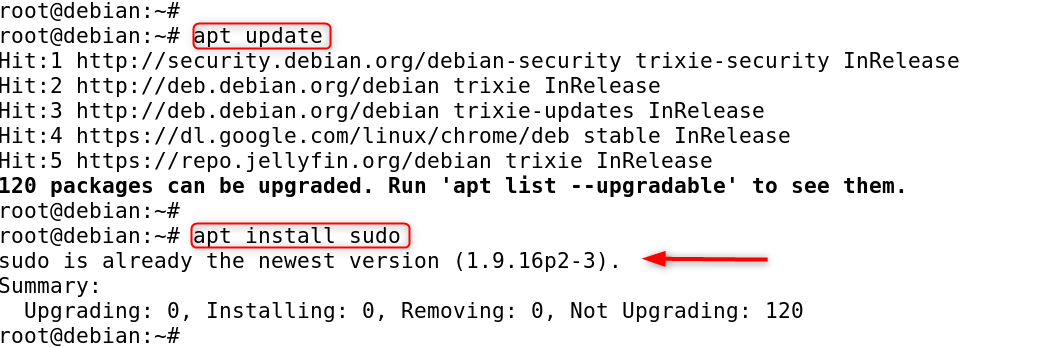
Here,
- apt update refreshes package lists
- The sudo package is downloaded and installed by apt install sudo
- The sudo command will now be available for use.
Solution 2: Add Your User to the Sudo Group
Your user may not have sudo rights even if sudo has been installed.
Step 1: As root, add your user to the sudo group
Please replace username with the actual user name:
|
usermod -aG sudo username |
|---|


Here,
- usermod modifies the user
- -aG sudo adds them to the sudo group
Step 2: Reload group membership
This refreshes the user group without logging out.
|
newgrp sudo |
|---|


Now try:
|
sudo whoami |
|---|


If it shows root, it’s fixed.
Solution 3: Check if Sudo Binary Exists
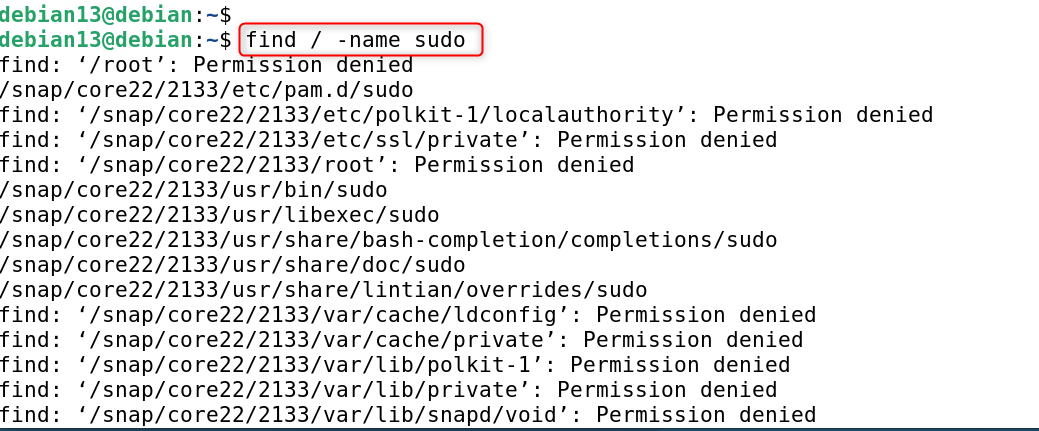
When sudo is not in your PATH, it can be installed. Check if sudo exists:
|
which sudo |
|---|


If the result is blank, try:
|
find / -name sudo |
|---|

Fix PATH (If Binary Exists but Not Detected)
If you have sudo installed but still receive “command not found”, your PATH variable may be broken.
Temporarily fix PATH:
|
export PATH=/usr/local/sbin:/usr/local/bin:/usr/sbin:/usr/bin:/sbin:/bin |
|---|


This restores the standard system paths to Linux so that it can find commands.
To make permanent:
|
echo ‘export PATH=/usr/local/sbin:/usr/local/bin:/usr/sbin:/usr/bin:/sbin:/bin’ >> ~/.bashrc |
|---|


Reload:
|
source ~/.bashrc |
|---|


Solution 4: Reinstall Sudo Completely
If sudo has been corrupted or is partially removed
|
su – apt –reinstall install sudo -y |
|---|

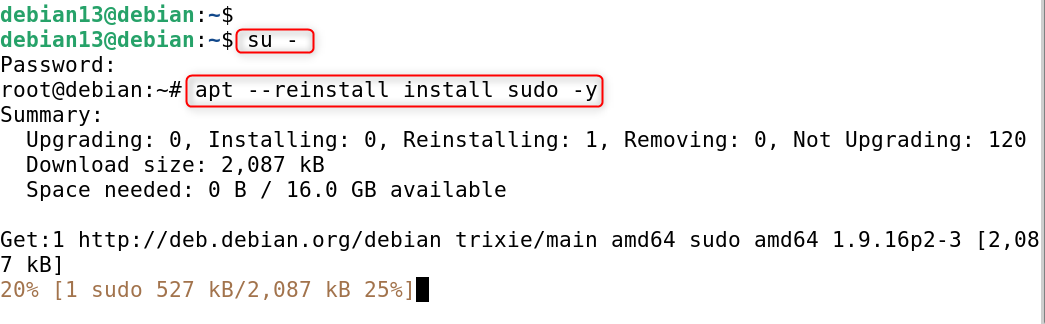
Reinstalls the entire sudo package, without removing any settings.
Solution 5: Fix Broken APT (If Install Fails)
If sudo fails to install due to broken dependencies
|
apt –fix-broken install apt update apt install sudo |
|---|

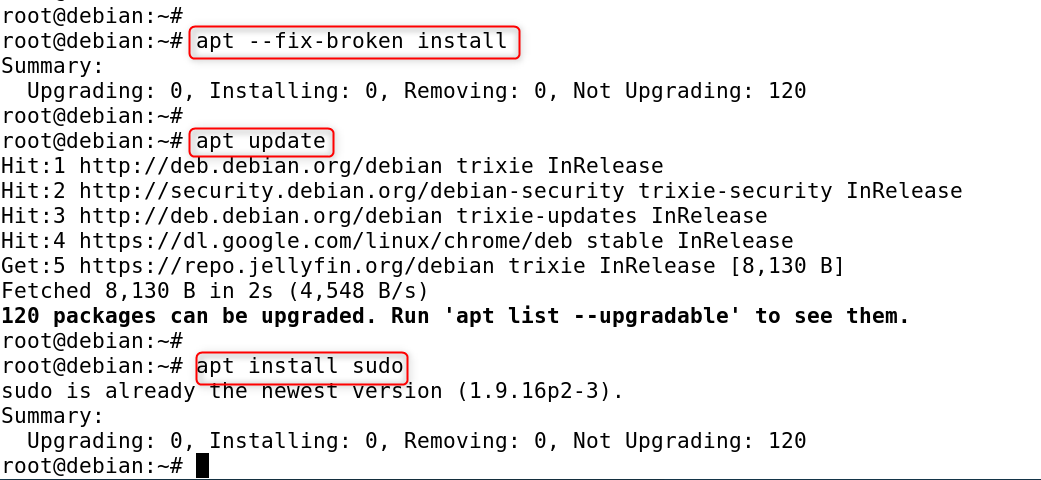
This fixes dependency issues and retries the installation.
Verification: Check If Sudo Is Working
Run:
|
sudo whoami |
|---|


If yes, problem fixed.
Conclusion
To fix the “sudo: command not found” error on Debian 13, simply switch to the root user using su -, install the sudo package with apt update && apt install sudo -y, and then add your regular user to the sudo group using usermod -aG sudo username; if sudo is installed but still not detected, restore your PATH variable by exporting /usr/bin and other system paths, and if sudo is corrupt, reinstall it with apt –reinstall install sudo, ensuring that sudo is fully available and properly configured on your Debian system.