Node.js, a free runtime environment, is used to run JavaScript on the server (independently from a web browser). It is a powerful tool for creating web applications because it can handle multiple requests simultaneously without being blocked. It is also a cross-platform application that can run on Windows, macOS, and various Linux distributions, including Debian 13.
This guide will show you how to install Node.js on Debian 13.
Table of Contents
How to Install Node.js on Debian 13
The easiest way to install Node.js on Debian 13 is to first update your system, then choose either Debian’s default repository or the official NodeSource repo for the latest version. You can install the stable Debian version using sudo apt install nodejs npm, or get the most recent LTS/Current release by downloading and running the NodeSource setup script, followed by sudo apt install nodejs. Once installed, verify it with node -v and npm -v to confirm that Node.js is correctly configured on your Debian 13 system.
Method 1: From the Default Debian Repository
Debian’s default repository includes several software packages, including Node.js. This is the easiest way to install Node.js in Debian 13, but it uses an outdated version. Follow the steps below to install Node.js using the Debian repository:
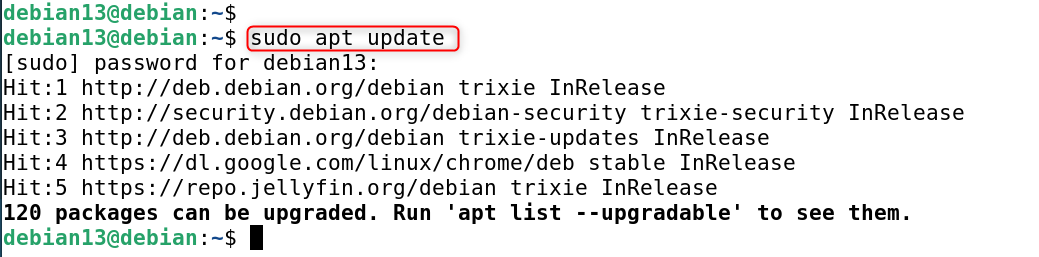
Step 1: Refresh System Packages
Update the Debian system package list first as follows:
|
sudo apt update |
|---|

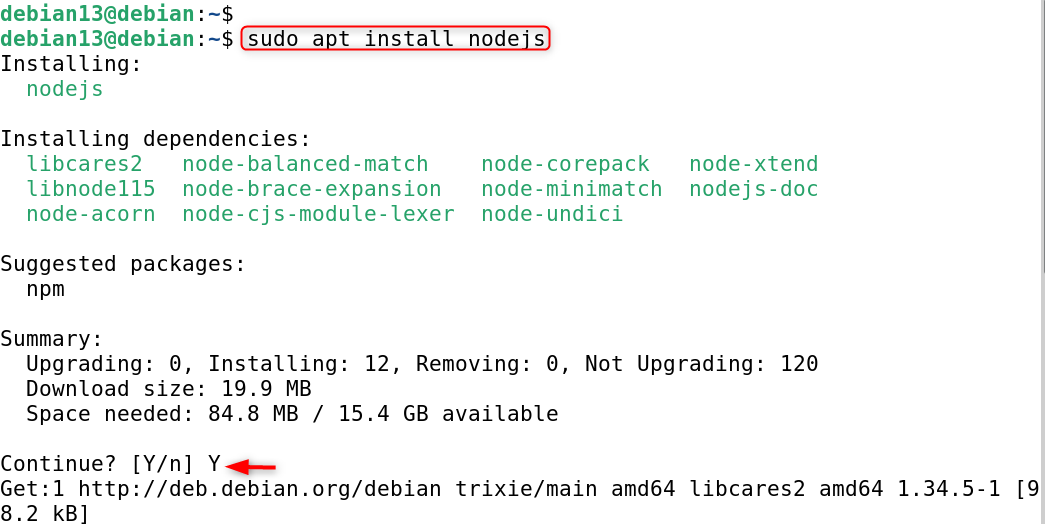
Step 2: Install Node.js on Debian 13
Install the Node.js Package. Install “nodejs” on your Debian 13.
|
sudo apt install nodejs |
|---|

Step 3: Verify Node.js Installation
Check the Node.js version installed to confirm its installation on Debian 13.
|
node –version |
|---|


The output displays the outdated version installed:
Method 2: Using Installation Script
Node.js’s official installation script will automatically install Node.js and all dependencies onto Debian 13 systems. This is the fastest and easiest way to install the latest version of Node.js for Debian 13. The steps are:
Step 1: Download Node.js on Debian 13
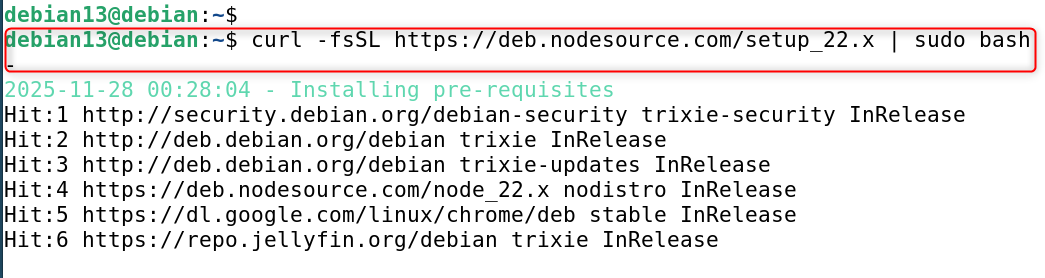
Execute the following command to download Node.js:
|
curl -fsSL https://deb.nodesource.com/setup_22.x | sudo bash – |
|---|

Step 2: Install Node.js on Debian 13
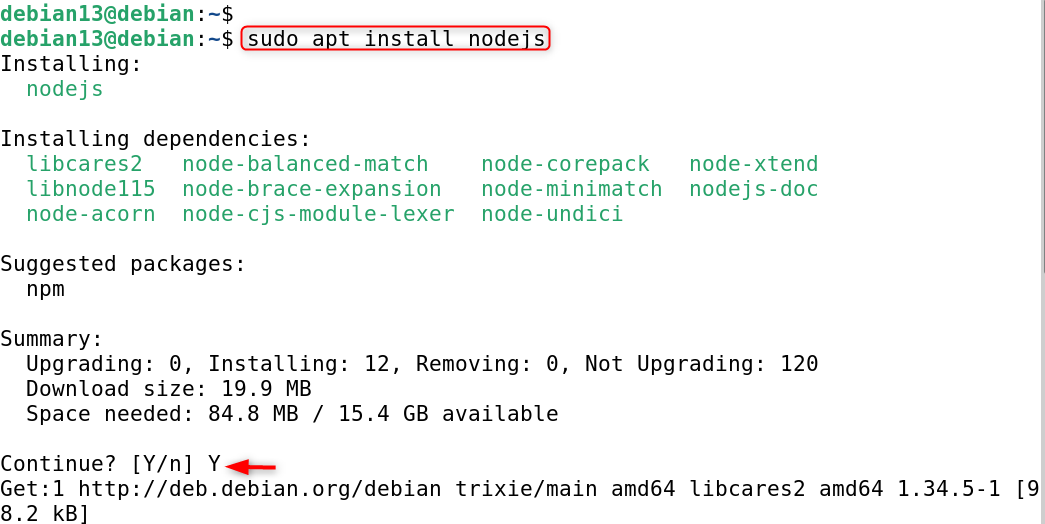
Execute the following command to install Node.js automatically on your Debian 13 System:
|
sudo apt install nodejs |
|---|
Step 3: Verification
This output will show the latest Node.js version installed on your system.
|
node -v |
|---|


Method 3: From NodeSource Repository
Add the NodeSource repository to your system, and you can install Node.js in Debian 13. The manual installation method not only installs the latest Node.js version, but also automatically upgrades it via Debian’s Package Manager. Follow the steps below to install Node.js from the NodeSource repositories in Debian 13.
Step 1: Install Dependencies
Install the required dependencies to install Node.js on your system.
|
sudo apt install ca-certificates curl gnupg -y |
|---|


Step 2: Import NodeSource GPG Key
Import the NodeSource key to verify the integrity of the Node.js package as follows:
|
curl -fsSL https://deb.nodesource.com/gpgkey/nodesource-repo.gpg.key | sudo gpg –dearmor -o /etc/apt/keyrings/nodesource.gpg |
|---|


Step 3: Add NodeSource Repository
Then, add the NodeSource repository (official NodeSource repository) to your Debian 13 installation:
|
NODE_MAJOR=22 |
|---|

![echo "deb [signed-by=/etc/apt/keyrings/nodesource.gpg] https://deb.nodesource.com/node_$NODE_MAJOR.x nodistro main" | sudo tee /etc/apt/sources.list.d/nodesource.list](http://greenwebpage.com/community/wp-content/uploads/2025/12/word-image-15932-9.png)
Step 4: Update System’s Packages
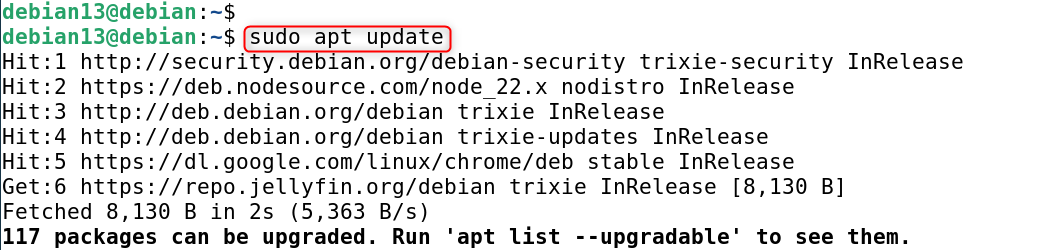
To implement the new changes, you will also need to update your Debian system:
|
sudo apt update |
|---|

Step 5: Install Node.js on Debian 13
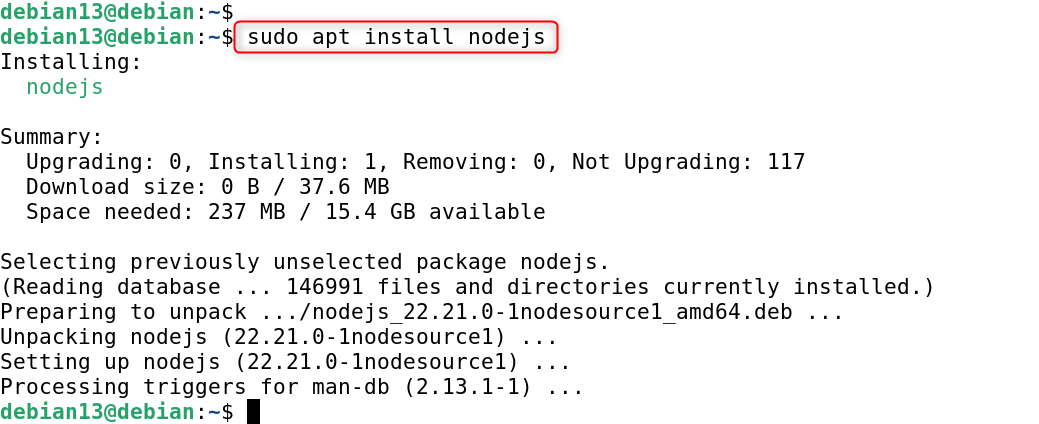
Install Node.js from the NodeSource repository on your Debian 13 System using the command given below:
|
sudo apt install nodejs |
|---|

Step 6: Ensure Installation
Lastly, you can display the Node.js Version to confirm installation.
|
node -v |
|---|


Method 4: From the Source Code
Node.js’s official website provides the source code to install the latest Node.js. This method installs Node.js directly on the Debian 13 System from the source code, but it takes a long time for the user. It is not recommended. The instructions given for Node.js’s installation via its source code can be tried out:
Step 1: Download Node.js Source Code File
Download the latest official Node.js source package using the wget command:
|
wget https://nodejs.org/dist/latest-v25.x/node-v25.2.1.tar.gz |
|---|

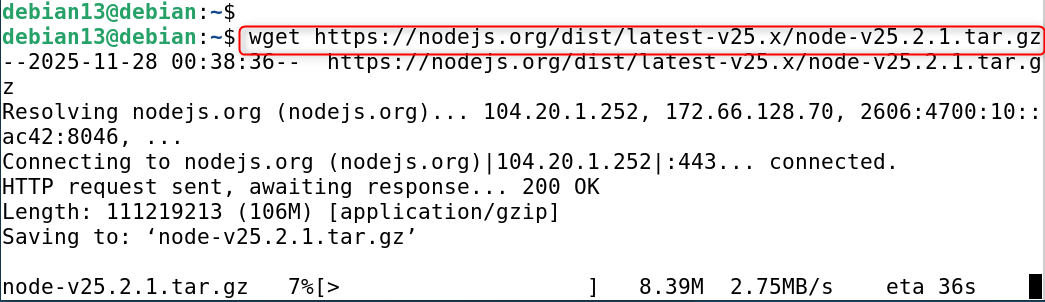
Here, we are downloading the source code file of the latest Node.js version, i.e., “v25.2.1”. Alternatively, download it directly from the official website:
Step 2: Extract Source Code File
Use the “tar” command to extract the Node.js compressed files:
|
tar xzf node-v25.2.1.tar.gz |
|---|


Step 3: Install Required Dependencies
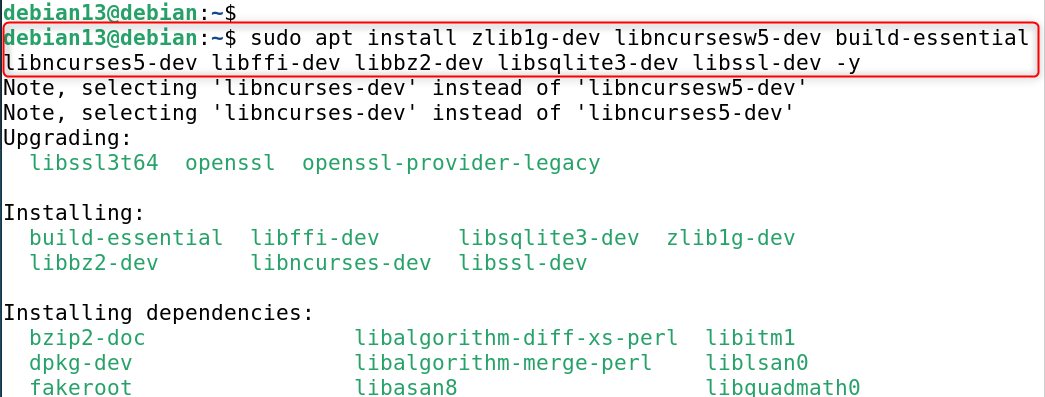
Install the following dependencies to compile source code on your Debian-based system:
|
sudo apt install zlib1g-dev libncursesw5-dev build-essential libncurses5-dev libffi-dev libbz2-dev libsqlite3-dev libssl-dev -y |
|---|

Step 4: Start Configuration Process
You need to navigate through the extracted directory using the following command:
|
cd node-v25.2.1 |
|---|


Start the configuration process.
|
./configure |
|---|


Step 5: Compile and Build Source Code
Use the command below to begin the parallel compilation process and create the files necessary for Node.js:
|
make -j 3 |
|---|

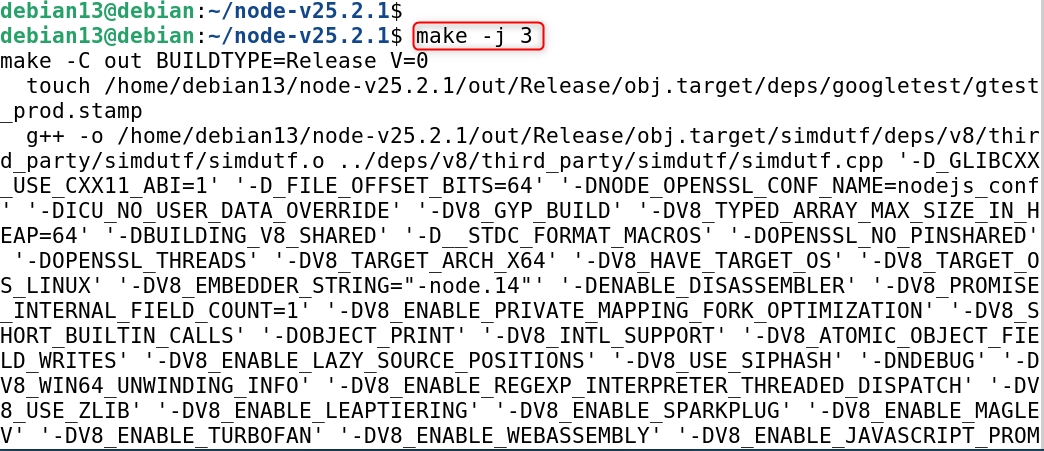
Note: The process may take several hours to complete.
Step 6: Install Node.js on Debian 13
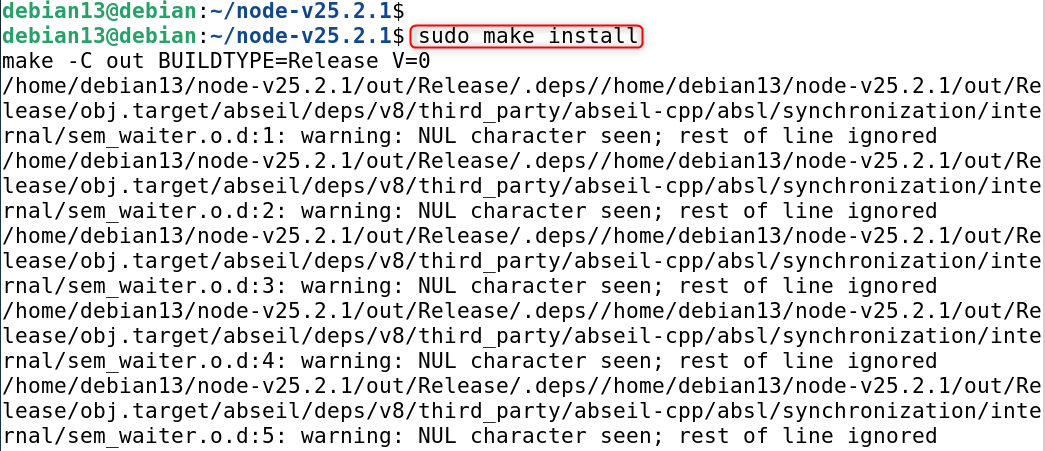
Install Node.js using the following command on Debian 13:
|
sudo make install |
|---|

Step 7: Verification
Check the installed version of Node.js to ensure it has been successfully installed:
|
node -v |
|---|


Method 5: Using the Node Version Manager
Node Version Manager is a tool that allows users to switch easily between different Node.js versions on their system. The Node Version Manager allows you to install and use different Node.js without interfering. Follow these steps:
Step 1: Download and Install NVM on Debian 13
You need to first download the NVM (Network Virtual Machine) from GitHub, and then install it using the following command on your Debian 13 System:
|
curl https://raw.githubusercontent.com/nvm-sh/nvm/master/install.sh | bash |
|---|

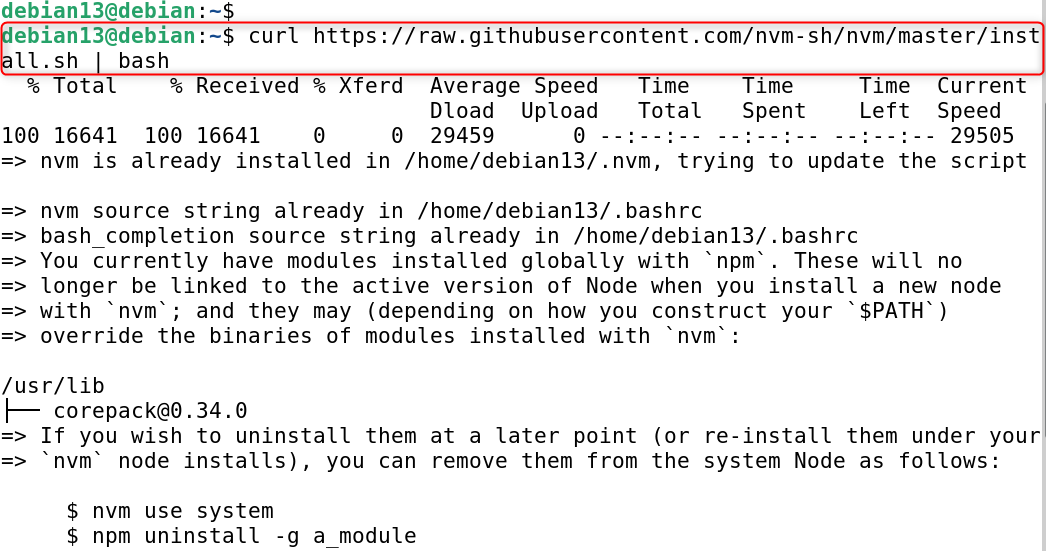
Type the command below or restart the terminal to save your changes.
|
source ~/.bashrc |
|---|


Step 2: List Available Node.js Versions
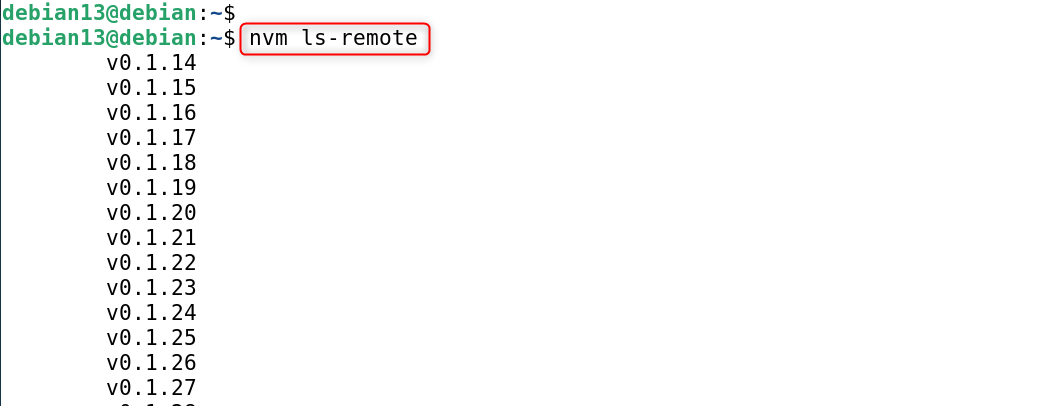
Choose the Node.js version you wish to install on Debian 13:
|
nvm ls-remote |
|---|

Step 3: Install Node.js
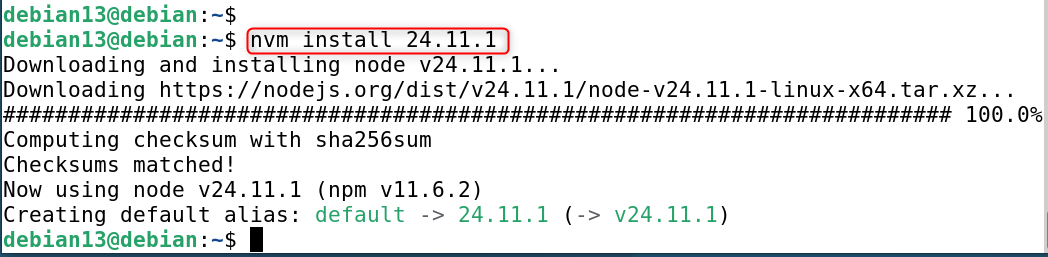
Use the “nvm Install” command to install the specific Node.js version. Then, specify the version you want to install. We are now downloading “24.11.1”, the Node.js Version:
|
nvm install 24.11.1 |
|---|

You can also verify Node.js versions:
|
node -v |
|---|


How to Remove Node.js From Debian 13
You can uninstall/remove Node.js from your Debian 13 computer based on how you installed it. The following are the Node.js Removal Methods on Debian 13.
If Installed From the Debian/NodeSource Repository or Installation Script
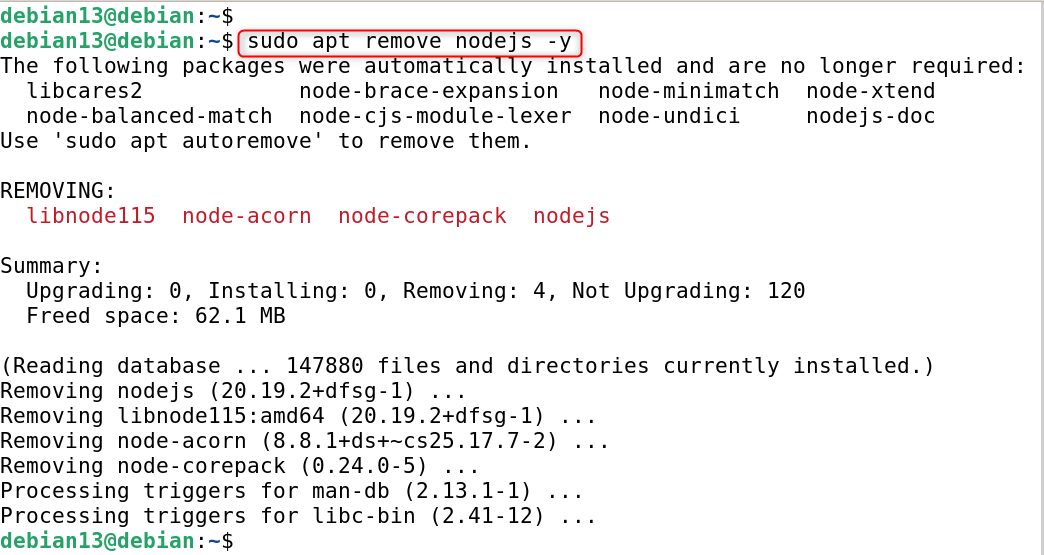
Use the following command to uninstall Node.js installed by default from Debian, the installation script, or the NodeSource repository:
|
sudo apt remove nodejs -y |
|---|

Remove the NodeSource repository as well as the GPG key.
|
sudo rm -r /etc/apt/sources.list.d/nodesource.list && sudo rm -r /etc/apt/keyrings/nodesource.gpg |
|---|


If Installed From Source Code
Use the following command to remove Node.js if you installed it using the source code:
|
sudo find /home/debian13 -depth -iname ‘node*’ -exec rm -rf {} \; |
|---|


Please replace “/home/debian13/” with the desired directory path.
If Installed Using Node Version Manager(NVM)
You can uninstall Node.js from your system if it is installed via NVM. Use the “nvm Uninstall” command. If you wish to remove the current version, you must first deactivate it.
Check out the current version by:
|
nvm current |
|---|


Deactivate the version you are using by executing the command given:
|
nvm deactivate |
|---|


This article covers the installation and use of Node.js in Debian 13.
Conclusion
Node.js can be installed on Debian 13 using the NodeSource repository or source code. The installation script method and the NodeSource repository method provide the most recent and current version of Node.js for the Debian 13 operating system. The Node Version Manager method is another way to install multiple Node.js versions and switch to your desired version. This guide has explained how to install, remove, and use Node.js in Debian 13.